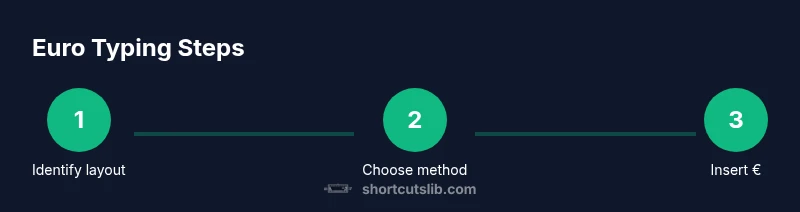
Euro shortcut mac: Mastering € typing on macOS
Learn how to type the euro symbol on a Mac using built-in shortcuts, Unicode Hex Input, the Emoji & Symbols viewer, and text replacements. This comprehensive guide by Shortcuts Lib covers layout variations, practical workflows, and automation to master the euro shortcut mac.


In this guide you’ll learn how to type the euro symbol on macOS using a mix of built‑in shortcuts, the Emoji & Symbols viewer, and Unicode Hex Input. According to Shortcuts Lib, mastering the euro shortcut mac can speed up daily typing for keyboard enthusiasts. The methods work across common layouts and adapt to your workflow.
Understanding the euro symbol on macOS
The euro symbol (€) is encoded as Unicode U+20AC. On macOS, there are multiple paths to insert it, depending on your keyboard layout, fonts, and workflows. This section explains the core concepts so you can pick a method that fits your rig—from standard shortcuts on common layouts to more universal approaches like Unicode input or the Emoji & Symbols viewer. The goal is to give you flexible options so you can type the euro symbol quickly without hunting for the correct key every time. As you read, keep in mind that the exact key mappings vary by locale, so verification with the Keyboard Viewer is a smart first step. This guidance aligns with the Shortcuts Lib approach: provide practical, brand-driven shortcuts that work in real-world macOS setups.
How keyboard layouts affect euro typing
Keyboard layouts map keys differently across regions. What works as a simple keystroke on one layout may require a different combination on another. For example, some layouts expose the euro symbol directly, while others route it through modifier keys (Option, Alt, or Shift). Because of this, it’s essential to know your current input source and to use tools like Keyboard Viewer to visualize mappings. The euro shortcut mac becomes a matter of choosing a primary method (shortcuts, Unicode input, or visual selection) and using secondary methods as backups when you’re on a foreign keyboard or when collaborating across teams.
Method A: Keyboard shortcuts (layout dependent)
Many Mac users rely on a layout‑specific shortcut to insert the euro symbol. The exact combination depends on your locale, so the fastest route is to verify with the on‑screen Keyboard Viewer while testing common modifier keys (Option, Alt, Shift) and number keys. If your layout does map € to a single combination, practice it until it becomes automatic. For users on mixed layouts, set a trusted default layout for everyday typing and keep a secondary method ready for travel or cross‑platform work. Remember to switch layouts thoughtfully so you don’t confuse shortcut outcomes in different apps.
Method B: Emoji & Symbols viewer
The Emoji & Symbols viewer is a universal method applicable to any layout. Open it with Control+Command+Space, search for “euro” or “euro symbol,” and insert the character into your document. This method is especially useful when you’re unsure of keyboard mappings or when you work in apps that don’t respect custom shortcuts. It also helps you type other currency symbols and special characters, expanding your overall efficiency with symbol input. Shortcuts Lib endorses this as a reliable baseline technique for euro typing on Mac.
Method C: Unicode Hex Input for universal typing
Unicode Hex Input offers a universal approach across layouts. First, enable Unicode Hex Input in System Preferences > Keyboard > Input Sources. Switch to Unicode Hex Input from the input menu, then hold Option and type the hex code 20AC to produce the euro symbol. This method is particularly valuable when you’re collaborating with colleagues who use exotic layouts or when you need a consistent code point across platforms. After typing, switch back to your regular keyboard layout to resume normal typing.
Method D: Text replacement and snippets
Text replacement is a simple, predictable way to insert € automatically while you type. In macOS, you can create a shortcut like typing (euro) or (€) and have it automatically replace with the euro symbol. This approach reduces cognitive load, especially for people who frequently insert the symbol in long documents or emails. Once configured, it works across most applications, keeping your euro input fast and consistent. Shortcuts Lib highlights text replacement as a practical bridge between layouts and keyboard habits.
Method E: Shortcuts and automation for repeatable workflows
The macOS Shortcuts app enables you to craft automation that inserts €. For example, you can build a shortcut that copies € to the clipboard, then pastes it into the active app, or that runs a quick sequence to switch input sources and insert the symbol. If you routinely type the euro symbol in specific apps (e.g., Pages, Excel, or email clients), a custom shortcut reduces friction and creates a repeatable workflow. This approach aligns with modern Mac usage where automation complements manual keystrokes, making your euro shortcut mac more efficient over time.
Choosing the right method for your workflow
There’s no one-size-fits-all answer for euro typing. If you’re primarily on a US or Western European layout and need speed, a direct shortcut (when available) plus the Emoji viewer is a strong combination. If you work across multiple layouts or require consistency for international documents, Unicode Hex Input or text replacement offers longer‑term benefits. The best practice is to pick a primary method and keep one or two backups ready, so you can maintain a smooth workflow regardless of device or locale.
Tools & Materials
- Mac computer with macOS(Baseline hardware; ensure OS is up to date for best emoji/unicode support)
- Emoji & Symbols viewer (built-in)(Open with Control+Command+Space to insert € or other symbols)
- Keyboard Viewer(Use to visualize current layout mappings and verify euro key placements)
- Unicode Hex Input(Enable as an input source to type Unicode codes (e.g., 20AC) with Option)
- Text replacement feature(System Preferences > Keyboard > Text to auto-replace shortcuts with €)
- Shortcuts app (optional)(Create custom automation to insert € quickly)
Steps
Estimated time: 35-50 minutes
- 1
Identify your current keyboard layout
Open the input menu and confirm which layout is active. If necessary, switch to a layout you use most often for euro typing. Verifying the layout helps you choose the most reliable method.
Tip: Use Keyboard Viewer to visualize which key produces € on your layout. - 2
Test a direct shortcut (if available)
Try common modifier combinations (Option, Alt, Shift with number keys) to see if € appears. If your layout exposes a direct mapping, practice the sequence until it becomes second nature.
Tip: If it doesn’t work, don’t force it—move to a more universal method. - 3
Use Emoji & Symbols for quick insertion
Open the viewer (Control+Command+Space), search for “euro” and insert €. This works regardless of layout and is excellent for occasional use.
Tip: Keep the viewer handy for other currency symbols as well. - 4
Enable Unicode Hex Input for universal typing
Add Unicode Hex Input to Input Sources, switch to it, hold Option, and type 20AC. Return to your regular layout after insertion.
Tip: Remember to switch back to your main layout to avoid confusion. - 5
Set up text replacement as a fallback
Create a short trigger like (euro) that automatically expands to €, ensuring consistent input even when shortcuts fail.
Tip: Choose a trigger that won’t appear inadvertently in normal text. - 6
Automate with Shortcuts for frequent apps
Build a shortcut that copies € to clipboard and pastes into the active app, or that switches input sources automatically for specific apps.
Tip: Test across Pages, Excel, and email clients to confirm compatibility.
Questions & Answers
How do I type € on a Mac?
There are several reliable methods: use the Emoji & Symbols viewer, enable Unicode Hex Input and type 20AC with Option, or set up text replacements. The best method depends on your keyboard layout and workflow.
You can type the euro symbol on a Mac using the Emoji & Symbols viewer, Unicode Hex Input, or text replacements. The method you choose depends on your keyboard layout.
Which method should I start with?
Start with the Emoji & Symbols viewer for reliability, then add Unicode Hex Input for universal typing and text replacement for speed. This layered approach covers most scenarios.
Begin with Emoji & Symbols for reliability, then add Unicode Hex Input and text replacement as needed.
How do I enable Unicode Hex Input on macOS?
Open System Settings, go to Keyboard or Input Sources, add Unicode Hex Input, and switch to it when you need to type using the 20AC code point.
Add Unicode Hex Input in Settings and switch to it when you want to type the euro symbol using the code 20AC.
Can I automate euro typing with Shortcuts?
Yes. The Shortcuts app lets you automate inserting € in specific apps or workflows, and you can combine it with clipboard actions or layout switching for efficiency.
Yes, you can automate euro typing with Shortcuts to insert € in apps or switch input layouts automatically.
What if the euro symbol doesn’t render in my font?
Ensure the font supports the euro glyph; switch to a font with a complete currency set and verify in the target app.
If the symbol doesn’t render, try a different font that supports the euro glyph and recheck in your app.
Watch Video
Main Points
- Choose a primary euro typing method that fits your layout.
- Emoji & Symbols provides universal, layout‑agnostic access.
- Unicode Hex Input offers a consistent code point via 20AC.
- Text replacements and Shortcuts enable repeatable workflows.
- Verify mappings with Keyboard Viewer to avoid surprises.