YouTube Keyboard Shortcuts Speed: Master Quick Controls
Learn how to speed up your YouTube navigation with keyboard shortcuts. This guide breaks down core keys, cross‑platform differences, practical drills, and a step‑by‑step practice plan from Shortcuts Lib.


You can dramatically speed up YouTube navigation by mastering a core set of keyboard shortcuts for play/pause, skip forward/back, volume control, captions, and full-screen toggle. This Shortcuts Lib guide highlights the fastest keys, notes platform differences (Windows vs macOS), and a practical drill to build fluency in under 20 minutes. With consistent practice, you’ll browse, seek, and manage playback without touching the mouse.
Why speed matters on YouTube
In the realm of video consumption and content creation, achieving youtube keyboard shortcuts speed can transform how you watch, learn, and decide what to save for later. According to Shortcuts Lib, a focused set of keys can slash the time you spend searching, pausing, or adjusting volume. The payoff isn’t just convenience; it’s better retention, quicker comparisons across clips, and a smoother workflow when researching or editing. If you frequently skim long videos, curate playlists, or annotate moments for later, faster navigation compounds into real productivity gains. In this guide, you’ll see how small, repeatable actions compound into a notable edge for any power user.
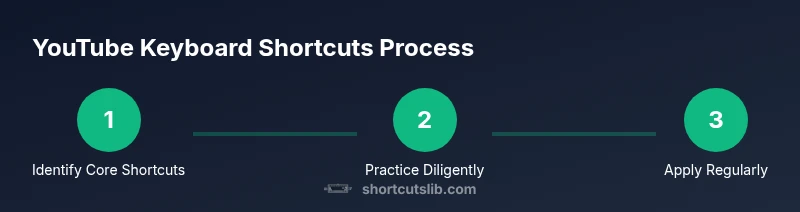
The Shortcuts Lib team found that dedicated practice with a limited shortcut set yields faster, more natural instinct than sporadic use of a larger, generic keyboard repertoire. Start by committing a compact core, then layer on platform-specific tweaks. The aim is fluency: you should be able to control playback, seek, and adjust essential parameters without looking down at the keyboard.
Core shortcut categories
YouTube shortcuts cluster into five practical groups: playback controls, seeking, volume management, captions and accessibility, and display modes. Playback shortcuts let you start or pause instantly, hands-free. Seeking lets you skip to precise moments in a video, or jump forward/back in set increments. Volume shortcuts enable quick loudness adjustments without fumbling. Caption toggles offer accessibility and multilang support on the fly. Display-mode shortcuts control fullscreen, theater mode, or mini player for multitasking. Mastery of these categories creates a fast, reliable workflow that scales from quick tutorials to long-form lectures. When you combine these with a few platform-specific tweaks, you’ll notice a meaningful boost in your day-to-day video work.
Windows vs macOS shortcuts differences
Shortcuts on Windows and macOS map to the same core actions but with key differences that affect speed. For example, play/pause often uses K on many platforms, while Space may be used in browsers for the same action. Jump forward/back might rely on J/L or the arrow keys depending on your browser and OS. Volume control tends to use the Up/Down arrows on Windows and macOS, but some setups route these through OS-level media keys or browser extensions. The key takeaway: learn the platform-specific map first, then practice switching between layouts without thinking. This reduces cognitive load and improves your overall speed when you move between devices or share content across teams.
Getting started: quick-start checklist
Before you begin, set up a dedicated practice video and a distraction-free browser window. Create a 5-minute drill focusing on 4–6 core shortcuts (play/pause, seek ±10s, volume, captions). Maintain a consistent posture and keep your hands near the home row to minimize finger travel. Set a timer and repeat the drill daily for a week. You’ll build muscle memory through deliberate repetition, not passive exposure. The goal is to reach a state where the right key is nearly automatic, so your eyes can stay on the video content.
Practical cheat sheet for YouTube playback
This section highlights the shortcut keys you’ll rely on most. Space or K toggles play/pause. J and L rewind/fast-forward by 10 seconds (or 5/15 seconds in certain browsers). Arrow Up/Down adjust volume, while M mutes/unmutes. 0–9 seek to a percentage of the video (0 restarts, 9 jumps near the end). F toggles fullscreen, and T toggles theater mode. C toggles captions on/off if captions are available. Use Shift+N for next video in some playlists, depending on your browser and YouTube version. Practice these in order, then add one or two advanced shortcuts from your daily routine.
Tips for tricky steps and common pitfalls
Initial memorization can feel slow. Break learning into micro-sessions of 5–10 minutes, then ramp up. Some shortcuts conflict with browser or OS shortcuts—disable conflicting bindings or use browser extensions that remap keys safely. If a video uses a non-standard player, shortcuts may behave differently; test on multiple videos to confirm behavior. For accessibility, enable captions and ensure your keyboard only controls YouTube when the video is in focus, not when you’re typing elsewhere.
Accessibility considerations when using shortcuts
Keyboard shortcuts can dramatically improve inclusivity for viewers with mobility or visual challenges. Ensure your shortcut set remains discoverable by providing quick on-screen hints or a personal cheat sheet. When working across devices, verify that screen readers and keyboard navigation remain synchronized with YouTube’s controls. If a site update changes mappings, maintain a short update log so your workflow doesn’t regress.
Real-world use cases: creators and researchers
Content creators rely on quick navigation to compare editing styles, locate cut points, and annotate timestamps for collaborators. Researchers can skim long lecture videos to extract key moments, measure pacing, or compile timestamped notes. The common thread is a lean, repeatable control scheme that reduces friction between content exploration and note-taking. By building proficiency, teams can review more material in less time and align on decisions faster.
Validation: measuring speed gains after practice
Track improvement with a simple before/after approach: measure the time it takes to perform a fixed set of actions (play/pause, seek, caption toggle) on a target video. Use a stopwatch or a timer app, then repeat after a 15-minute practice session. A consistent improvement in speed demonstrates the value of the shortcut set and helps you refine your routine. If progress stalls, review the mapping for conflicts and revisit the core drills.
Next steps: practice plan and habit building
Turn shortcut practice into a weekly habit. Schedule 3–4 short practice sessions and one longer weekly review to refresh mappings and add a couple of personalized shortcuts that fit your workflow. Use a dedicated keyboard shortcut cheat sheet and keep it visible while you work. Over time, you’ll reach a point where your YouTube interactions feel almost automatic, freeing cognitive effort for the content itself.
Tools & Materials
- Computer or tablet with a modern web browser(Stable internet connection; YouTube access)
- Dedicated practice video (same video length for consistency)(Choose a video you can pause, replay, and annotate)
- Post-it or digital cheat sheet(List core shortcuts for quick recall)
- Timer or stopwatch(Used for the 5-minute drills and progress checks)
Steps
Estimated time: 30-45 minutes
- 1
Open YouTube video in a focused window
Launch a video in a clean browser window with no ads or distractions. This ensures your keyboard focus remains on the video player when testing shortcuts.
Tip: Keep a dedicated bookmark to your practice video for quick repeat sessions. - 2
Memorize the core keys
Review the core shortcut set and place it where you can see it during practice (screen, sticky note, or cheat sheet).
Tip: Use mnemonic cues to remember mappings, like K for keep playing and Space for pause. - 3
Test play/pause with K or Space
Click inside the video player and press K or Space to toggle playback. Confirm it works without selecting other UI elements.
Tip: If the key doesn’t work, ensure the video has focus and there’s no conflicting browser shortcut. - 4
Practice seeking with J/L
Press J to rewind 10 seconds and L to fast-forward 10 seconds. Repeat until you can time the jumps precisely.
Tip: For longer videos, adjust to -5s or +5s if available in your browser setup. - 5
Adjust volume with Up/Down
Use the Up and Down arrow keys to raise or lower volume in small increments. Do this while listening for audio clarity.
Tip: If the volume bar doesn’t appear, focus the video player first or use a browser with media-key support. - 6
Toggle captions and modes
Press C to toggle captions and F to switch fullscreen. Test both to verify behavior across videos.
Tip: Not all videos have captions; verify caption availability first to avoid confusion. - 7
Run a 5-minute drill
Set a timer for 5 minutes and perform a rapid cycle of the core shortcuts on multiple segments of the video.
Tip: When you stumble, pause, and replay the segment to reinforce the mapping. - 8
Validate cross-device consistency
Repeat the drill on another device (e.g., laptop to tablet) to ensure the mappings work across platforms.
Tip: Document any platform-specific differences to keep your cheat sheet updated. - 9
Incorporate shortcuts into daily use
Shift from occasional practice to habitual use in normal viewing, not just test scenarios.
Tip: Set a monthly reminder to refresh the core shortcuts and update your cheat sheet.
Questions & Answers
What is the fastest way to learn these shortcuts?
Start with a core set of shortcuts and practice them in small, timed drills daily. Build muscle memory before expanding to additional keys.
Begin with a core set and practice daily to build quick recall.
Do shortcuts differ on mobile devices?
Mobile YouTube apps rely more on touch gestures; keyboard shortcuts are primarily for desktop browsers.
Keyboard shortcuts are mainly for desktop; expect limited mobile support.
Can I customize YouTube shortcuts?
YouTube provides built‑in shortcuts; there is no official in‑site remapping feature. You can use browser extensions to map keys, but this may vary by browser.
YouTube uses built‑in shortcuts; customizing isn't supported through YouTube itself.
How can I test shortcut speed improvements?
Time a fixed sequence of actions (play/pause, seek, captions) before and after a short practice session. Compare results to quantify gains.
Use a timer to compare your before/after performance on a standard task.
What if shortcuts don't work in a video?
Some videos or players may disable certain shortcuts. Try refreshing the page or testing with a different video to isolate the issue.
If shortcuts fail, try another video or refresh the page to troubleshoot.
Watch Video
Main Points
- Learn the core shortcuts and platform mappings
- Practice daily to build muscle memory
- Apply shortcuts across devices for consistency
- Use a visible cheat sheet to reinforce recall
- Measure progress with quick timed drills