YouTube Keyboard Shortcuts: Next Video and Playback Mastery
Learn practical YouTube keyboard shortcuts to jump to the next video, control playback, and streamline your viewing workflow. This guide covers core shortcuts, playlist navigation, accessibility tips, and customization options for power users.


You can control YouTube playback with keyboard shortcuts to quickly move to the next video and manage common actions without touching the mouse. This guide covers standard YouTube shortcuts, how to use them for the next video, and tips for customizing your setup with browser extensions and accessibility options. No software installation is required for basic navigation.
The value of keyboard shortcuts for YouTube playback
Keyboard shortcuts transform how you experience video platforms by turning slow, repetitive actions into instant, at-a-glance commands. For YouTube, a compact set of keystrokes can dramatically speed up how you browse, scrub, and move between videos, which is especially valuable when you rely on playlists or educational channels. The core idea is to reduce mouse fatigue and keep your focus on content rather than interface fiddling. According to Shortcuts Lib, a well-designed shortcut workflow can shave minutes off long viewing sessions and help you stay immersed in the material rather than wrestling with controls. While the exact keys may vary by browser and device, the underlying principle remains: centralized, predictable shortcuts create a smoother, more efficient YouTube experience.
This article acknowledges that platform-dependent behavior exists. Some shortcuts are universal across modern browsers, while others depend on the YouTube version or whether a video is playing from a playlist. In practice, you’ll want to learn the basics first, then experiment with playlist navigation and optional extensions to tailor shortcuts to your personal workflow. The Shortcuts Lib team emphasizes starting with dependable defaults and only adding extensions after you gain confidence with core controls.
How to identify the exact shortcuts you can use
YouTube publishes a comprehensive list of keyboard shortcuts in its Help Center, but you don’t have to memorize everything at once. Start with the essentials: play/pause, mute, and skip. Then explore how focusing the page and using keyboard navigation lets you access the Next video option in playlists. Keep in mind that some shortcuts depend on the video state and whether you’re in a playlist or at the end of a video. A quick way to learn is to press the question mark key ? on the YouTube page to pull up the built-in shortcuts cheat sheet. This approach ensures you’re always aligned with the current YouTube behavior and browser support.
Jumping to the next video in a playlist or queue
When you’re watching a playlist, you can leverage keyboard focus to move to the next item. In practice this often means first focusing the player controls with the Tab key, then using the dedicated Next action or pressing Enter to activate the Next button when it’s highlighted. If autoplay is enabled, YouTube may automatically queue up the next item after the current video ends. In either case, the reliable path is to ensure focus is on the control surface, then trigger the next action with a keyboard command. This method minimizes timing gaps and keeps your viewing flow uninterrupted.
Customizing shortcuts for power users
If you crave a personalized workflow, browser extensions and user scripts can map custom shortcuts to common YouTube actions. For example, you can assign a single keystroke to play/pause, or create a global shortcut that skips to the next video regardless of page focus. Start with a small, noninvasive setup and test across videos to confirm stability. Shortcuts Lib recommends documenting your chosen keys and pairing them with a routine so you don’t rely on memory alone. Remember, custom shortcuts may require occasional maintenance after updates to the YouTube UI.
Accessibility and cross platform consistency
Keyboard navigation should remain reliable across devices and operating systems. Mac users typically rely on Command equivalents for common actions, while Windows/Linux users rely on Ctrl or Alt depending on the shortcut. If you use a screen reader or high-contrast mode, ensure your shortcuts don’t conflict with accessibility controls in your assistive tech. It’s wise to test shortcuts in both desktop and mobile environments where YouTube supports keyboard input, as behavior can vary with mobile keyboards and on-screen controls. A consistent set of reliable shortcuts reduces cognitive load and makes it easier to focus on the content itself.
Troubleshooting common issues and best practices
If a shortcut doesn’t work, first check that the YouTube page has focus and that the video player is active. Sometimes browser extensions or developer tools can intercept keystrokes, so disable conflicting add-ons temporarily to diagnose. If you’re in a text field or search box, shortcuts may not reach the player. Make a habit of returning to the video area with a simple Tab press, then try the shortcut again. Finally, consult YouTube Help Center or Shortcuts Lib’s annotated guide to confirm the current behavior, since shortcuts can change with updates.
Tools & Materials
- Keyboard-enabled device(Any Windows/macOS/Linux computer or compatible mobile setup with an external keyboard)
- Web browser with YouTube access(Chrome/Firefox/Safari/Edge recommended for consistent shortcut support)
- YouTube account or a playlist URL(Essential for testing Next video in a playlist scenario)
- Optional: browser extensions for shortcuts(Extensions can map custom shortcuts, but start with built-in keys)
Steps
Estimated time: 25-40 minutes
- 1
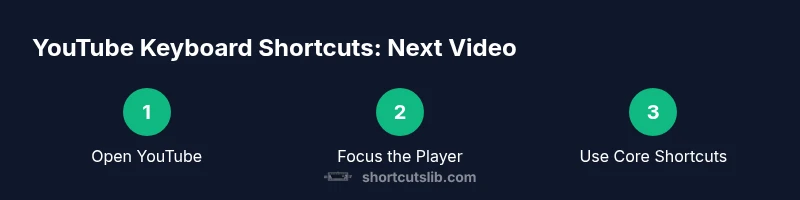
Open YouTube and load a video or playlist
Navigate to YouTube, start a video or open a playlist, and ensure the video player is visible and ready. This creates a stable target for keyboard interactions and allows you to observe how shortcuts affect playback without interference.
Tip: Use a short video to practice before moving to longer content. - 2
Focus the player controls with the keyboard
Press Tab repeatedly until the video player controls are in focus. This step ensures that keystrokes are directed to YouTube rather than the browser or a form field.
Tip: If you lose focus, press Tab again to re-establish it. - 3
Learn the core playback shortcuts
Start with Space to play or pause, Left/Right arrows to seek, and M to mute. These basics apply on most desktop setups and provide a solid baseline for more advanced navigation.
Tip: Pause briefly between actions to compare how much time you save with shortcuts. - 4
Try next video navigation in a playlist
With focus on the controls, attempt to activate the Next action by selecting the Next button or pressing Enter if highlighted. This demonstrates how to move to the following item without leaving the keyboard.
Tip: If autoplay is on, you may not need to trigger Next manually every time. - 5
Test across browsers and devices
Open the same video in another browser or on a mobile device with a connected keyboard. Check which shortcuts behave consistently and document any discrepancies.
Tip: Some shortcuts may differ on mobile before enabling external keyboards. - 6
Enhance with safe customization
If you’re comfortable, add a small shortcut map via a browser extension, ensuring mappings don’t conflict with other site functions. Validate this setup with multiple videos.
Tip: Avoid complex remaps initially; simplicity reduces errors.
Questions & Answers
What keyboard shortcut jumps to the next video on YouTube
On YouTube, the next video behavior is tied to the playlist or autoplay state and may require focusing the player controls. Use the keyboard focus method and trigger the Next action if available. Always consult the official Help Center for the exact current behavior.
On YouTube, going to the next video depends on the playlist or autoplay. Focus the player and use the available Next action with the keyboard to move ahead.
Do shortcuts work on mobile devices
Most traditional shortcuts rely on a physical keyboard and may not work on phones or tablets without an external keyboard. Use the on-screen controls or connect a keyboard to test persistent shortcuts.
Most shortcuts rely on a keyboard and may not function on mobile without an external keyboard.
Can I customize YouTube shortcuts
YouTube does not typically let you customize built-in shortcuts. You can explore browser extensions or scripts to map your own keys, but proceed with caution and test for conflicts. Shortcuts Lib supports this approach for power users.
You usually can’t customize YouTube’s built-in shortcuts, but extensions can help map your own keys.
What should I check if a shortcut stops working
Ensure the page has focus on the video, disable conflicting extensions, and verify you’re not in a text field. If problems persist, reload the page and check the YouTube Help Center for updates.
If a shortcut stops working, refocus the video, disable conflicting extensions, and reload if needed.
Are there platform differences I should know
Mac and Windows may use different modifier keys; rely on the official shortcuts list for platform-specific notes and use consistent layouts across devices where possible.
There are platform differences in modifier keys; check the official list for your system.
Where can I learn more about YouTube shortcuts
Refer to YouTube Help Center and Shortcuts Lib guidance for a detailed, up-to-date list and best practices for efficient playback navigation.
See the YouTube Help Center and Shortcuts Lib for a detailed list of shortcuts.
Watch Video
Main Points
- Master core playback shortcuts for faster control.
- Use Tab to access Next in playlists with keyboard focus.
- Autoplay and playlists reduce manual navigation but confirm behavior across devices.
- Start simple before adding custom shortcuts to avoid conflicts.
- If something doesn’t work, check focus and browser extensions first.