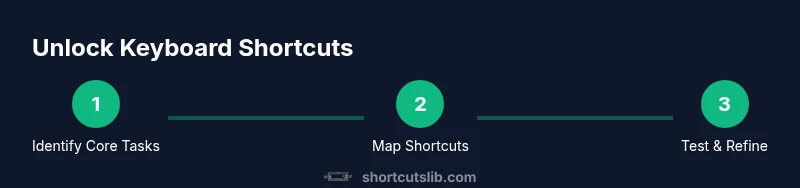
Unlock Keyboard Shortcuts: A Practical Guide to Faster Computing
Discover how to unlock keyboard shortcut potential across Windows, macOS, and web apps. This practical guide explains locating, customizing, and practicing shortcuts to boost speed and accuracy in daily work.


This guide shows how to unlock keyboard shortcut potential across Windows, macOS, and popular apps, turning hidden hotkeys into reliable power tools. You’ll learn where shortcuts live, how to activate them, and how to customize keys for your workflow. By the end, you’ll confidently locate, test, and deploy shortcuts that save time every day.
Why unlocking keyboard shortcut matters
In modern computing, the quickest way to perform common tasks is often through keyboard shortcuts. When you unlock keyboard shortcut potential, you reduce mouse actions, cut context-switching, and keep your hands on the keys where they belong. According to Shortcuts Lib, a systematic approach to shortcut adoption can noticeably speed up daily workflows, improve consistency, and reduce cognitive load. This section explains why shortcuts matter, what benefits to expect, and how to frame your learning for lasting results. You will learn about the difference between built-in OS shortcuts and application-specific mappings, and how to decide which shortcuts to unlock first. The goal is not to memorize every possible key combo, but to build a lean, practical set that aligns with your most frequent tasks. As you read, think about the tasks that steal your attention most often and how a few targeted shortcuts could reclaim minutes each day. Unlock keyboard shortcut mastery is not about gimmicks; it is about design thinking applied to your keyboard.
Where shortcuts live: OS-level vs app-level
Shortcuts exist at multiple levels. OS-level shortcuts (Windows or macOS) apply system-wide, while app-level shortcuts are defined inside individual programs like your browser, text editor, or design tool. There are also browser-specific shortcuts and extension-based mappings. The challenge is that each layer can conflict with another, so your strategy must prioritize core workflows first and only remap when you understand the impact. Begin by listing tasks you perform most often, then identify the simplest, most reliable shortcut at the OS level to support each task. Later, map the same task inside the apps you use daily, ensuring consistency across platforms. Shortcuts Lib emphasizes building a core set of stable combos before expanding to secondary actions. In practice, expect a few days of iterative testing to ensure you do not break essential functions like copy, paste, or undo. If you rely on accessibility features, verify that remapping won’t disable them.
Auditing your current shortcuts
Start by taking inventory of shortcuts you already use in each major app and OS. Create a living cheat sheet, either digitally or on paper, and note the task each shortcut supports. Look for conflicts across OS and app levels, and mark high-frequency actions that would benefit from a universal approach. This audit will reveal gaps where new mappings would deliver the most value and highlight redundant keys you can retire. By documenting your current state, you’ll have a baseline to measure progress against and a clear path for safe experimentation. Shortcuts Lib suggests focusing on a small, high-impact set first before expanding to broader coverage.
Designing a practical shortcut plan
With a clear audit, design a practical shortcut plan that targets 3 core workflows first. Decide on non-conflicting key combinations, prefer mnemonic mappings, and ensure accessibility considerations are met. Create a concise mapping table covering actions, platforms, and fallback keys. This plan should be easy to reference and quick to implement during a typical work session. Remember to keep alignment across devices so you do not confuse yourself when switching between a laptop, desktop, or tablet. The plan acts as a living document, updateable as you refine the shortcuts and add new actions over time.
Windows-specific shortcuts and tips
Windows shortcuts are often the fastest route to productivity because the OS exposes a broad set of global mappings. Start with the fundamentals: Copy (Ctrl+C), Paste (Ctrl+V), Undo (Ctrl+Z), and Take Screenshot (Win+Shift+S). Then layer in productivity actions like Open Task View (Win+Tab) and Quick Launch (Win key + number). For Power Users, PowerToys can unlock additional mappings and efficiency enhancements. When designing Windows shortcuts, avoid reassigning keys that the OS or critical apps rely on, and document every change to avoid the dreaded binding conflict later. Windows must remain predictable to maintain reliability across apps.
macOS shortcuts: consistency and power users
macOS offers a rich set of shortcuts that emphasize speed and precision. Core actions like Copy (Cmd+C), Paste (Cmd+V), and Quit (Cmd+Q) set the baseline, but the real gains come from customizing shortcuts in System Preferences and in individual apps. Create a small set of cross-application mappings, then extend to task-specific actions in Finder, Safari, and your code editor. If you frequently switch to terminal or text manipulation, consider consistent clipboard and window management shortcuts across apps to minimize context switching. Maintain parity with Windows mappings where possible to ease cross-platform use, especially for teams that share workflows.
Web and browser shortcuts: across apps and extensions
Browsers are a fertile ground for shortcut gains because many actions are universal yet underutilized. Learn browser-level shortcuts for tab management, focus control, and DevTools access. Where possible, align browser shortcuts with OS shortcuts to reduce cognitive load during cross-application work. Extensions can introduce new shortcuts, but they can also collide with built-in mappings. Keep a short, prioritized list of browser shortcuts and test extensions on a stable profile before applying them broadly. Document any conflicts and how you resolved them to maintain a reliable setup.
Practice routines to build muscle memory
Muscle memory for shortcuts comes from deliberate, spaced practice. Start with a 15-minute daily drill focusing on 3 core shortcuts. Increase complexity by combining actions across apps in a single workflow. Use a timer and track your speed and accuracy to monitor progress. Visual aids like cheat sheets or a dedicated shortcut document can reinforce learning. The goal is automatic recall under pressure, not conscious lookup. Shortcuts Lib recommends scheduled practice chunks and quick daily reviews to cement the mappings.
Maintenance and review
Shortcuts require ongoing maintenance. Schedule a monthly review to prune unused mappings, adjust for new apps, and incorporate user feedback if you work in a team. When you add a new action, update your cheat sheet and run a quick test across platforms to ensure consistency. If you encounter conflicts, re-evaluate the affected keys and consider alternative mnemonics. The objective is a lean, stable, and evolving shortcut system that keeps pace with your evolving workflow.
Tools & Materials
- Keyboard(Any USB or built-in keyboard)
- Computer or laptop(With OS access)
- Target apps list(Include your primary work apps (e.g., browser, code editor, office suite))
- Shortcut journal(A document to record mappings and rationale)
- Timer or stopwatch(Optional for timed drills)
- Cheat sheet (printable or digital)(Optional quick reference)
Steps
Estimated time: 40-60 minutes
- 1
Define your goals
Decide which tasks will benefit most from shortcuts. Set a realistic baseline plan focused on 3–5 core actions that you perform daily. This clarity helps you measure impact and stay motivated.
Tip: Write down one concrete goal per session (e.g., speed up text formatting or tab management). - 2
Inventory your apps and tasks
List the applications you use most and the actions you perform repeatedly. Use this inventory to map the high-impact shortcuts you should adopt first.
Tip: Prioritize cross-app actions that recur across multiple programs. - 3
Audit existing shortcuts
Document current shortcuts in each app and OS, noting which are redundant or conflicting. This audit creates a safe starting point for remapping.
Tip: Avoid changing core OS keys if it risks breaking essential functions. - 4
Map new shortcuts
Choose non-conflicting, mnemonic key mappings for 3 core actions. Apply them consistently across Windows, macOS, and the most-used apps.
Tip: Use easily reachable keys (Ctrl/Cmd with simple letters) to minimize finger strain. - 5
Implement gradually
Start with the first 2–3 mappings across your main work environment. Test in a controlled session and adjust as needed.
Tip: Keep a rollback plan in case a mapping disrupts workflow. - 6
Test and document
Run a focused test sprint, verify reliability, and record outcomes in your shortcut journal. Update your cheat sheet with any refinements.
Tip: Note any conflicts or unexpected behavior for quick reference. - 7
Share and standardize
If you work in a team, share your core shortcuts and agree on a standard set to reduce friction across projects.
Tip: Provide a short training note or quick video to help teammates adopt. - 8
Review and refine
Schedule a periodic review (monthly or quarterly) to prune, adjust, and add new mappings as tools evolve.
Tip: Treat shortcuts as a living toolset rather than a fixed list.
Questions & Answers
What does unlocking keyboard shortcut mean?
Unlocking keyboard shortcuts means identifying built-in shortcuts, removing barriers to using them, and creating a minimal, high-impact set that you consistently apply across platforms. It is about designing a reliable keyboard-centric workflow rather than memorizing every possible combination.
Unlocking keyboard shortcuts means making shortcuts easy to find, customize, and use so you work faster with fewer mouse clicks.
Where do Windows shortcuts live and how do I access them?
Windows shortcuts live in system settings and many apps. Start with universal actions like copy, paste, and undo, then explore Task View and window management shortcuts. Access these through Settings, or use keyboard combos directly in apps to see what works best.
Windows shortcuts live in system settings and each app. Start with core actions and explore system-wide mappings.
Can I customize shortcuts across apps or should I limit to one app at a time?
Yes, you can customize shortcuts across apps, but maintain consistency to avoid confusion. Start with a core set that works across most programs, then add app-specific mappings. Documenting these decisions helps prevent conflicts later.
You can customize across apps, but keep a small, consistent core set to avoid confusion.
What if a shortcut conflicts with a system or another app?
If a conflict occurs, identify the higher-priority workflow and adjust the mapping for the lower-priority action. Prefer non-conflicting keys and document the change. If needed, temporarily disable the conflicting shortcut.
When conflicts arise, choose the more important task and modify the other shortcut accordingly.
How long does it take to start benefiting from new shortcuts?
You can begin noticing benefits after a focused 1–2 week practice period, especially if you practice daily. The more consistently you reinforce mappings, the faster your speed and accuracy improve.
A focused week or two of practice typically yields noticeable gains in speed and accuracy.
Are keyboard remappings safe for accessibility features like screen readers?
Remapping keys can interfere with accessibility features. Always verify compatibility with screen readers and other assistive technologies before applying changes. Maintain a fallback plan to revert if needed.
Remapping can affect accessibility; test with assistive tools and revert if something breaks.
Watch Video
Main Points
- Define actionable goals
- Audit existing shortcuts
- Map and test safely
- Maintain cross-platform consistency
- Document changes and review regularly