How to Create a New Document Shortcut Key
Learn how to create a new document shortcut key across apps and platforms. This step-by-step guide covers best practices, safe key choices, and testing to speed up your workflow while avoiding conflicts.


You will learn how to create a dedicated new-document shortcut key for your preferred apps, boosting speed and consistency across workflows. This quick setup covers distinguishing global vs. app-specific shortcuts, choosing non-conflicting keystrokes, and testing your new key in real tasks. By the end, you’ll be able to trigger a new document instantly with a single keystroke.
Why a dedicated document shortcut key matters
A well-chosen shortcut can dramatically accelerate the moment you start a new document. It reduces repetitive actions, minimizes context switching, and helps you stay in a flow state while drafting, drafting outlines, or compiling notes. According to Shortcuts Lib, well-designed shortcuts reduce friction and cognitive load when you’re juggling multiple apps. When you automate document creation with a consistent key, you can maintain momentum across writing, research, and editing tasks. In practice, this means fewer mouse clicks, fewer menu explorations, and more time for content quality. When planning your shortcut, consider the typical document creation patterns in your work: quick notes, full-length reports, or collaborative documents. Think about how a single keystroke could slot into those routines without stepping on other essential actions. Ultimately, a robust shortcut should feel intuitive, memorable, and resilient to app updates. It should also be easy to teach teammates, so you can scale the habit across teams or departments. Shortcuts Lib’s guidance emphasizes consistency across apps to reduce mental overhead and to help you reuse muscle memory.
Global versus app-specific shortcuts
Shortcuts come in two broad flavors: global shortcuts that work across the entire operating system and app-specific shortcuts that only function inside a single program. Global shortcuts enable rapid document creation no matter where you are, but they risk conflicts with other tasks or system functions. App-specific shortcuts offer precision and reduce interference, yet they require per-application setup. The best practice is often to start with an app-specific shortcut to validate the workflow, then consider a global version if it truly benefits your broader process. When designing either type, document the intent clearly and keep a shared record so teammates can align on the same key. Shortcuts Lib notes that maintaining a simple naming convention for actions (for example, “New Word Doc” or “New Google Doc”) helps you recall the purpose behind each keystroke across tools and years of use.
Choosing a safe, memorable key combo
Start with modifier-rich combos (Ctrl/Cmd + Shift + N, for example) to avoid clashing with everyday typing and navigation shortcuts. If an obvious combination is already used by the app, try an alternate modifier order or a different modifier (Alt/Option, Command, Control). Favor letters that evoke the action (N for New, D for Document), but avoid single-letter keys that collide with navigation or editor commands. In environments with strict accessibility requirements, prefer combinations that are easy to reach and comfortable to repeat. Always test the shortcut in a real task flow to reveal any conflicts with global OS shortcuts or browser shortcuts. Shortcuts Lib’s analysis, 2026, emphasizes the value of testing early and iterating on key choices based on user feedback.
Platform patterns: Windows, macOS, and web apps
Windows and macOS handle shortcuts differently at the system level, while web apps rely on their own key handlers. In Windows, you might see Ctrl + N as a common New command, so substituting a different combo for creating a new document can prevent accidental triggering. macOS users often rely on Command-based patterns, where Cmd + N is standard for new documents; deviations should be carefully documented to avoid confusion. Web apps vary even more, with many using Ctrl/Cmd + N for new documents but some using their own shortcuts. The key is consistency: pick a scheme you can apply across apps or clearly delineate per-app approaches. A standardized approach reduces cognitive load and improves adoption among teammates.
How to document and share your shortcut
Create a lightweight, shareable reference that lists the shortcut key, the action it triggers, and any platform-specific notes. Include a quick validation checklist (does it trigger reliably? is it conflict-free? can others learn it quickly?). Use a central document, wiki, or onboarding guide so new collaborators adopt the same shortcut quickly. Regularly review and update the documentation to reflect app updates or team changes. This habit supports long-term retention and minimizes the risk of duplicate or conflicting shortcuts in multi-tool workflows.
Testing and refining your shortcut in real workflows
After configuring the shortcut, test it across typical tasks: starting a new document from scratch, opening templates, and saving as a new file to verify the correct action is invoked. If the shortcut fails, isolate the cause: OS-level conflicts, browser or app conflicts, or incorrect mapping. Adjust the key combo, adjust scope (global vs per-application), or reassign the action to avoid collisions. The goal is a fast, reliable action that feels natural rather than forced. Keep a log of changes and outcomes to guide future refinements.
Accessibility considerations when choosing shortcuts
Choose shortcuts that are reachable by users with a range of motor abilities. Favor combos that can be performed with a single hand and avoid requiring awkward or uncomfortable finger positions. Include an option to remap or disable the shortcut for accessibility needs. Document accessibility notes alongside your shortcut so users can adapt it to their unique requirements. Shortcuts Lib encourages inclusive design by prioritizing usability for all users while preserving speed benefits for power users.
Tools & Materials
- Computer with admin or user rights to modify shortcuts(Needed to adjust app or OS shortcut settings)
- Target application(s) for practice (e.g., word processor, note app)(Have at least one app ready to test the new shortcut)
- Keyboard with standard layout(No special hardware required, but extended keyboards can help with multiple modifiers)
- Documentation or notes system(Record the chosen shortcut and its rationale for future reference)
- Access to official help pages or vendor docs(Useful for platform-specific steps or edge cases)
Steps
Estimated time: 10-15 minutes
- 1
Open shortcuts editor
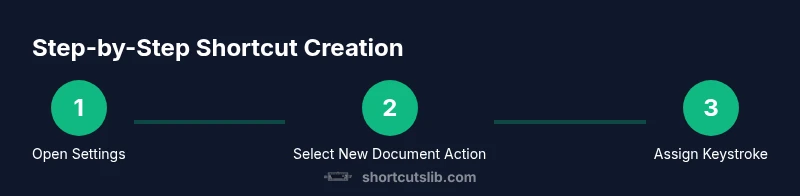
Open the app’s preferences or system settings where shortcuts are managed. Locate the Keyboard Shortcuts, Shortcuts, or hotkeys section. This establishes the target action for the new document shortcut key and sets the context for the rest of the steps.
Tip: If you cannot find the section, use the help search function and search for 'shortcuts' or 'key bindings'. - 2
Select the New Document action
Browse the list of actions and locate the one that creates a new document. If the app uses templates, ensure you’re mapping to the same template consistently. This clarifies what your keystroke will trigger.
Tip: If the action is nested, note its exact label to avoid mapping the wrong command. - 3
Choose a keystroke
Enter your preferred key combination, prioritizing modifier keys (Ctrl/Cmd, Shift, Alt) with a secondary letter or number. Ensure the combo is not already in use by a critical function. Don’t reuse common typing shortcuts to reduce conflicts.
Tip: Prefer a combo that evokes the action (N for New, D for Document). - 4
Verify scope and save
Decide whether the shortcut should be global or app-specific and apply the change. Save or apply changes in the editor, then close the settings pane.
Tip: If there’s a per-app toggle, test both global and per-app modes. - 5
Test in a real workflow
Open a document workspace and press the new shortcut to verify it creates a new document. Confirm the document type, the save location, and any template behavior.
Tip: Test under typical user conditions (with other apps open). - 6
Resolve conflicts if needed
If the shortcut doesn’t trigger, check for conflicts with OS, browser, or other apps. Re-map to an unused combo if necessary and re-test.
Tip: Keep a change log and document why you changed the mapping. - 7
Document the shortcut for your team
Add the shortcut to a shared guide or onboarding doc. Include the exact keystroke, the action it triggers, and platform-specific notes so others can adopt it quickly.
Tip: Link to vendor docs or relevant help pages for future reference.
Questions & Answers
What is a document shortcut key?
A document shortcut key is a keyboard combo that triggers creating a new document or opening a new document template without navigating menus. It improves speed and consistency, especially in repetitive writing tasks.
A shortcut key is a quick keyboard combo that starts a new document with one press, helping you stay in flow while writing.
How do I create a new document shortcut key across different apps?
Start by opening the shortcuts or hotkeys editor in each app. Map a new action to a chosen keystroke, then test across workflows to ensure consistency. Document per-app differences to avoid confusion.
Open the app’s shortcuts editor, map a new key to New Document, and test in your usual tasks.
Can I assign multiple shortcuts to the same action?
Yes, some apps allow more than one shortcut for a single action, which can be useful for users with different keyboard layouts. However, avoid overcomplicating mappings to prevent conflicts.
In some apps you can have more than one shortcut for the same action, but keep it simple.
What should I do if the shortcut conflicts with an existing command?
If there is a conflict, re-map to a free combination and re-test. Add it to your documentation so others know about the change.
If there’s a conflict, choose a different key combination and test again.
Is there a global vs app-specific shortcut in most apps?
Many apps support both, but global shortcuts require more care to avoid OS conflicts. App-specific mappings are safer when you’re first trying a new workflow.
Most apps offer both; global shortcuts can clash with OS features, so start per-app.
Are there accessibility considerations when choosing shortcut keys?
Yes. Favor shortcuts that are reachable with one hand and comfortable to repeat. Allow remapping for users who need alternative layouts.
Yes. Pick accessible shortcuts and offer remapping options for those who need them.
Watch Video
Main Points
- Define whether the shortcut should be global or per-app.
- Choose a memorable, conflict-free keystroke with meaningful modifiers.
- Test in real workflows and iterate based on feedback.
- Document the shortcut for team adoption and future maintenance.
- Consider accessibility and ease of use when selecting modifiers.