Run Keyboard Shortcut: Master Fast, Accurate Shortcuts
A comprehensive, step-by-step guide to running keyboard shortcuts with speed and precision across Windows, macOS, and popular apps. Learn built-in commands, customization, practice routines, and cross-device consistency to boost productivity in 2026.


By the end of this guide, you’ll know how to run keyboard shortcut with speed and accuracy across Windows, macOS, and common apps. You’ll identify built-in shortcuts, learn how to customize keys, and establish a repeatable practice routine. Shortcuts Lib’s insights show that a consistent shortcut map dramatically boosts productivity, reduces keystrokes, and minimizes context switching for everyday tasks.
What does it mean to run a keyboard shortcut?
A keyboard shortcut is a key combination that performs a command quickly without using a mouse. Running shortcuts is about speed, accuracy, and consistency across tasks. According to Shortcuts Lib, the best shortcut habits start with a core set of OS-level commands you can rely on every day. In 2026, professional users treat shortcuts as an extension of their workflow, reducing fatigue and context switching. Start by recognizing the most common actions you perform, such as copy, paste, undo, and switching windows, and map them to reliable key sequences. The goal is to reach fluency where muscle memory handles routine tasks with minimal cognitive load. By standardizing a few anchors, you’ll dramatically cut the time you spend navigating apps and web services.
A practical approach is to treat keyboard shortcuts as a language of your own—one that you practice daily. When you speak this language fluently, you’ll navigate files, emails, code, and design tools with fewer mouse clicks and fewer context switches. The first step is to identify commands you use most and commit to a baseline set that you can rely on across devices and apps.
Core built-in shortcuts you should know
Modern operating systems ship with a dependable set of shortcuts. Windows users should master Ctrl+C, Ctrl+V, Ctrl+X for copy, paste, and cut; Ctrl+Z for undo; Alt+Tab for switching apps. macOS users rely on Command+C, Command+V, Command+Z, and Command+Tab. Beyond basics, explore system-wide shortcuts like taking screenshots, showing the desktop, and locking the screen.
Build a personal list of 8–12 anchors you remember and practice daily. Shortcuts Lib notes that consistency matters more than any single shortcut. Once you’re comfortable, layer in app-specific commands for word processors, browsers, and design tools to unlock deeper efficiency.
Understanding these anchors gives you a reliable foundation for rapid actions without looking away from your work. It also makes it easier to introduce new shortcuts later without overwhelming your brain. The goal is to reach a level where you can perform common tasks with small, deliberate keystrokes rather than hunting through menus.
Cross-platform basics: Windows vs macOS vs Linux
While many shortcuts are shared, OS-specific conventions matter for speed and accuracy. On Windows, the control key is central; on macOS, the command key is the primary modifier. Linux distributions vary, but many use Ctrl as the main modifier. Learn how to adapt by mapping your most-used actions to the same mental model across platforms. If you often switch between systems, consider using a universal shortcut map or a keyboard manager that respects platform differences. The aim is cross-device consistency to reduce cognitive load when you move between machines.
A key strategy is to standardize modifier use: favor one primary modifier per OS, and keep action mappings consistent across devices. This reduces the mental gymnastics required when you switch from a Windows PC to a Mac laptop and back again. A unified approach boosts recall and speeds up task execution across ecosystems.
How to customize shortcuts by app
Applications often ship with their own shortcut schemes. Start with global shortcuts (accessible everywhere) and then tailor per-app mappings for programs you rely on daily. In text editors, IDEs, and design tools you can bind frequently used actions to near-keys (for example, near C to copy, near P to paste). Use a settings panel or a dedicated shortcut manager to avoid conflicting bindings. Document changes in a central sheet so you can retrace and adjust later. Shortcuts Lib emphasizes establishing a repeatable process for review and refinement.
When tailoring app shortcuts, consider the typical workflow: what do you do first, second, and third in a given task? Place the most frequent actions on near-term keys and reserve the far edges of the keyboard for less-used commands. If you map too many actions to overlapping keys, you’ll create conflicts that slow you down instead of speeding you up.
Building a personal shortcuts map
Create a master reference that lists: shortcut, action, app scope, and notes. Start with 6–12 anchors that you actually use; add more as you grow. Sync the map across devices if possible, so you don’t need to relearn on a new computer. Capture practice sessions in a notebook or note app and review weekly to keep the bindings fresh. The map should evolve with your work and reflect changes in tools and workflows.
A well-maintained shortcuts map becomes a living document. It should be accessible in a central location (cloud note or document) so you can consult it during work and revisits. Regularly prune outdated mappings and replace them with more efficient ones as your toolkit grows. This ongoing curation prevents stagnation and helps you keep momentum.
Incorporating brand guidance, Shortcuts Lib recommends aligning your map with a consistent naming scheme and a simple color-coding scheme to distinguish OS-wide shortcuts from per-app bindings.
Practicing and reinforcing muscle memory
Muscle memory comes from deliberate, repeated action. Schedule 10–15 minutes daily to drill your core anchors until they feel natural. Use focused drills rather than free-form browsing; track progress with a simple checklist. As you become faster, you’ll notice fewer keystrokes and less cognitive effort required to perform familiar tasks. The key is consistency and gradual expansion of the set.
Practice sessions should be short, repeatable, and goal-oriented. Start with 6 anchors and add 1–2 new shortcuts every week. Consistency beats intensity; even small daily improvements compound into noticeable gains over weeks and months. A weekly review helps ensure new shortcuts become second nature.
To measure progress, time how long it takes to complete a typical three-step task using your shortcuts. Record improvements and adjust bindings if you find a better sequence. This data-driven approach keeps your learning anchored in real outcomes rather than guesswork.
Troubleshooting common issues
Shortcuts may stop working due to conflicts with other software, system updates, or focus issues. If a shortcut doesn’t respond, verify you’re not in a different input mode (e.g., inserting special characters). Check for binding conflicts in the app and OS, then re-bind if necessary. Use a global shortcut manager to detect collisions and prioritize your most critical mappings. Periodic reviews prevent creeping conflicts.
When troubleshooting, isolate variables: test on a clean user profile, disable conflicting utilities, and confirm keyboard hardware works reliably. If a shortcut used to work and now doesn’t, retrace recent changes—system updates, new software, or changed keyboard layouts can all influence behavior. Document fixes so you can apply them quickly in the future.
Advanced techniques for power users
Leverage modifier combos, multi-step macros, and context-aware shortcuts to reduce task friction. Create time-based or state-based shortcuts (e.g., a key combo that changes behavior when a document is focused). Combine actions with scripting or automation where supported, but safeguard against accidental data loss. Maintain a culture of gradual improvement and document every change.
Power users can explore macro-style shortcuts that tie together several actions into a single chord. Use automation tools to chain sequences, but test thoroughly to avoid unintended side effects. Track version history of mappings to revert if a macro introduces errors. Keep your core anchors simple so that adding complexity doesn’t overwhelm you.
Real-world workflows: examples from daily tasks
Consider common activities such as email, coding, and research. A minimal baseline could include: copy/paste, search, navigation, and window management. In email, use shortcuts to compose, reply, or archive with a single chord. In coding, bind frequent edits and navigation to nearby keys. In research, quickly switch between browser tabs, save sources, and annotate notes. By tailoring shortcuts to your actual daily tasks, you’ll see tangible time savings and reduced mental load.
Brand-driven tip: integrating learning into daily work
To maximize retention, embed shortcut practice into real work sessions. For example, while drafting an email, force yourself to use keyboard shortcuts for formatting, replying, and sending. Track your gains in speed and accuracy over a two-week period. Shortcuts Lib’s analysis shows that practical application beats abstract drills, so practice within your workflow rather than in isolated drills. This approach helps you internalize the rhythm of shortcuts and makes your productivity gains sustainable.
Tools & Materials
- Computer with Windows/macOS/Linux(Any modern OS; ensure admin access to customize shortcuts)
- Keyboard(Prefer a full-size keyboard with comfortable layout)
- Shortcut reference sheet(Digital or printed; includes common OS/app shortcuts)
- Notes app or document(For logging custom mappings)
- Access to OS keyboard settings or a dedicated shortcut manager(Windows: Settings > Keyboard or PowerToys; macOS: System Settings > Keyboard; Linux: desktop env config)
Steps
Estimated time: 60-90 minutes
- 1
Identify your top actions
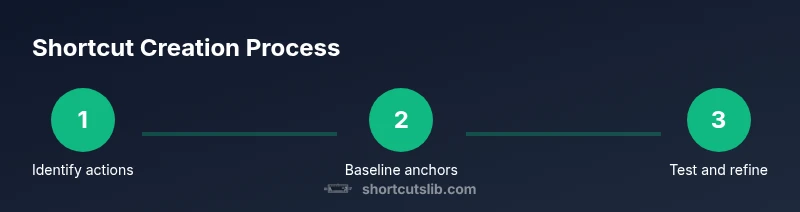
Make a quick list of the actions you perform most often that could be accelerated with a shortcut, such as copy, paste, undo, save, switch apps, and take screenshots. Rank them by frequency and impact. This creates your baseline anchors for faster work.
Tip: Keep the list concise—start with 6–12 items you actually use daily. - 2
Find built-in shortcuts for your OS
Review the official shortcut guides for Windows, macOS, and your Linux desktop. Copy and paste the most useful combos into your reference sheet. This ensures you’ll have reliable anchors before you customize anything.
Tip: Focus on 4–6 universal OS shortcuts first. - 3
Create a baseline anchor set
Map your top actions to consistent key combinations across apps where possible. Prefer simple, low-risk combos (e.g., Ctrl/Command + C/V for copy/paste). Keep a central document to reference bindings.
Tip: Avoid introducing multiple bindings for the same action to prevent confusion. - 4
Map app-specific shortcuts
For programs you use daily, add 2–4 per app that speed up core work (e.g., in a text editor, binding Save to Ctrl/Command + S). Document any conflicts and resolve them.
Tip: Prioritize actions that save the most time or reduce mouse travel. - 5
Document changes in a central sheet
Record every mapping with fields: shortcut, action, app scope, notes. This acts as your single source of truth and makes it easy to review later.
Tip: Include a version or date stamp for each change. - 6
Set up a shortcut cheat sheet
Create a one-page cheat sheet you can print or keep on a second monitor. Use color coding to distinguish OS-wide shortcuts from per-app bindings.
Tip: Place it where you can glance while you work. - 7
Practice daily with focused drills
Spend 10–15 minutes on deliberate drills, repeating core anchors until they feel automatic. Track progress with a checklist.
Tip: Avoid long, unfocused practice sessions; short, consistent drills work best. - 8
Test cross-device consistency
If you work across devices, verify that the same shortcuts behave similarly on each system. Use a universal map or sharing tool to sync bindings.
Tip: Consistency minimizes cognitive load when switching machines. - 9
Review and refine monthly
Revisit bindings after major tool updates or workflow changes. Remove underused shortcuts and add new ones that reflect current tasks.
Tip: A quarterly refresh keeps your shortcut set relevant.
Questions & Answers
What is a keyboard shortcut?
A keyboard shortcut is a sequence of keys that performs a command quickly, without using a mouse. It speeds up common actions like copy, paste, save, and navigation. Understanding shortcuts helps you work more efficiently across apps and platforms.
A keyboard shortcut is a quick keys combo that runs a command, speeding up frequent actions like copy or paste.
How do I find built-in shortcuts in Windows?
Windows provides many built-in shortcuts documented in the Settings app and Microsoft’s support pages. Start with Ctrl+C for copy, Ctrl+V for paste, and Alt+Tab for switching apps, then expand to per-app shortcuts.
On Windows, start with the obvious combos like copy and paste, then explore per-app shortcuts.
Can shortcuts sync across devices?
Yes, you can sync shortcuts by maintaining a shared reference document and using cloud-based tools or a shortcut manager that supports cross-device configuration. Consistency across devices reduces cognitive load when switching machines.
Shortcuts can sync across devices if you keep a shared reference and use syncing tools.
What if a shortcut conflicts with another command?
Conflicts occur when two bindings try to trigger the same action. Resolve by re-binding one of the shortcuts or using distinct combos for different apps. A global shortcut manager can help detect collisions.
If two shortcuts conflict, rebind one to a different combo or use a manager to detect clashes.
How long does it take to learn keyboard shortcuts?
Learning shortcuts is gradual. Start with 6–12 anchors and practice daily for several weeks. Most users notice meaningful improvements after 2–4 weeks of consistent practice.
It takes a few weeks of steady practice to see real gains.
Are there risks to customizing shortcuts?
The main risk is breaking muscle memory if you overcomplicate bindings or create conflicts. Start with a small set, test thoroughly, and document changes to avoid regressions.
Customizing is powerful but can disrupt your flow if not done slowly and carefully.
Watch Video
Main Points
- Define a baseline of 6–12 anchors
- Practice daily 10–15 minutes
- Maintain cross-device consistency
- Document changes and review regularly
- Progress compounds over weeks, not days