Reset Keyboard Shortcuts: A Practical How-To Guide
Learn how to reset keyboard shortcuts across Windows, macOS, and apps with practical, step-by-step methods. Includes backup tips and troubleshooting to keep shortcuts reliable.


This guide shows you how to reset keyboard shortcuts across your OS and apps, so you can restore default mappings or recover a chaotic custom setup. You’ll learn when a reset is appropriate, the exact steps for Windows, macOS, and common applications, plus safe backup practices to avoid losing work. By the end, you’ll know which reset method to use, how to rebind essentials, and how to verify correct behavior.
The purpose and benefits of resetting keyboard shortcuts
Resetting keyboard shortcuts can resolve conflicts, restore system-default behaviors, and reduce confusion after installing new software or extensions. A well-managed reset helps keep your workflow consistent and predictable. This section explains when a reset makes sense and the outcomes you should expect. It also clarifies the difference between a full system reset and targeted resets for specific apps or functions. By aligning your shortcuts with your current tasks, you save time and avoid unintended keystrokes. According to Shortcuts Lib, consistent reset practices help prevent drift when you manage shortcuts across apps.
When to reset shortcuts
Not every change requires a reset. If you notice conflicting mappings, broken hotkeys, or after major software updates, a reset is often the safest path. Consider whether the issue is global (affecting many apps) or local (only in one program). Document before you reset to make reconfiguration easier, and decide whether you need a system-wide reset or a per-application reset. This planning reduces wasted time.
Windows: system-wide reset options
Windows allows you to reset some shortcuts via Settings > Time & language > Typing, and more advanced mappings through Registry edits or third-party tools. For most users, the recommended approach is to rebind through Settings in Windows 10/11 and to disable any vendor-specific keyboard software that may override global mappings. Always back up your current layout before making changes.
Windows: safety backups and caveats
Before changing, export layout files, create a system restore point, and note any custom app bindings. If you rely on vendor software for macro keys, consider temporarily disabling it during the reset to prevent automatic reapplication of old mappings. Keep a copy of your original shortcuts in a cloud drive or external drive in case you need to revert quickly.
macOS: resetting keyboard shortcuts system-wide
macOS handles shortcuts via System Settings (or System Preferences) > Keyboard > Shortcuts. There isn't a single, universal reset button; instead you reset by reactivating defaults for categories or by deleting preference files in your user Library. The process is usually quick, but it requires rechecking each category after changes to confirm the intended mappings.
macOS: differences and considerations
Compared with Windows, macOS stores most user-level shortcuts per account, and iCloud syncing can carry overrides across devices. If you use multiple Macs, you may want to pause iCloud Drive sync for Keyboard Shortcuts temporarily to avoid cross-device conflicts. When in doubt, reset on a single device first to validate behavior before syncing.
App-level resets: Office, browsers, IDEs
Many popular apps offer their own shortcut reset options. In Microsoft Word or Excel, browse to Preferences > Keyboard or Options to restore defaults. Chrome and Firefox restore shortcuts through extensions or internal settings. IDEs like VS Code or JetBrains products keep per-project mappings; export the current keybinds before resetting so you can restore them quickly if needed.
Backup, sync, and roaming profiles implications
If your shortcuts travel with your profile via roaming or cloud sync, a reset on one device may be overwritten on another. Review your sync settings and decide whether to disable auto-sync during the reset window. After resetting, re-establish a stable baseline by exporting a master layout and storing it where it won’t be overwritten by sync.
Rebinding essentials after reset: best practices
Start with a core set of high-frequency shortcuts that you use daily, then expand gradually. Create a written plan for mappings by task, not by app, to keep consistency across tools. Use naming conventions and simple keystroke patterns to minimize conflicts with OS-level shortcuts and application defaults.
Testing and verification after a reset
Test critical shortcuts in several apps to confirm consistency. Check for conflicts where two shortcuts trigger different actions. Run a quick task flow to verify that the most-used mappings perform as expected, and adjust as needed. Save the verified layout as a new backup.
Troubleshooting common issues after reset
If shortcuts don’t behave as expected, revert to the previous backup, review conflicting software, and consider reinstalling the keyboard driver or vendor software. Double-check that cloud sync is paused during testing and that you restored the correct layout in each app. When all else fails, restore from your master backup and start again with a smaller scope.
The final note and next steps
After completing a reset, document the final layout, save a master backup, and observe how your workflow improves over the next few days. The goal is a stable, repeatable mapping that supports your tasks, not a one-off tweak. The Shortcuts Lib team recommends documenting your final mapping and storing backups in a secure location.
Tools & Materials
- Computer with admin access(Windows or macOS)
- Backup drive or cloud storage(Store shortcut layouts securely)
- Exported shortcut mappings file(If possible, export before changes)
- Vendor keyboard software(Optional, may override mappings)
- Documentation notebook or notes app(Record new mappings and decisions)
- Recovery media or system restore access(For emergency rollback)
Steps
Estimated time: 45-60 minutes
- 1
Prepare backups and scope
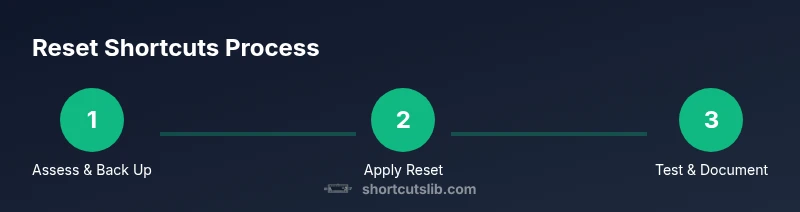
Identify whether you need a system-wide or app-specific reset. Create a backup plan and gather the necessary tools before making changes.
Tip: Start with a small scope to minimize risk. - 2
Back up current mappings
Export current shortcuts from the OS and key apps. Save the file to external storage or cloud storage for easy restoration.
Tip: Export formats vary; use the native export option when available. - 3
Choose reset method
Decide whether you’ll perform a system-wide reset or target individual apps. Document the scope to avoid unintended changes.
Tip: A staged approach reduces risk vs a full system reset. - 4
Execute Windows reset (if applicable)
Follow Settings-based steps to reset or rebind keys. Disable vendor software if it may reapply old mappings and verify changes after.
Tip: Reboot after changes to ensure mappings take effect. - 5
Execute macOS reset (if applicable)
Open System Settings > Keyboard > Shortcuts and re-enable defaults by category or reset pref files if needed. Verify each category.
Tip: Be prepared to rebind common macOS shortcuts. - 6
Reset key apps
In Office, browsers, and IDEs, reset shortcuts to defaults or reimport saved layouts.
Tip: Prefer per-app resets over global changes when possible. - 7
Rebind essential shortcuts
Recreate a core set of high-value shortcuts first, focusing on productivity-critical actions.
Tip: Keep consistent patterns (Ctrl/Cmd + [letter]). - 8
Test and verify
Run a mini-workflow that uses the key mappings across apps to ensure consistency and fix any issues.
Tip: Record results to track improvements.
Questions & Answers
When should I reset keyboard shortcuts?
Resetting is helpful after widespread conflicts, major updates, or when many mappings feel out of sync. Use a targeted reset first if only a few shortcuts are affected.
Reset when you have widespread conflicts or after big updates, starting with targeted resets if possible.
Can I reset only certain shortcuts?
Yes. Many apps offer per-category resets, and OS tools allow targeted resets. A full system reset affects all shortcuts.
Yes—many apps let you reset specific groups, not just everything.
Will a reset delete my custom layouts?
A reset can restore defaults. Back up current mappings first so you can restore them if needed.
Defaults may return, so back up your custom mappings first.
How do I back up shortcuts before resetting?
Export current mappings from OS and apps, then store the files in a safe location. Do this before any resets.
Export your mappings and save them safely before you reset.
Do resets affect gaming keyboards or macro software?
Yes, dedicated macro software may reapply mappings after a reset. Rebind macros after completing the reset.
Gaming keyboards can reapply macros, so rebind after reset.
What if something goes wrong after reset?
Revert to the previous backup or restore a saved layout. If needed, reinstall keyboard drivers or vendor software.
If issues arise, revert to backup or restore your layout.
Watch Video
Main Points
- Back up shortcuts before changes
- Decide scope: system-wide vs app-specific
- Test thoroughly after resets
- Document final mappings for future use
- Be mindful of sync and vendor software