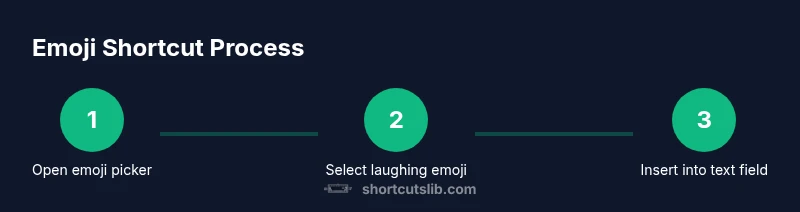
Laughing Emoji Keyboard Shortcuts: Fast Insertion Guide
Master laughing emoji shortcuts across Windows, macOS, and mobile. Learn quick keystrokes, app-specific tips, and memory tricks to type 😂 and 😆 faster.


Insert a laughing emoji quickly with platform-specific shortcuts: Windows key + . opens the emoji panel, Control + Command + Space on macOS, and long-press on mobile keyboards. Slack/Discord also use :joy:. See our detailed step-by-step guide for platform-specific workflows.
What is a laughing emoji keyboard shortcut?
A laughing emoji keyboard shortcut is a quick, repeatable way to insert a laughing emoji (such as 😂 or 😆) without manually browsing menus. It relies on platform-specific inputs—keyboard pull-downs on desktops and fast keystrokes on mobile—to speed up everyday messaging. According to Shortcuts Lib, smarter shortcut workflows reduce friction in fast-paced chats and help you express tone more reliably. Shortcuts Lib Analysis, 2026 emphasizes that well-chosen emoji shortcuts can save seconds in routine communication and boost consistency across apps. For many users, a laughing emoji shortcut is less about novelty and more about clarity in casual exchanges, especially when you want to convey genuine amusement quickly. While the exact keystroke varies by platform, the underlying principle is the same: use a known trigger to summon the emoji picker or insert a ready-made glyph with a paste-friendly fallback. Beyond the literal typing, you can also rely on shortcodes in certain apps (for example, :joy:) that instantly render a laughing emoji in chat windows. The goal is reliability: a reliable shortcut makes it easy to respond with warmth, humor, or sarcasm as the moment demands. In this guide you’ll find desktop, mobile, and app-specific approaches, plus practical tips to remember and test across contexts.
Windows shortcut basics
Windows users can insert a laughing emoji by opening the emoji panel, then selecting the appropriate glyph. The most common method across Windows 10 and 11 is to press the Windows key together with the period key (Win + .). Some builds also respond to Windows key + semicolon (Win + ;) . Once the panel is open, type 'laugh' or 'joy' in the search box to filter results, then navigate with arrow keys and press Enter to insert the chosen emoji. If you prefer not to change focus, you can copy the emoji from a browser page or notes and paste it with Ctrl/Cmd + V. Shortcuts Lib notes that this method is fast once you’ve memorized the panel location and the search workflow, though you may need to adjust language packs or regional settings on enterprise devices.
macOS shortcut basics
macOS provides a built-in emoji picker you can call from any text field via the shortcut Control + Command + Space. The picker opens, and you can search by typing 'laugh' or 'joy' to quickly filter laughing emoji categories. Use the arrow keys to select and press Return to insert. You can also keep a favorites row for your most-used emojis to reduce search time. For macOS users who want consistency across apps, ensure you’re using the latest system icons and keep the emoji viewer accessible from the menu bar for one-click access. Shortcuts Lib suggests practicing with a couple of emoji variants to understand visual differences across apps and OS versions.
Mobile shortcut basics
On iOS and Android devices, emoji input is typically accessed from the standard keyboard. To speed up entry of a laughing emoji, switch to the emoji keyboard and, where available, use a dedicated emoji row or a quick access section. Some keyboards support a long-press on the globe or space bar to switch between language keyboards or emoji sets. For many users, long-pressing on the emoji key reveals the humor family, including 😂, 😆, and 😹; select your preferred laughing emoji to insert. In messaging apps like iMessage, WhatsApp, or Telegram, you can also rely on app-specific emoji shortcodes (where supported) or paste from a saved clipboard. If you regularly text with coworkers who use a specific laughing glyph, consider bookmarking a tiny cheat sheet on your device so you can copy-paste quickly when needed.
App-specific shortcuts: Slack, Discord, Teams
Several chat apps support emoji shortcuts that bypass menus. Slack and Discord let you type :joy: or :laughing: to render the laugher emoji instantly in messages; some alternative shortcodes exist depending on the workspace theme. Microsoft Teams may render emoji from the picker, or respond to universal shortcodes if enabled by admin. The key is consistency: pick one approach (shortcode or picker) and use it across your most-used channels. If your team uses custom emoji packs, add them to your clipboard for fast insertion. Shortcuts Lib notes that consistent emoji usage helps maintain tone and reduces misinterpretation in busy channels.
Memory tricks and best practices
Create a tiny reference sheet with your top-4 laughing emoji options and their platform shortcuts. Keep it in your notes app or pinned on your desktop. Practice the keystrokes at idle moments—like waiting on a file upload—so they become second nature. When you’re unsure of platform behavior, test with a quick message to yourself or a colleague. If you often switch devices, consider installing a unified clipboard manager to copy-paste emojis between devices. Shortcuts Lib's practical recommendation is to anchor a single method per scenario (desktop, mobile, or app) to reduce cognitive load and speed up emotion conveyance.
Accessibility considerations and potential pitfalls
Not all emoji renderings are identical across apps, OS versions, or fonts. When a laughing glyph appears differently from one program to another, your tone can be misread. For accessibility, rely on descriptive text, avoid overdoing emojis, and consider ALT text in documents or emails. If emoji input is restricted in enterprise environments, use the clipboard paste or shortcodes where allowed. Always test messages in the contexts where you most often work to ensure legibility and correct rendering.
Tools & Materials
- Keyboard(Any standard laptop/desktop keyboard)
- Smartphone or tablet(For mobile shortcut testing)
- Emoji-enabled apps (optional)(Apps like Slack, Discord, Teams)
- Cheat sheet or notes(Optional reference)
- Stable internet connection(To fetch app updates if needed)
Steps
Estimated time: 15-25 minutes
- 1
Choose your platform
Identify whether you are on Windows, macOS, or mobile. This choice determines the shortcut method you will use to insert the laughing emoji.
Tip: If you work across devices, decide a default approach like the emoji panel on desktop and the emoji keyboard on mobile. - 2
Open the emoji picker (Windows)
Press the Windows key together with the period key (Win + .) to open the emoji picker. You can also press Windows key + semicolon (Win + ;) on some builds. Once open, type 'laugh' or 'joy' to filter results, navigate with arrow keys, and press Enter to insert.
Tip: If the panel doesn't open, ensure your Windows language pack includes emoji support. - 3
Open the emoji picker (macOS)
Press Control + Command + Space to bring up the macOS emoji viewer. Type 'laugh' to filter, navigate to a laughing emoji, and press Return to insert.
Tip: You can customize the emoji picker by adjusting the keyboard shortcuts in System Settings. - 4
Mobile shortcut basics
On iOS and Android keyboards, switch to the emoji keyboard and look for a quick access row or long-press the emoji key to reveal options. Tap a laughing emoji to insert.
Tip: Some keyboards offer a fast-access row; enable it in keyboard settings for quicker access. - 5
App-specific shortcuts
In chat apps like Slack or Discord, type :joy: or use the emoji picker to render instantly. In Teams, use the emoji picker or supported shortcodes if available.
Tip: Remember some apps require colons or brackets to trigger emoji shortcodes. Check app docs. - 6
Alternative shortcuts and memory tricks
If you cannot access emoji pickers, keep a tiny list of go-to emoji characters you paste from a clipboard. Practice inserting through copy-paste as a fallback.
Tip: Create a small 4-emoji clipboard set to speed up typing under pressure. - 7
Verify and optimize
Test your chosen method in messages, emails, and docs to ensure emoji rendering is consistent. Adjust your workflow to prefer one method for consistency.
Tip: Consistency reduces cognitive load and speeds up response time.
Questions & Answers
What is a laughing emoji keyboard shortcut?
A laughing emoji keyboard shortcut is a quick method to insert a laughing emoji using keyboard actions, rather than navigating menus. It varies by platform but generally includes emoji pickers on desktops and long-press methods on mobile. Shortcuts reduce friction in fast-paced chats.
A quick way to insert a laughing emoji using keystrokes instead of menus.
Which platforms support the basic Windows shortcut for emoji?
On Windows, most versions support the emoji panel opened with Windows key + . or Windows key + ;. This lets you search for a laughing emoji and insert it into text fields.
Windows users can open the emoji panel with Windows key and period or semicolon.
Can I customize or create my own shortcuts for laughs?
Yes. Many apps let you create custom shortcuts or use shortcodes like :joy: in Slack or Discord. System-wide custom shortcuts are possible with third-party tools, depending on your OS policies.
You can tailor shortcuts in apps that support custom emoji codes.
Are there differences between laughing emoji icons (😂 vs 😆) in shortcuts?
Different platforms show slightly different laughing emoji variants. Choose the one that matches your tone, and test rendering in your most-used apps.
Different apps may show different laughing emojis; test to confirm.
What if the emoji picker doesn’t appear on my device?
Ensure the target app supports emoji input, check keyboard settings, and confirm system language packs are installed. Restart the app or device if needed.
If the picker won’t show, check settings and reboot the app or device.
Are there accessibility alternatives to emoji input?
Yes. You can rely on clipboard paste, text-based substitutes, or screen reader-friendly labels if emoji input is challenging.
For accessibility, paste from a clipboard or use descriptive text.
Watch Video
Main Points
- Use platform-specific shortcuts for speed
- Test across apps to ensure rendering consistency
- Leverage app shortcodes where available
- Create a personal emoji reference for fast pasting