Keyboard Typing Shortcuts: A Practical Guide
Master keyboard typing shortcuts instead of letters with practical steps, tools, and tips to accelerate your workflow across apps. A Shortcuts Lib guide for speed.


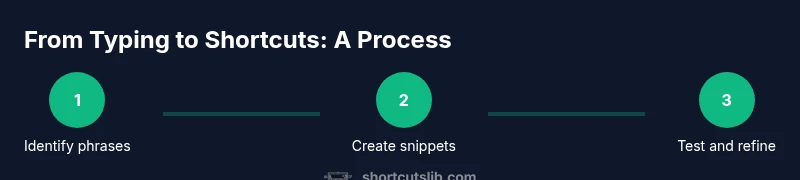
you will learn how to use keyboard typing shortcuts instead of letters by creating text expansions, global hotkeys, and snippet automation. Start by identifying common phrases to replace, installing a snippet manager, and mapping intuitive shortcuts. Then practice, test across apps, and refine to avoid conflicts. This guide from Shortcuts Lib helps you type faster with reliable shortcuts.
The Case for Keyboard Typing Shortcuts
In today's fast-paced digital world, keyboard typing shortcuts instead of letters enable you to complete everyday tasks with fewer keystrokes and less interruption. The core idea is to replace repetitive phrases with concise shortcuts that expand into full text or commands with a keystroke. When done well, this approach reduces fatigue, minimizes typos, and keeps your hands on the keyboard where they perform best. For many power users, adopting shortcuts is a stepping stone to fluent, high-velocity workflows.
According to Shortcuts Lib, a thoughtful mix of text expansions, global hotkeys, and snippet automation can dramatically accelerate typing-heavy work. The focus is not on hiding your words but on making your most-used phrases available at the speed of thought. By starting with a small set of reliable triggers and gradually expanding, you build a robust system that scales with your needs. This guide will walk you through setup, testing, and refinement so you convert long-winded typing into crisp, repeatable shortcuts.
Core Concepts: Text Expansions, Snippets, and Hotkeys
Text expansions are shorthand triggers that insert longer phrases, sentences, or blocks of code. Snippets are templates with placeholders that automatically fill in details like names or dates. Hotkeys are global keyboard shortcuts that trigger expansions from anywhere, across apps.
Together they form a flexible toolkit. Start with a handful of phrases you actually type every day, then layer in more complex templates for emails, addresses, and boilerplate code. Distinguish between high-velocity expansions (you use dozens of times daily) and situational ones (occasional phrases you want ready when the moment arises). Shortcuts Lib's approach emphasizes consistency, clarity, and low cognitive load; the best shortcuts feel invisible once you learn them.
Setting Up a Text Expansion System
Choose a text-expansion tool that supports cross-application use, placeholders, and syncing. Install it on your primary devices, then create a master list of your top phrases. Map each phrase to a short, memorable trigger, ideally 2-4 characters for quick typing without causing conflicts. Keep placeholders for personal details; these should be easily customizable. Next, set a default expansion delay to avoid interrupting your flow and define a fallback if a trigger is mistyped.
Create a small, iterative plan: start with 5–10 high-value phrases and expand as you gain confidence. Regularly review your library for redundancy and diagnostic conflicts so expansions don’t fire in unintended contexts.
Practical Examples: Common Shortcuts that Save Time
Great shortcuts cover everyday language, work tasks, and repetitive code or markup. For instance, expand addr to a full mailing address, sig to a professional signature, and thx to a courteous closing. Create boilerplate templates for emails, project updates, and meeting agendas. In coding contexts, snippets can insert common blocks like function templates or HTML skeletons. The key is to graft speed without sacrificing accuracy, using placeholders for dynamic fields (name, date, project) to keep expansions personal and useful across documents.
Platform Nuances: Windows, macOS, and Linux considerations
Different operating systems offer distinct defaults and tooling. Windows users often benefit from third-party text-expanders or PowerToys to create global shortcuts. macOS users can leverage System Preferences > Keyboard > Text for replacements, augmented by dedicated apps for more complex templates. Linux environments vary by desktop, but popular tools can wire expansions into all major editors and terminals. Regardless of platform, keep a consistent naming scheme and avoid overlapping triggers to prevent conflicts across apps.
Troubleshooting and Best Practices
If shortcuts don’t fire, verify that the trigger is unique and not used by another program. Avoid long triggers that slow you down or collide with common typing. Regularly back up your configuration and test new phrases in a controlled environment before broad rollout. When problems arise, revert recent changes and re-test in a single application to isolate the cause. Keep a small recovery library you can fall back on during issues.
Measuring Impact: How to track time saved
Track minutes saved per day by logging how often each shortcut is used and the time you would have spent typing the expanded text. Compare before-and-after scenarios for typical tasks (emails, notes, code blocks). Use simple charts to visualize growth and iteration. Shortcuts Lib Analysis, 2026 notes a consistent tendency for users to improve throughput when they maintain a lean, well-curated library rather than a bloated one.
Advanced Techniques: Scripting and Macros
For power users, combine text expansion with lightweight scripting and macros. Use placeholders to fetch names, dates, or live data from sources like contact databases or project management tools. Conditional snippets can adapt based on context (subject lines vs. body text) to keep outputs precise. Start with small scripts attached to your most frequent triggers and gradually layer in more complexity as you gain confidence.
Quick Start Checklist
- Identify top 10 phrases you type daily and draft corresponding shortcuts.
- Choose a text-expansion tool that fits your OS and workflow.
- Create robust templates with placeholders for personalization.
- Map intuitive, short triggers and test across your main apps.
- Set up backups and periodic reviews to keep your library lean and effective.
Tools & Materials
- Text expansion tool (snippet manager)(Cross-platform support; supports placeholders and syncing)
- OS-wide hotkey manager(Configure global shortcuts that trigger snippets)
- Template phrases library(Include 50–100 phrases with placeholders for personalization)
- Backup/Sync solution(Cloud or local backup of configurations)
- Test environment(A staging space to verify shortcuts without disrupting work)
Steps
Estimated time: 60-120 minutes
- 1
Inventory high-frequency phrases
Survey your daily typing and list phrases you repeat often. Include salutations, signatures, addresses, and common project updates. This minimizes waste by focusing first on the strongest time savers.
Tip: Start with 5–10 anchors; you can always expand later. - 2
Choose a text expansion tool
Pick a tool that works across your apps and devices. Check how it handles placeholders and whether it syncs to your other machines. A stable base reduces future headaches.
Tip: Prioritize cross-platform compatibility and reliable sync. - 3
Create primary snippets
Develop snippets for the phrases you use most. Include placeholders for names, dates, and project details. Keep triggers short and memorable to minimize cognitive load.
Tip: Use meaningful prefixes like addr, name, date for easy recall. - 4
Map intuitive shortcuts
Assign triggers that feel natural and are unlikely to collide with existing shortcuts. Prefer 2–4 character triggers and avoid common words as prefixes.
Tip: Test triggers in multiple apps to catch conflicts early. - 5
Configure global hotkeys
Set up system-wide hotkeys that invoke your snippets regardless of active application. This unlocks true cross-app productivity but requires care to avoid overlaps.
Tip: Reserve a single, rarely used modifier combination for global access. - 6
Test across apps
Open your editor, email client, browser, and terminal to ensure expansions fire correctly. Note any app-specific quirks and adjust accordingly.
Tip: Keep a test plan and a failing-case list for quick fixes. - 7
Refine timing and content
Fine-tune the expansion delay and phrasing. Short delays feel instantaneous; long ones impede flow. Adjust placeholders for clarity and brevity.
Tip: Aim for expansions that feel invisible to your typing rhythm. - 8
Back up configurations
Create a backup of your phrases and mappings. Versioned backups help you recover quickly after changes or platform migrations.
Tip: Store backups in a separate location or cloud service. - 9
Review impact and expand gradually
Monitor usage and gather feedback. Add new phrases in small batches to keep your library clean and effective.
Tip: Schedule quarterly reviews to prune or upgrade phrases.
Questions & Answers
What exactly are keyboard typing shortcuts?
Keyboard typing shortcuts are predefined expansions that replace ordinary keystrokes with longer phrases, templates, or commands. They speed up typing and reduce repetitive effort when used consistently.
Shortcuts replace common phrases with quick expansions so you can type faster across apps.
Where should I start building shortcuts?
Begin with high-frequency phrases you type daily, then add templates for emails and notes. Build a small, focused library and expand as you gain confidence.
Start with your most-used phrases and grow your library over time.
Will shortcuts work in browsers and apps?
Most modern text-expansion tools work across browsers and desktop apps, but you may encounter occasional app-specific quirks. Always test in your primary apps.
Yes, but test in your main apps to catch exceptions.
How do I avoid conflicts with existing shortcuts?
Choose distinct, short triggers and avoid common words that apps already use. Regularly audit your shortcuts for overlaps and adjust as needed.
Pick unique triggers and regularly review them.
Can I revert changes if shortcuts annoy me later?
Yes. Keep backups of your configurations and disable or delete problematic snippets. You can revert to a previous stable library anytime.
Absolutely—backups let you revert quickly.
Watch Video
Main Points
- Define your most-used phrases first.
- Choose a robust text-expansion tool with cross-platform support.
- Test thoroughly across the apps you use daily.
- Back up configurations and track changes.
- Review impact and expand your library gradually.