Keyboard Shortcuts Save As: Master Saving Across Apps
Learn how to use and customize Save As keyboard shortcuts across Windows, macOS, and popular apps. Shortcuts Lib guides you to faster, consistent saving, with practical steps, tips, and a cross-app cheat sheet.


Master the Save As workflow with keyboard shortcuts across Windows and macOS, plus your favorite apps. This guide uncovers universal keystrokes, how to tailor shortcuts to your needs, and strategies for consistent behavior. You’ll save time, avoid naming conflicts, and keep files organized—even when switching between programs. Learn how to test, back up, and document your changes for lasting efficiency.
Why 'Save As' shortcuts matter for productivity
In modern digital workflows, naming conventions and version control hinge on quickly duplicating content with a new filename. The 'Save As' action is the most reliable way to create a distinct copy without overwriting the original. For power users, the keyboard shortcut is a gateway to faster iterations, fewer clicks, and a calmer mental state during deadline pressure. According to Shortcuts Lib, consistency in keyboard shortcuts across your most-used apps reduces cognitive load and minimizes context switching. When you memorize a few reliable keystrokes, you can focus on the task rather than the UI.
Key benefits include:
- Faster iteration: You can create new versions rapidly without leaving the keyboard.
- Safer workflows: Save As prompts help you avoid accidental data loss.
- Better organization: Systematic filenames and folders emerge when you have a triggered habit to duplicate.
The human brain loves predictability. If you map a single Save As shortcut to multiple apps, you’ll reduce the mental overhead of figuring out “where to click next.” This consistency also makes onboarding teammates easier, since everyone can rely on the same muscle memory. In this section, you’ll learn the standard patterns and how to start auditing your shortcuts for cross-app compatibility. For many users, the path to efficiency begins with a single keystroke and ends with fewer search-and-click detours.
Universal Save As shortcuts across platforms
Shortcuts for Save As typically involve a keyboard combination that includes a modifier key (Ctrl on Windows, Command on macOS) plus an additional key. While exact mappings vary by app, the following patterns are commonly observed across popular platforms:
- Windows: Many apps expose a dedicated Save As command in the File menu, and some offer a shortcut that leverages a Shift or Ctrl/Alt combo. Always verify in the app’s Help or Keyboard Shortcuts dialog, since defaults differ between programs.
- macOS: Save As is often accessible via a keyboard combination that uses the Command key plus a secondary key, or through the File menu where you can rebind shortcuts. The exact keys depend on the app and version.
Tips for cross-app consistency:
- Pick a single mnemonic approach (e.g., always reserve a two-key modifier with S).
- Prefer combinations that aren’t already heavily used for other critical actions.
- Document your choices in a centralized shortcut sheet for your team.
By understanding these patterns, you can quickly map Save As across tools and maintain a predictable workflow. Shortcuts Lib emphasizes testing your mappings in real-world tasks to ensure reliability when deadlines loom.
How to customize and discover Save As shortcuts in your apps
Customizing shortcuts is the most reliable way to enforce consistent behavior. Start by locating the app’s keyboard shortcut editor, which is usually found under File > Preferences > Keyboard Shortcuts, or under the app’s Settings. If the app doesn’t offer a built-in editor, explore OS-level tooling or third-party utilities that remap keys globally or per-application. When choosing new bindings:
- Aim for a combination you can press with one hand and that isn’t already bound to a critical action.
- Create a backup of existing shortcuts before making changes so you can revert if needed.
- Test the new shortcut in a typical task flow (e.g., creating a new document, then saving as a new file) to confirm the behavior.
To discover existing mappings, open the Keyboard Shortcuts dialog and search for “Save As” or “Save As...” in each app. If the app lacks a Save As shortcut, map it to a related action (like “Save a Copy”) and document the change. For teams, maintain a shared changelog so everyone adopts the same defaults.
Save As across apps: what to expect in word processors, editors, and design tools
Across applications, Save As can be implemented through a dedicated keyboard shortcut or via the File menu. Because app ecosystems differ, adopt a two-pronged approach:
- App-first customization: In word processors (Word, Pages, Google Docs), image editors (Photoshop, Illustrator), and code editors (VS Code, Sublime), check the app’s Keyboard Shortcuts panel to assign or rebind Save As. If the app uses a language-agnostic shortcut, ensure consistency with your global mapping.
- OS-first navigation: When a specific shortcut isn’t available, use the File menu navigation with keyboard shortcuts to open the dialog and type a filename. This ensures you can still save safely while you adapt mappings.
Notes:
- Some apps reserve Save As for specific files or contexts, so ensure your mapping doesn’t conflict with creating new files from templates.
- If your workflows involve saving multiple formats, consider separate shortcuts (e.g., Save As PDF, Save As DOCX) to reduce ambiguity and improve speed.
By recognizing these patterns, you can build an interoperable Save As strategy that reduces friction when switching between tools.
Best practices for consistent Save As behavior across apps
Consistency is the cornerstone of muscle memory. Here are best practices to keep your Save As shortcuts reliable:
- Standardize on one modifier pattern per OS (e.g., Ctrl/Command + Shift + S) across all apps where possible.
- Keep a public cheat sheet for your team with the exact key combinations and where they’re applied.
- Test after major app updates, since software can alter or reassign keyboard shortcuts during maintenance windows.
- Favor shortcuts that minimize finger travel and don’t conflict with other essential actions.
If you encounter an app that won’t let you customize, opt for OS-level remapping or use a macro tool to simulate the desired Save As command. Shortcuts Lib recommends documenting each exception and educating team members accordingly.
Troubleshooting: when Save As shortcuts stop working
Shortcuts can stop working due to conflicts, updates, or corrupted preferences. Start with a quick triage:
- Check for conflicts: Ensure the Save As shortcut isn’t bound to another action in the same app or OS.
- Reset to defaults: If you suspect a broken mapping, revert to the app’s default shortcuts and rebind carefully.
- Test in a clean profile: Sometimes a user profile has misconfigured shortcuts. Test in a guest or new profile to isolate issues.
- Look for global remapping: If you use a third-party tool to remap keys, temporarily disable it to see if the issue persists.
For teams, maintain a log of recent changes and provide rollback steps. If a specific app blocks reconfiguration, consult the official docs or vendor support for guidance. The goal is to restore a predictable Save As workflow with minimal downtime.
Quick-start checklist and cross-app cheat sheet
- Decide on a baseline Save As shortcut pattern for Windows and macOS.
- Locate or create a centralized shortcut sheet for all frequently used apps.
- Configure each app’s Save As binding and backup old configurations.
- Test end-to-end: export a file with a new name across at least three apps.
- Review monthly for conflicts and update the cheat sheet accordingly. Consistency saves time and reduces errors over the long run.
Tools & Materials
- Computer (Windows or macOS)(Ensure you have admin or editing rights for apps you’ll customize)
- List of target apps(Identify Word processors, editors, and design tools in use)
- App shortcuts editor access(Use built-in editors when available; consider OS-level remapping if needed)
- Shortcut cheat sheet(Optional, but highly recommended for team alignment)
- Backup method(Export or copy current shortcut configurations before changes)
Steps
Estimated time: 20-30 minutes
- 1
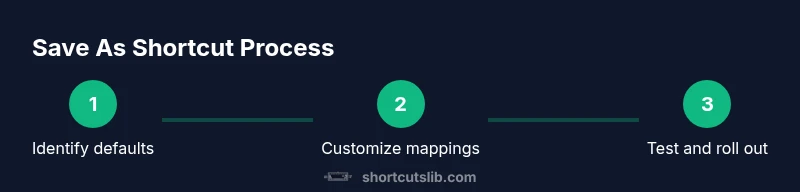
Identify default Save As shortcuts
Survey each app's documentation or File menu to understand how Save As is wired by default. Note whether a dedicated shortcut exists or if you must rely on the File menu navigation. This helps you decide whether to rebind or document a workaround.
Tip: If an app already maps Save As to F12 or another key, you may unify that pattern across your workflow rather than introducing a new combo. - 2
Open the shortcuts editor in the app
Launch the app’s Settings or Preferences, then navigate to Keyboard Shortcuts or a similar section. If there is no global editor, check for per-document or per-project overrides. Make sure to enable editing if prompted.
Tip: Take a screenshot of the existing mapping before changing anything. - 3
Choose a new Save As shortcut
Pick a combination that isn’t heavily used for other actions and is easy to press with your dominant hand. If possible, use the same pattern across multiple apps to reduce mental load.
Tip: Avoid double-tapping keys or combos that require crossing hands, which can slow you down. - 4
Apply and save the new binding
Save the new shortcut in the app and, if available, export the configuration as a backup. Close and reopen the app to ensure the binding sticks.
Tip: Keep the backup file in a known location for easy rollback. - 5
Test the new shortcut in App A
Create a test document, use Save As, and observe whether the new shortcut triggers the intended action. If not, reassess the binding or conflicts.
Tip: Test with different filenames to verify that the Save As dialog behaves correctly. - 6
Repeat the process in App B if needed
Apply the same pattern to other critical apps to maintain cross-app consistency. Use the same keys where possible, but adjust if the app architecture requires a different combo.
Tip: Avoid forcing identical bindings if an app uses a necessary global shortcut for something else. - 7
Create a cross-app cheat sheet
Document the Save As shortcut per app in a shared note or document. Include any caveats and how to revert changes. This keeps you and your team aligned.
Tip: Publish the cheat sheet in your team workspace for quick access. - 8
Back up and validate configurations
Export shortcut configurations and run a quick end-to-end test in all major apps to confirm consistency. If a rollout is staged, verify with a small pilot group first.
Tip: Store backups in a versioned archive so you can track changes over time. - 9
Document and share changes
Update your organizational guidelines with the new Save As shortcuts, reasons for changes, and any app-specific notes. Encourage feedback to catch edge cases.
Tip: Schedule periodic reviews to keep mappings fresh with software updates.
Questions & Answers
What is the difference between Save and Save As?
Save saves the current document, while Save As creates a new copy with a different name. Save As is essential for versioning and avoiding overwrites. In most apps you’ll access it via a shortcut or the File menu.
Save updates the existing file; Save As makes a new copy with a new name. Use Save As to version and protect your original file.
Are Save As shortcuts consistent across apps?
Not always. Shortcuts vary by app and platform. The best practice is to standardize a pattern where possible and keep a centralized reference for your team.
They aren’t always the same across apps, so a shared cheat sheet is very helpful.
How do I reset Save As shortcuts to default?
Open each app’s shortcuts editor and choose the Reset or Restore Defaults option. If not available, revert changes one by one and rebind as needed.
Use each app’s reset option, or rebind step by step if needed.
What if a program doesn’t allow shortcut changes?
If you cannot change the shortcut in-app, consider OS-level remapping or creating a macro that triggers the desired Save As dialog.
If an app won’t let you change it, use OS remapping or a macro instead.
How can I test Save As in a real workflow?
Create test documents, perform Save As in quick succession, and verify the saved file’s name, location, and format. Repeat across the primary apps you use.
Test with real tasks and verify outcomes in all key apps.
Should I involve my team when updating shortcuts?
Yes. Share the new mappings, collect feedback, and align on a single standard. This reduces confusion and accelerates onboarding.
Yes—team alignment helps everyone adapt faster.
Watch Video
Main Points
- Define a clear Save As shortcut pattern and apply it consistently.
- Document and back up all shortcut changes before editing.
- Test across apps to ensure no conflicts or regressions.
- Create a centralized cheat sheet for your team.
- Review shortcuts regularly to adapt to app updates.