Master Keyboard Shortcuts to Type E with Accent
Learn practical keyboard shortcuts to type é, è, ê, and other e-accents across Windows, Mac, and Linux with step-by-step guidance, editor tips, and troubleshooting for smooth multilingual typing.


You can type e with accent (é, è, ê, and related forms) using platform-specific shortcuts, character maps, or custom macros. This guide shows quick, reliable methods for Windows, macOS, Linux, and mobile, plus tips for editors and browsers. By learning both dead-key sequences and compose patterns, you’ll speed up multilingual typing without switching keyboards.
Understanding Accented Characters on Keyboard
Accented e characters — é, è, ê, ë, and their variants — appear frequently in French, Italian, Portuguese, Spanish, and many loanwords. For fluent multilingual typing, you don’t need to switch keyboards or copy-paste every time. The secret is to learn reliable input methods that work across Windows,
Methods to Type 'e' with Accent Across Systems
Across different operating systems, multiple methods exist to input e-accents. The most straightforward are dead keys and straightforward diacritic shortcuts; others rely on keyboard layouts, Unicode entry, or on-screen input. On Windows, enabling a diacritic-friendly layout such as US-International makes é, è, and ê easy: press the dead quote key ' then e to produce é; press the grave key ` then e to produce è; the circumflex dead key ^ followed by e yields ê. On
Common Accent Variants: e with Accent
Here are the common e-accents and consistent input patterns to produce them quickly:
- é (acute): Windows — dead-quote + e (requires US-International); Mac — Option+e then e; Linux — Compose + ' then e.
- è (grave): Windows — dead-grave or backtick + e; Mac — Option+
then e; Linux — Compose +then e. - ê (circumflex): Windows — dead-circumflex + e (depending on layout); Mac — Option+i then e; Linux — Compose + ^ then e.
- ë (diaeresis): Windows — dead-umlaut + e; Mac — Option+u then e; Linux — Compose + " then e.
For each variant, the exact key sequence depends on your chosen input method and OS language settings. Practice each variant in a sentence to build fluency, then consolidate into your editor of choice.
Editor and Application-Specific Shortcuts
Different apps have their own handling of diacritics, shortcuts, and input tricks. Microsoft Word supports you by honoring Windows diacritic inputs and by switching to its own spell-check and language features when you type accented letters. Google Docs generally respects system-level shortcuts and lets you insert diacritics via the on-screen picker in mobile or the browser’s composition. In code editors like VS Code or JetBrains IDEs, diacritics are treated as standard Unicode characters, so the same key sequences work in source files and markdown. When you work across editors, keep a single, reliable method so your files stay consistent and searchable. If you frequently switch between editors, consider a method that minimizes mode-switching, such as a strong Compose-based approach on Linux or a Mac shortcut that behaves uniformly across apps.
Creating Custom Shortcuts for Repeated Use
Advanced users can create custom shortcuts to insert preferred accented forms or common phrases. On Windows, AutoHotkey can map a short trigger to a specific accented character or string. On
Troubleshooting Common Issues and Edge Cases
If accents fail to appear, first verify your keyboard layout and language settings match your intended method. A mismatch between US-International and a standard US layout is a common culprit. Some fonts do not render diacritics consistently; switch to a font with complete Unicode support for best results. In browsers, some extensions can override keyboard input; disable conflicting extensions temporarily to diagnose the issue. When using copy-paste for accents, ensure your clipboard manager is not altering characters. If you rely on Unicode entry, confirm your app supports hex input and that Caps Lock or Num Lock states do not impede entry.
Best Practices for Multilingual Typing and Accessibility
Adopt a single, reliable method for most work to maximize speed and reduce errors. Practice regularly with a mix of simple phrases and longer sentences to embed muscle memory. Consider accessibility: if you or your collaborators rely on screen readers, choose keyboard shortcuts that are easy to describe verbally and remember. Keep a lightweight cheatsheet handy and update it as you refine your preferred methods. Finally, prefer consistent diacritics across documents to improve searchability and comprehension, especially in multilingual teams.
Tools & Materials
- Keyboard with standard layout(Any layout; use US QWERTY as baseline)
- Operating system knowledge (Windows/macOS/Linux)(Know where to access character input)
- Editor or word processor(Test accented input in real apps (Word, Docs, code editors))
- Character map or emoji picker(Useful for rare diacritics or testing)
- Custom shortcut tool (AutoHotkey, Karabiner-Elements, xmodmap)(Optional for advanced users who want repeatable inserts)
Steps
Estimated time: 20-30 minutes
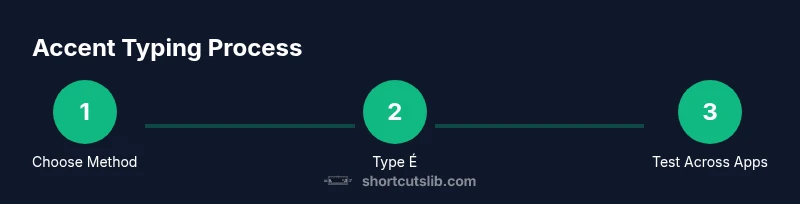
- 1
Enable a diacritic-friendly input method
Open your OS language or keyboard settings and enable a diacritic-friendly layout (e.g., Windows US-International, macOS ABC-Extended, or Linux with a Compose key). This establishes a reliable foundation for all subsequent accents.
Tip: Choose one method now and stick with it to avoid inconsistent results. - 2
Type é using the chosen method
Test the sequence for é with your method. For example, using a dead key can be dead-quote + e, Compose key + sequence, or Option+e + e on Mac.
Tip: Practice with short words like élève or café to cement the pattern. - 3
Type è and ê with variations
Repeat the same process for è, ê, and other variants. Note any app-specific quirks and adjust your cheat sheet accordingly.
Tip: Keep a small table of variants you use most often. - 4
Test across multiple apps
Open a document, a browser form, and a code editor to ensure your input method behaves consistently.
Tip: If a app refuses an input, switch to a fallback method temporarily. - 5
Create a quick cheat sheet
Document your sequences for é, è, ê, and the common variants in a single page you can reference.
Tip: Keep it near your workspace or bookmark the page for quick access. - 6
Experiment with a macro for frequent phrases
If you frequently type a phrase containing accented e forms, map it to a short trigger using a macro tool.
Tip: Test in client apps first to avoid accidental replacements. - 7
Practice with real text
Draft emails, notes, or code comments that include e-accents to build fluency.
Tip: Increase complexity gradually: include names and places with diacritics. - 8
Review and refine
Periodically review your shortcuts and adjust to new apps or fonts, maintaining a concise cheatsheet.
Tip: Delete unused shortcuts to keep your workflow tidy.
Questions & Answers
How do I type é on Windows quickly?
Windows users can enable a diacritic-friendly layout like US-International and use the dead key approach (dead quote + e) or Unicode input where supported. This yields é without switching keyboards.
On Windows, enable a diacritic layout and use the dead key sequence to type é.
What is the easiest way to type accented e on a Mac?
Mac users can type é using Option+e, then e. For è, use Option+` (grave) then e. For ê, use Option+i then e; practice in texts to confirm accuracy.
On a Mac, press Option plus the accent key, then e.
Can I create custom shortcuts to insert accented e forms?
Yes. Tools like AutoHotkey on Windows, Karabiner-Elements on macOS, and xmodmap on Linux let you map short triggers to accented characters or short phrases. Start with a simple trigger and expand as needed.
You can map quick triggers to accented e forms using dedicated shortcut tools.
Why aren’t my diacritics appearing in some editors?
The issue is often a layout mismatch, font limitations, or an app override. Verify the active keyboard layout, choose a font with full Unicode coverage, and test in another editor.
Diacritics may fail due to layout or font issues; check settings and font support.
Are there risks in using macros for accents?
Macros can conflict with other shortcuts or be misapplied in sensitive fields. Use specific, unique triggers and disable macros in critical apps where they aren’t needed.
Macros can conflict with other shortcuts; use careful triggers and test.
How can I input all common e-accents on Linux?
Linux users can rely on a Compose key—press Compose, then the apostrophe or grave accent, followed by e to produce é or è. Otherwise, Unicode input remains available in many editors.
Compose key sequences can produce many accent forms on Linux.
Watch Video
Main Points
- Select one primary input method and practice.
- Learn the core sequences for é, è, and ê.
- Test across multiple apps to ensure consistency.
- Create and maintain a simple shortcuts cheatsheet.