Master Keyboard Shortcuts for Content Security Policy (CSP)
Learn practical keyboard shortcuts CSP to streamline Content Security Policy editing, testing, and deployment. This guide covers shortcut design, editor integration, DevTools workflows, and reusable CSP templates.


In this guide, you'll learn practical keyboard shortcuts CSP to streamline CSP editing and debugging across editors and browser devtools. These techniques help security engineers, frontend developers, and IT admins apply CSP rules faster, reduce mistakes, and accelerate audit cycles. Start by mapping core actions to hotkeys, then standardize templates for quick insertion and validation.
Why keyboard shortcuts CSP matter in development
Adopting keyboard shortcuts for CSP makes your security workflow faster and less error-prone. Content Security Policy (CSP) is a powerful tool to prevent cross-site scripting and data leaks, but policies can be long and nuanced. By binding common CSP actions to reliable keystrokes, you reduce context switching and keep your policy language consistent. According to Shortcuts Lib, disciplined shortcut usage improves cognitive load management and supports repeatable CSP templates across projects. When you need to insert a default policy, a nonce, or a report-uri directive, a well-chosen shortcut can save minutes per session and prevent accidental misconfigurations. Key CSP areas to consider include default-src, script-src, style-src, img-src, connect-src, font-src, and report-uri. Shortcuts ensure you consistently apply the correct directives in the right order. This consistency matters for audits and for teammates who rely on predictable patterns.
In practice, you’ll see the benefits in daily work: faster policy drafting, fewer syntax slips, and clearer policy intent. As you consolidate shortcuts, you’ll also build a repository of reusable CSP templates that scale with teams and projects.
Prerequisites and setup
Before you start mapping shortcuts, assemble these prerequisites: a code editor with snippet and shortcut customization, a modern browser with DevTools, access to CSP reference materials, and a team-friendly process for sharing snippets. In practice, Visual Studio Code, snippets for CSP code blocks, and a carefully staged CSP template repository are ideal. If you're new to CSP, review MDN and W3C CSP specifications (see authority sources). In addition, decide on a default hotkey layout (e.g., Ctrl/Cmd + Alt + C for CSP header insertion) and document your choices so teammates can adopt them quickly. Having a baseline policy example (e.g., default-src 'self'; script-src 'self' 'nonce-xyz') helps you validate shortcuts in real projects.
Designing a shared shortcut system begins with choosing a primary editor (VS Code is a common starting point) and a simple conventions document. This helps avoid conflicts with other team shortcuts and ensures new members can start using CSP templates with minimal onboarding. Shortcuts Lib notes that a well-documented setup increases adoption and reduces misconfigurations during live deployments.
Design a CSP shortcut schema
The next step is to define a concise schema for CSP actions you’ll automate with shortcuts. Map a handful of frequent tasks to intuitive keys, for example:
- Insert a CSP header block with all core directives
- Add or update script-src with nonce placeholders
- Append nonce values and corresponding policies
- Generate a report-uri directive for policy reporting
Keep the schema small but scalable. Use mnemonic key combinations and consider platform differences (Ctrl on Windows/Linux, Cmd on
Step-by-step: setup in Visual Studio Code
- Open Settings and install a snippets extension or use built-in snippet support. 2) Create a CSP-snippet file with placeholders for directives like default-src, script-src, and report-uri. 3) Bind a hotkey to expand the CSP snippet; configure tab-stops to quickly fill values. 4) Add a separate snippet for nonce insertion and another for CSP vulnerability alerts in DevTools. 5) Test by inserting a minimal CSP block into a sample HTML or server-config file and adjusting values with quick edits.
Pro tip: Use snippet placeholders to enforce directive order and prevent syntax mistakes. Wary readers should test in a staging environment before live deployment.
Using DevTools and editors in tandem
DevTools provides real-time CSP feedback through violation reports and the CSP header inspector. Pair your editor shortcuts with DevTools workflows: use a shortcut to insert a header in your server config or HTML, then immediately inspect the response headers and CSP evaluation in the browser. If you see violations, use another shortcut to jump back to your CSP snippet and adjust script-src, img-src, or upgrade-insecure-requests as needed. This dual approach keeps your policy accurate while you iterate quickly.
A practical pattern is to keep a dedicated CSP panel or document that mirrors your server’s policy. When you press a shortcut to update the policy, you can instantly re-run the test in DevTools to verify the change.
Testing CSP via DevTools and validators
Testing is essential to avoid misconfigurations that block legitimate resources or leak risk. Use DevTools to inspect CSP violations in the Console and the Security tab. Copy current CSP headers and paste them into validator tools to verify syntax and directive usage. When you notice a failure, use a shortcut to open the CSP snippet, adjust the directive, and re-test. Always validate critical changes in a staging environment before production. Shortcuts Lib emphasizes constructing test cases that mirror real user flows to catch edge cases early.
Common pitfalls and how to avoid them
- Overly strict policies can unintentionally block resources. Always test in a representative environment.
- Missing nonces or hashes in script-src can break inline scripts. Use a dedicated shortcut to insert nonce blocks consistently.
- Directive order matters for readability and tooling; maintain a canonical order.
- Sharing shortcuts without governance can lead to drift. Maintain a central repository and review changes regularly.
Avoid these pitfalls by documenting your policy language choices and linking each shortcut to a policy rationale. Regular reviews with teammates help keep CSP language robust and up to date.
Real-world templates and reuse examples
Create a library of CSP templates that cover common scenarios: a strict default policy for static sites, a relaxed policy for interactive apps, and a nonce-based approach for inline scripts. A practical approach is to store templates as code snippets in your repo and expose a minimal keyboard shortcut to insert each template. As your CSP expertise grows, expand the library with site-specific directives (e.g., font-src from fonts.gstatic.com) and experiment with reporting configurations. Reuse and refine templates to maintain consistency across projects.
Tools & Materials
- Keyboard(Any standard keyboard; ensure easy access to modifier keys (Ctrl/Cmd, Alt, Shift))
- Code editor with snippet or keybinding support(Examples: VS Code, Sublime Text, JetBrains; configure user snippets and keybindings for CSP blocks)
- Web browser with Developer Tools (DevTools)(Chrome/Edge/Firefox; CSP reporting and inspector utilities)
- CSP reference resources(MDN CSP, W3C CSP specs for quick validation)
- Shared CSP template repository or snippet manager(For team collaboration and versioning)
Steps
Estimated time: 60-90 minutes
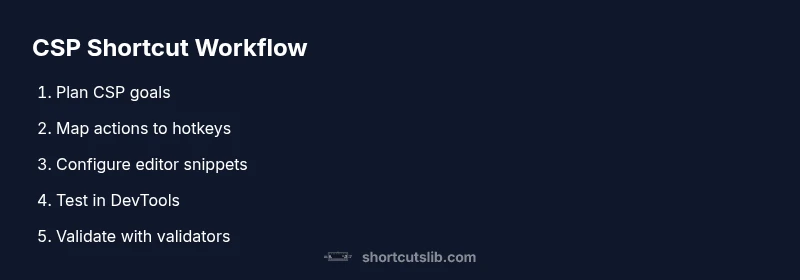
- 1
Define CSP goals and scope
Before you write or adjust CSP rules, define the scope of your policy. Determine which resources require whitelisting and which directives matter most (default-src, script-src, style-src, img-src, connect-src). This baseline informs which shortcuts you need. Document intended behavior in a living CSP template.
Tip: Create a one-page goals doc that pairs directives with resource types (e.g., scripts from your own domain only). - 2
Map actions to hotkeys
Create a 1:1 map of CSP actions to keyboard shortcuts. Examples: insert a CSP header template, add or update script-src with nonce placeholders, append nonce values, and add a report-uri directive. Keep mappings in a single config file.
Tip: Use mnemonic shortcuts (e.g., Ctrl+Alt+C for CSP header insert) and avoid overlapping with existing shortcuts. - 3
Configure editor snippets and keybindings
Set up code snippets in your editor to expand CSP blocks with a single shortcut. Use tab-stops to fill values quickly and maintain directive order. Link snippets to your keyboard shortcuts map for consistency.
Tip: Test snippet expansions in a sample CSP block to verify placeholders align with actual policy values. - 4
Create a CSP header insertion shortcut
Implement a dedicated shortcut to insert a standard CSP header block into your server config or HTML. Include core directives and placeholders for nonce values and reporting endpoints.
Tip: Keep a canonical header in your snippets to minimize drift across files. - 5
Test CSP in DevTools
Use the browser’s DevTools to verify the policy in real time. Look for violation reports and confirm that resources align with the inserted directives.
Tip: Keep a test page with representative resources to simulate real user behavior during testing. - 6
Refine shortcuts and share templates
Review feedback, update shortcuts, and commit them to a shared template library. Ensure onboarding materials explain how to use each shortcut and the rationale behind each CSP pattern.
Tip: Schedule quarterly template reviews to keep CSP language current with evolving web standards.
Questions & Answers
What does CSP stand for?
CSP stands for Content Security Policy. It’s a security standard used to restrict how resources load on a web page. A well-defined CSP helps prevent cross-site scripting and data leaks by controlling sources for scripts, images, styles, and other content.
CSP stands for Content Security Policy. It’s a security standard that restricts where resources can load from to prevent XSS and data leaks.
Why use keyboard shortcuts for CSP?
Keyboard shortcuts accelerate CSP drafting, testing, and updates, reducing repetitive actions and the chance of syntax mistakes. Shortcuts support consistent policy language and faster iteration during audits and reviews.
Shortcuts speed up CSP drafting and testing and help keep policies consistent.
Which editors support CSP snippets and shortcuts?
Most modern editors like VS Code, Sublime Text, and JetBrains products support snippets and customizable keybindings, making them suitable for CSP shortcuts. Start with VS Code if you want a broad ecosystem of CSP templates.
VS Code and other popular editors support CSP snippets and shortcuts.
How do I test CSP policies effectively?
Use browser DevTools to inspect CSP headers and violations, and validate policies with external CSP validators. Create test pages that simulate common resource loads to verify directives behave as intended.
Test CSP with DevTools and online validators, using test pages to simulate resources.
Are CSP shortcuts safe to share across teams?
Yes, but with governance. Maintain a centralized repository for shortuts and templates, document usage, and review changes regularly to prevent drift and security gaps.
Yes, but keep them in a centralized, reviewed repository.
Can CSP shortcuts adapt to different project needs?
Absolutely. Design shortcuts to insert modular templates that can be extended for project-specific directives, while preserving a core policy language for consistency.
Yes—design modular templates that scale with projects while staying consistent.
Watch Video
Main Points
- Map CSP tasks to reliable hotkeys
- Use editor snippets for consistent syntax
- Test policies in DevTools before deployment
- Share a centralized CSP shortcut library for teams