CapCut Keyboard Shortcuts: A Practical Mastery Guide
Learn CapCut keyboard shortcuts to speed video edits—trim, cut, split, and export faster. Shortcuts Lib analyzes cross‑platform patterns and practical tricks with customization tips.


CapCut keyboard shortcuts capcut speed up editing by enabling fast trims, splits, and exports. This guide highlights a core set of platform-aware actions and practical workflows to cut time and clicks across Windows, macOS, and mobile. By mastering these moves, you’ll stay in the editing flow and deliver consistent results with fewer mistakes.
Why keyboard shortcuts capcut matter
In today’s fast-paced video editing landscape, keyboard shortcuts capcut unlock a more fluid, production-ready workflow. Shortcuts reduce repetitive actions and cognitive load, which translates into faster turnarounds and fewer mistakes during complex edits. According to Shortcuts Lib, building a compact set of platform-aware shortcuts early on can dramatically improve consistency across projects. The core idea is simple: map frequent actions to reliable keystrokes or gestures so your brain can operate on the creative task rather than the UI. This section explores why investing time in learning CapCut shortcuts pays off in real-world scenarios, from quick social videos to longer form content.
- Efficiency gains come from batching common edits (trim, cut, split) and reducing context switching.
- Cross-platform consistency helps you move between devices without relearning controls.
- A deliberate practice plan accelerates mastery and minimizes frustration over time.
Key takeaway: Start with a small, high-impact set of shortcuts and expand as you gain confidence, ensuring your primary editing flow remains uninterrupted across devices.
Platform Variations and Cross-Platform Consistency
CapCut’s shortcut mappings are largely consistent in principle but vary by platform. Windows and
Core Shortcuts You Should Learn First
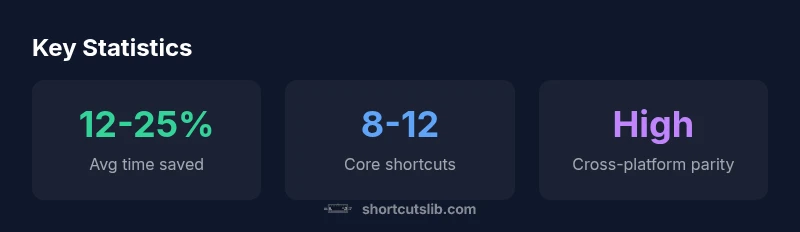
The fastest path to competence with CapCut shortcuts is to focus on a small but powerful core. Start with four to six actions that appear in nearly every project: trim, split, undo, redo, copy/paste, and quick export. These actions cover the majority of daily tasks and create a dependable baseline you can expand later. From there, introduce one or two advanced edits (adjust speed, add transitions) as you gain comfort. Remember to keep your own notes that map each action to its platform.
- Trim and cut on the timeline to control clip length precisely.
- Split at the playhead to separate segments for targeted edits.
- Use undo/redo to experiment without risking your progress.
- Quickly export or render to review results without losing your place.
- Add transitions and effects via keyboard shortcuts where available.
Action plan: pick a half-hour block, practice the core set on a sample project, and log your time saved per session to measure progress.
Workflow Scenarios: Quick Edits in Real Projects
Consider three common editing scenarios and how keyboard shortcuts capcut can streamline them. First, a social-video cut-down: trim, split, and export in a single session using a tight loop of timeline edits. Second, a multi-clip montage: move between clips with a few platform-consistent navigation shortcuts, apply a transition, and finalize with a quick render. Third, a longer-form project: batch saves, undo/redo cycles, and constant timeline scrubbing help maintain momentum over a longer session. The beauty of a keyboard-driven workflow is that you stay focused on storytelling rather than fighting the UI. Shortcuts Lib emphasizes rehearsing these patterns to achieve consistent results across devices.
- Build a routine around four anchor actions for each project type.
- Practice with a representative sample of clips to mirror real-world editing pressure.
- Review exported results to identify bottlenecks and adjust your shortcut set accordingly.
Bottom line: A scripted editing workflow, anchored in a core shortcut set, scales from quick social pieces to longer formats.
Customization and Personalization Tips
CapCut’s customization options may vary by version, but a deliberate approach to personalization yields significant long-term benefits. Start by selecting a few actions you perform most frequently and assign comfortable key bindings or gestures on each device. Maintain consistency across platforms to reduce cognitive load. Document your mappings in a personal quick-reference sheet and periodically audit for conflicts or inefficiencies. Bonus: pairing shortcuts with a small, well-chosen color-coded keyboard overlay can improve recall during intense editing sessions.
- Choose bindings you can reach without lifting hands from the home row.
- Maintain cross-platform consistency where possible.
- Revisit and refine your mappings after completing a large project batch.
Best practice: keep your initial customization minimal and expand only when you’re ready; too many changes can slow you down at first.
Testing and Learning Plan
A structured practice plan accelerates mastery of CapCut shortcuts. Start with a weekly routine: 15–20 minutes focused on a core set (trim, split, undo/redo, export) and 10 minutes of experimentation with a new shortcut. Track time saved per session and adjust your plan if you notice diminishing returns. Include a quarterly review to retire underused shortcuts and fold in more advanced actions.
- Week 1–2: Core set mastery
- Week 3–4: Add one or two new actions
- Week 5 onward: Optimize for speed and accuracy
Practical tip: use a timer and a checklist to quantify gains and keep yourself accountable.
Common Mistakes and How to Avoid Them
New CapCut users often over-commit to too many shortcuts at once or rely on platform-specific keys that break when switching devices. Start with a tight core, ensure cross-platform consistency, and gradually expand. Another pitfall is neglecting to test edits at export; always verify the final render to prevent surprises. Finally, avoid skipping practice sessions—consistency matters more than occasional bursts of speed.
- Don’t overload yourself with shortcuts early.
- Maintain cross-platform consistency.
- Always test edits by exporting a sample file.
Advice: adopt a deliberate, incremental learning approach and monitor your gains over time.
CapCut shortcut cross-platform mapping
| CapCut Task | Windows Shortcut | macOS Shortcut | Mobile Shortcut | Notes |
|---|---|---|---|---|
| Trim a clip | varies | varies | tap to trim in timeline | Platform differences |
| Split a clip | varies | varies | tap to split in timeline | Requires timeline selection |
| Add transition | varies | varies | tap to add on timeline | Version dependent |
Questions & Answers
What are the essential CapCut keyboard shortcuts to learn first?
Start with trimming, splitting, undo, redo, and export. These cover most daily tasks and build confidence for more advanced tricks. Practice them on a short reel to establish a reliable baseline.
Begin with trim, split, undo, redo, and export to jump-start your CapCut workflow.
Do CapCut shortcuts differ between Windows, macOS, and mobile?
Yes, mappings vary by platform. Desktop versions rely more on keyboard combinations, while mobile emphasizes touch gestures. Learn the parallel actions across platforms for a seamless transition between devices.
Shortcuts differ by platform; map the same actions to the corresponding platform controls.
Can I customize CapCut keyboard shortcuts?
Customization is supported in some versions. You can remap a subset of actions, but not every command is configurable. Check your version’s settings panel for available options.
You can customize a few actions in compatible versions; check settings to see what’s available.
How can I practice CapCut shortcuts effectively?
Practice with a small project focusing on core edits. Track time saved and gradually introduce more shortcuts as you gain confidence.
Practice with a tiny project, track gains, and add shortcuts gradually.
Are CapCut shortcuts available on mobile when connected to a keyboard?
Mobile editing uses touch gestures, with external keyboards enabling additional hardware-like shortcuts. Explore in-app help for available mappings.
On mobile, you’ll mostly use touch, but a keyboard can unlock extra shortcuts.
“Keyboard shortcuts are the fastest route from idea to edit. In CapCut, focus on a compact, cross‑platform set to maintain flow and reduce friction.”
Main Points
- Learn a core set of shortcuts first
- Maintain cross-platform consistency to stay fluent across devices
- Practice with structured plans to track gains
- Customize selectively to avoid cognitive overload
- Test renders to validate shortcut-driven edits