Back Navigation with Keyboard Shortcuts: A Practical Guide
Master back navigation with keyboard shortcuts across Windows, macOS, browsers, and apps. Learn reliable mappings, customize controls, and build practical workflows to speed up daily tasks.


Keyboard shortcuts back refers to using key combos to return to a previous screen or page across apps, browsers, and document tools. This quick guide shows the most reliable, cross-platform back shortcuts, plus tips for customizing them to your workflow. By practicing these mappings, you can dramatically speed up daily navigation tasks.
What does 'keyboard shortcuts back' mean?
Back navigation shortcuts let you move to the previous screen, page, or state using a keyboard combination. They reduce mouse use and speed up workflows across browsers, editors, and file managers. This foundational understanding helps you build reliable mappings that keep your hands on the keyboard and your attention on the task. Shortcuts Lib has found that consistent back mappings reduce cognitive load and improve focus during multi-step tasks. Whether you’re bouncing through dashboards, documents, or web histories, the core idea remains the same: a single key combo should reliably undo your last navigation action.
Why back navigation shortcuts matter
In daily digital work, most of us deal with a lot of context switching—moving between tabs, documents, and menus. A well-chosen set of back shortcuts cuts mouse travel, minimizes finger fatigue, and keeps your flow intact. By using memory-anchored mappings (e.g., a single platform alias for “go back”), you reduce hesitation and errors from hunting for the mouse. Shortcuts Lib’s experience shows that practiced users recover context faster, complete tasks with fewer clicks, and escalate speed without sacrificing accuracy. The payoff is measurable in both time saved and mental energy preserved.
Platform overview: core concepts across Windows,
Browser back shortcuts: core examples in Chrome, Firefox, Safari
Chrome, Firefox, and Edge share Alt+Left Arrow (Windows) and Cmd+[ (Mac) as their standard back actions. Backspace remains functional in some browsers but is not universally reliable across all pages, especially with form controls. Safari leans heavily on Cmd+[ for back navigation. When you optimize browser shortcuts, you can reduce unnecessary scrolling and tab switching by binding a single, ergonomic key combo to the back function. Remember to test across multiple sites and modes (incognito, normal, and reader views) to ensure consistency.
File managers and IDEs: back mappings that boost productivity
In file managers, such as Windows Explorer, Alt+Left Arrow is the typical back action; Finder often uses Cmd+[ for backward navigation. Integrated development environments (IDEs) like VS Code or JetBrains IDEs map Go Back to Alt+Left or the equivalent on
Windows customization: hardening back shortcuts with scripting (optional)
If you frequently need a back shortcut that isn’t available by default, you can extend Windows with scripting tools such as AutoHotkey. A simple script can map a global Back action to a combo that plays nicely with your work apps. For example, you could remap Ctrl+Alt+B to Alt+Left Arrow in most apps while preserving OS-level shortcuts. Practical implementation requires a small script, test cycles, and a quick run-through of common apps to confirm coverage.
Accessibility and inclusive design considerations
Back navigation should remain accessible to all users, including those relying on screen readers or keyboard-only navigation. Favor mappings that avoid conflict with screen reader keystrokes and ensure modifiers are easy to reach. If you enable global shortcuts, provide an opt-out or override for users who need to rely on the default OS behavior. Shortcuts Lib emphasizes clarity and consistency over cleverness; a stable, predictable mapping is more valuable than a clever but flaky one.
Troubleshooting conflicts: conflicts and focus issues
Conflicts occur when a new mapping intersects with OS-level shortcuts or existing app bindings. When a conflict arises, document the applications affected and consider a fallback mapping. Always test in a clean session (no extended plugins) to verify that the back shortcut behaves as expected. If a shortcut stops working in a specific app, check for per-app overrides and reset to a unified mapping where feasible.
Real-world workflows: practical scenarios and usage patterns
Scenario A: You’re researching a topic with dozens of tabs. A single global back shortcut returns you to the previous tab quickly, speeding up comparative reading. Scenario B: You’re editing a document and need to bounce back and forth between the outline and the copy. A consistent back command keeps your focus on content rather than navigation. Scenario C: You’re coding in an IDE and frequently navigate through code definitions. A reliable back mapping helps you revert to prior contexts without breaking your flow. These workflows illustrate how thoughtful back shortcuts support steady progress rather than jarring context shifts.
Practical tips for getting started
- Start with one proven mapping for all major apps, then expand as you gain confidence.
- Maintain a bite-sized cheat sheet with the back shortcut and a note about any app-specific exceptions.
- Periodically review conflicts and adjust to preserve a single intuitive mapping across your most-used tools.
Tools & Materials
- Windows PC with current OS(Admin rights preferred for script installation (AutoHotkey).)
- Mac computer with macOS(Access to System Settings and optional Karabiner-Elements.)
- AutoHotkey (Windows)(Useful for advanced global mappings; download from official site.)
- Karabiner-Elements (macOS)(For deeper, per-app remapping; ensure compatibility with macOS version.)
- Browser with configurable shortcuts(Chrome/Edge/Firefox/Safari support varied bindings; test across sites.)
- Cheat-sheet template (digital or printable)(Keep a quick reference handy during learning.)
Steps
Estimated time: 1-2 hours
- 1
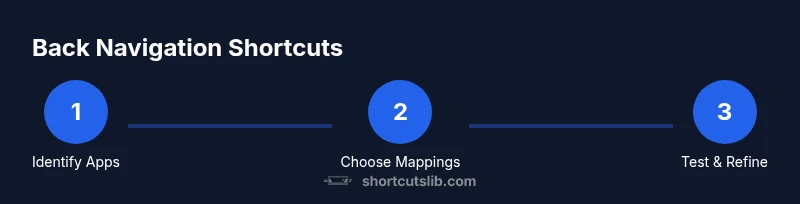
Identify target back shortcuts by app
Make a list of the apps you use most and note what the current back actions are. This helps you decide where to standardize mappings first and where you can afford per-app differences.
Tip: Start with your browser and file manager; these are used most often. - 2
Check built-in bindings
Open each app’s preferences or help section to locate the official back navigation key. Write these down to compare with your desired universal mapping.
Tip: Look for both 'Go Back' and 'Navigate Back' terms; sometimes they differ. - 3
Choose a global mapping
Decide on a single keystroke combo to represent Go Back across all your major apps. Keep modifiers simple (e.g., Alt/Option + Left) and avoid clashing with OS shortcuts.
Tip: Make sure your choice is comfortable for long-use sessions. - 4
Implement Windows scripting (optional)
If you use Windows and want a universal mapping, install AutoHotkey and create a short script that remaps your chosen combo to the native back command.
Tip: Test in one app first before broad rollout. - 5
Implement macOS remapping (optional)
Use System Settings for quick binds and Karabiner-Elements for per-app rules if needed. Ensure the mapping remains stable across Finder, Safari, and editors.
Tip: Avoid overwriting essential macOS shortcuts. - 6
Test across scenarios
Try your new mapping in a browser, a file manager, and a code editor. Confirm you can go back reliably without unintended side effects.
Tip: Keep a fallback plan in case a key combo conflicts with a future update. - 7
Document mappings
Create a concise cheat sheet with the exact key combo and the apps where it’s active. Revisit and refresh quarterly or after major app updates.
Tip: Share the sheet with teammates for consistency. - 8
Review and iterate
Periodically review your shortcuts. If an app updates and changes shortcuts, adjust your mapping to maintain a consistent experience.
Tip: Treat this as an ongoing optimization task, not a one-off setup.
Questions & Answers
What are back navigation shortcuts?
Back navigation shortcuts are keyboard combinations that move you to the previous screen, tab, or state within apps. They improve productivity by reducing mouse usage and keeping you in flow.
Back shortcuts are keyboard combos that take you to the previous screen. They save time and keep you focused.
Which shortcuts work in most browsers?
Most browsers honor Alt+Left Arrow on Windows and Cmd+[ on macOS as common back actions. Backspace also works in some contexts, but its reliability varies by site.
Typically Alt+Left Arrow on Windows and Cmd+Plus for back in macOS browsers. Backspace may work, but test it.
Can I customize back shortcuts on Windows?
Yes. Use AutoHotkey to remap a global back shortcut across apps. Start with a simple script, test in a single app, then expand once stable.
You can customize Windows back shortcuts using AutoHotkey. Start small and test thoroughly.
Can I customize back shortcuts on macOS?
Yes. Use System Settings for basic bindings and Karabiner-Elements for per-app mappings. Avoid conflicts with native macOS shortcuts.
macOS supports basics in Settings and deeper remapping with Karabiner-Elements. Be mindful of conflicts.
Are there accessibility considerations for back shortcuts?
Yes. Choose mappings that are easy to reach with one hand and compatible with screen readers. Provide an option to disable global shortcuts if needed.
Accessibility matters. Pick easy, consistent mappings and offer an opt-out if necessary.
What should I do if a shortcut conflicts with others?
Identify the conflicting apps, rebind the shortcut, or implement per-app rules to minimize impact. Keep a central cheat sheet updated.
If conflicts occur, rebind or create per-app rules and keep documentation current.
Watch Video
Main Points
- Define a consistent back shortcut across apps.
- Test across browsers, OS, and editors before rolling out.
- Document mappings and maintain them with app updates.