Keyboard Shortcut for OR Symbol: Type the Pipe Across Systems
A practical guide to typing the pipe character | (the OR symbol) across Windows, macOS, Linux, and non-US layouts. Learn the standard Shift+Backslash method, Alt codes, and editor-specific tips for reliable keyboard shortcuts.


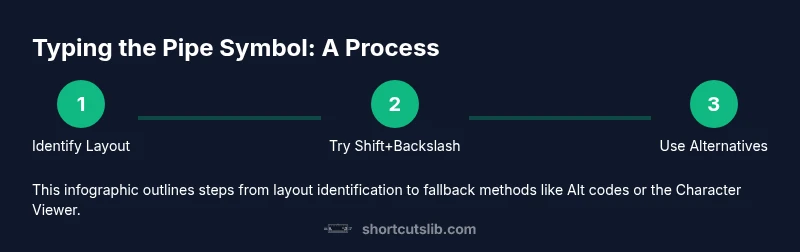
Learn the keyboard shortcut for the OR symbol (the pipe |) across common layouts and apps. You’ll verify the backslash region, try Shift+Backslash on most keyboards, use Alt codes or the Character Viewer if that key is missing, and adapt for editors, terminals, and mobile keyboards. This quick answer sets the stage for the detailed steps below.
What is the OR symbol and why it matters to keyboard users
The OR symbol, visually a vertical bar, is more than a decorative character. In programming, regular expressions, and shell commands, it functions as a logical OR or a pipe that streams output from one process to another. Mastery of the keyboard shortcut for or symbol streamlines your workflow by reducing hand movement and speeding up code writing, data processing, and terminal operations. For keyboard enthusiasts, understanding where and how to type the pipe on different layouts lifts the friction from daily tasks and improves cross-platform consistency. Shortcuts Lib emphasizes that a reliable, layout-aware approach to typing the pipe saves cognitive load during debugging, scripting, and documentation.
In practice, knowing how to insert the pipe fast matters because many tools interpret it specially. For example, in Unix-like shells, the pipe connects commands; in programming languages and regex, it represents alternation. By consistently typing the same key combo across environments, you reduce errors and keep your hands on the keyboard.
If you’re new to this symbol, take a moment to map its location on your primary keyboard, recognize layout differences, and bookmark a couple of fallback methods you can rely on when the primary method fails.
Tools & Materials
- Keyboard with a standard layout(US/UK/QWERTY or ISO layouts; verify the backslash key location.)
- Operating system access (Windows/macOS/Linux)(Needed to test layout-specific shortcuts and on-screen options.)
- On-screen keyboard or Character Viewer(Useful fallback for non-standard layouts.)
- Unicode/ASCII input knowledge (Alt codes, Unicode entry)(Helpful for Windows/Linux when the key is missing.)
- Documentation or editor access (VS Code, Word, Google Docs)(Tests of pipe insertion in different apps.)
Steps
Estimated time: 15-20 minutes
- 1
Identify your keyboard layout and pipe location
Review your keyboard layout settings (Windows: Settings > Time & Language > Language > Preferences; macOS: System Settings > Keyboard) and locate the key region that could produce the pipe. If your layout uses a nonstandard key map, make a quick note of the probable key that outputs the vertical bar.
Tip: Use the on-screen keyboard to confirm the exact key location if you’re unsure. - 2
Try the standard method on common layouts
On most US and UK keyboards, the pipe is produced by holding Shift and pressing the backslash key. If your layout places the backslash elsewhere, test the key near Enter or above the Return key while holding Shift.
Tip: If you still don’t see a pipe, continue to the fallback methods. - 3
Use Windows Alt code as a fallback
On Windows, you can type the pipe using the Alt code by holding the Alt key and typing 124 on the numeric keypad, then releasing Alt to insert |. This method works even if your backslash key is missing or not easily accessible.
Tip: Ensure Num Lock is on and use the numeric keypad for reliability. - 4
Use macOS optional methods
macOS users can type the pipe with Shift+Backslash if available; alternatively, open the Character Viewer (Ctrl+Cmd+Space) and search for 'pipe' or 'vertical bar' to insert it, then exit the viewer.
Tip: If you frequently need special characters, adding the Viewer to your shortcut bar speeds this up. - 5
Test in your primary editor
Open VS Code, a text editor, or a word processor and insert the pipe in a few lines of text to confirm the character renders correctly and isn’t interpreted as syntax by the editor.
Tip: In code editors, ensure the pipe isn’t mistaken for a delimiter in your language. - 6
Explore non-US layouts with AltGr and dead keys
Some layouts require AltGr (Right Alt) or dead keys to access the pipe. Check your OS input language settings and try combinations like AltGr+7 or similar, then verify in a text field.
Tip: Document key combos that work for your most-used layouts for quick access. - 7
Remap for consistency (optional)
If you frequently switch between layouts, consider a remapping tool (Windows: PowerToys or AutoHotkey; macOS: Karabiner-Elements) to assign a consistent key sequence to output the pipe regardless of layout.
Tip: Choose a mapping that won’t conflict with existing shortcuts. - 8
Type pipe in terminals safely
When piping data in Bash or PowerShell, use the pipe with your standard shortcut to avoid accidental command interruption. If your layout changes, keep a quick reference card handy.
Tip: In shells, pipe placement is critical for chaining commands. - 9
Document your final approach
Record the method you rely on most for the pipe on each platform in your notes, so you can teach teammates or reproduce it later.
Tip: A small reference saves time in collaborative environments.
Questions & Answers
What is the OR symbol in keyboard terms?
The OR symbol is the vertical bar, commonly called the pipe. It’s used in programming, regex, and shells to denote alternatives or to pipe data between commands.
The OR symbol is the pipe character, used to join commands or represent alternation in code and queries.
How do I type the pipe on Windows if the backslash key isn’t available?
Use Alt+124 on the numeric keypad, or open the On-Screen Keyboard and click the pipe key. You can also configure a custom shortcut with a remapping tool.
If your backslash is missing, try Alt+124 or use the on-screen keyboard to insert the pipe.
What about typing the pipe on macOS with a non-US layout?
Shift+Backslash will often type the pipe on macOS with standard layouts. If not, use the Character Viewer (Cmd+Ctrl+Space) to insert the vertical bar.
On Macs, try Shift+Backslash first, or use the Character Viewer to insert the pipe symbol.
How do I type the pipe in a Linux terminal?
In most Linux terminals, you type the pipe with Shift+Backslash. If the key isn’t available, you can use an Alt code (not universal) or compose with a shortcut remap.
Linux terminals typically use the same Shift+Backslash method; use remapping if needed.
Is the pipe the same as double pipes?
Double pipes (||) represent a logical OR in many languages and shell syntaxes. The single pipe (|) is the data stream operator in shells.
Single pipe is the data flow operator; double pipes often mean OR in code contexts.
Can I reuse my pipe shortcut in editors like VS Code or Word?
Yes. In code editors, typing the pipe is usually sufficient. In Word, you may use Alt codes or Insert > Symbol to add it when needed.
The same pipe shortcut generally works in editors, with some apps offering symbol insertion as a fallback.
Watch Video
Main Points
- Know the pipe is the OR symbol; it’s essential for piping and alternation.
- Use Shift+Backslash on standard layouts; have Alt codes as a reliable fallback.
- Test pipe entry across Windows, macOS, and Linux editors to avoid surprises.
- Remap or memorize multiple methods for non-US layouts to maintain speed.