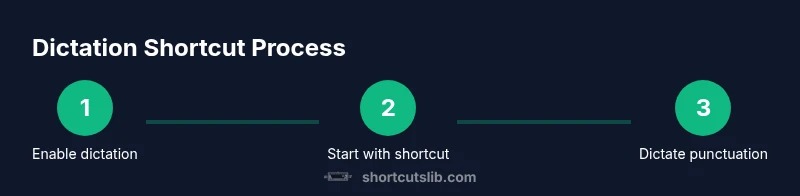
Keyboard Shortcut for Dictation: A Practical Guide
Learn how to use keyboard shortcuts to start and control dictation across Windows, macOS, iOS, and Android. This practical guide covers enabling dictation, common commands, app-specific tips, privacy considerations, and real-world workflows.


You will learn how to trigger dictation with keyboard shortcuts across major platforms, how to enable it, and how to control punctuation and editing using voice commands. This quick guide highlights OS-specific hotkeys, practical workflows, and privacy considerations to help you type hands-free with confidence.
What a keyboard shortcut for dictation is and why it matters
A keyboard shortcut for dictation is a quick keystroke or combo that activates the device's built-in voice-to-text feature. For many users, this enables faster drafting, reduces repetitive typing, and supports accessibility needs by giving a hands-free option for text entry. In this guide we explore how to enable dictation, the most reliable shortcuts across Windows, macOS, iOS, and Android, and how to use voice commands for punctuation and formatting. According to Shortcuts Lib, users who adopt reliable dictation shortcuts report smoother workflows and fewer interruptions when composing emails, notes, or code snippets. By the end, you’ll have a clear mental model of when and where to use dictation shortcuts, plus practical tips to improve accuracy and privacy.
How to think about the right keyboard shortcut for dictation
When choosing a shortcut, consider consistency across devices, ease of reach, and whether the key combo conflicts with other shortcuts you rely on. A good shortcut should be quick to press with one hand, avoid triggering accidentally, and be easy to remember. If you switch devices frequently, focus on system-level shortcuts that synchronize with your account. Shortcuts Lib recommends starting with a single, familiar keystroke on each platform and expanding only after you’re comfortable with the baseline.
Enabling dictation on Windows, macOS, iOS, and Android
On Windows, enable Speech or Dictation in the Time & Language settings and use the system shortcut to start typing by voice (commonly Win+H on supported builds). On macOS, turn on Dictation in Keyboard settings and configure the shortcut to start dictation (often a double-tap of the Fn key, depending on your setup). iOS and iPadOS offer dictation in the Keyboard settings under Settings > General > Keyboard > Enable Dictation, with activation through the on-screen keyboard or configured shortcuts. Android devices typically enable dictation through Settings > System > Languages & input > Virtual keyboard > Gboard (or your keyboard) and then activate Voice Typing, accessible via its mic icon. Ensure your microphone is connected and allowed for the target apps.
Core shortcuts to start, pause, and stop dictation
Across platforms, the go-to action is a system-wide shortcut to begin dictation. Windows users commonly press Win+H; macOS users rely on a designated dictation key or the Fn key shortcut; iOS uses the on-screen mic or a configured shortcut; Android mirrors Google’s voice typing. When dictation is active, you can pause or stop by pressing the shortcut again or pressing a dedicated stop button in the UI. If your device doesn’t respond, verify that the shortcut is enabled in Settings and that the microphone is functioning.
Punctuation and formatting commands you can dictate
Dictation isn’t just about spelling words aloud. You can insert punctuation and formatting commands to shape your document. Common commands include: say “comma”, “period”, “question mark”, “exclamation point”, “colon”, “semicolon”, “open quote”, “close quote”, “new line”, and “new paragraph.” Some platforms also support commands like “bold”, “italic”, or “underline” through voice, or require a punctuation token before formatting. Practice short phrases to internalize these commands and tailor them to your most frequent text types.
Dictation in common apps: Word processors, email, notes, and more
Most apps integrate dictation as a text input method, but behavior can vary. In Microsoft Word or Outlook, dictation can insert text directly into the document or email body. In Google Docs, dictation may handle inline punctuation similarly, with occasional app-specific quirks. Notes apps on mobile devices typically accept dictated text as plain input, with formatting available via voice commands where supported. When switching apps, keep your sentence structure simple until you confirm how punctuation and capitalization behave in that environment.
Real-world workflow: drafting emails, taking notes, and jotting ideas quickly
Imagine you’re drafting an email: you start dictation with the OS shortcut, say the opening line, insert a greeting, and dictate the body. You add punctuation by voice and say “new paragraph” where needed. For rapid note-taking, dictate bullet points by saying “new bullet” or “new line” and then switch back to typing only for long edits. In coding-related scenarios, dictate comments and documentation while leaving actual code to typing, then use voice-to-text for comments where applicable. Shortcuts Lib emphasizes testing your typical documents to tune the phrasing and rhythm of your dictation.
Troubleshooting common issues with dictation shortcuts
If dictation won’t start, check mic permissions for the dictation feature and the app you’re using. Ensure the shortcut is enabled in system settings and that the microphone is selected as the input device. If accuracy is low, speak more slowly and clearly, pause between phrases, and consider training the voice profile if your OS offers it. Test dictation in a simple text field to isolate whether the problem lies with a particular app or with the system-wide feature.
Accessibility considerations and privacy reminders
Dictation can be a powerful accessibility aid, but it’s important to understand privacy implications. Some platforms process audio input in the cloud by default, while others offer on-device processing. Review privacy settings to control whether audio is saved or sent to servers, and disable dictation when not in use to prevent unintended transcription. For shared devices, use a keyboard shortcut to end dictation quickly and clear any sensitive content from the text field before closing the app. Shortcuts Lib reminds readers to choose configurations that respect personal privacy and data security.
How to optimize and customize shortcuts for your setup
Start with a single, memorable shortcut on each platform, then gradually add additional combos for pause, delete, or punctuation if your workflow benefits. Consider using a dedicated mic with a mute switch to prevent accidental transcription in busy environments. If you rely on multiple devices, maintain a consistent key pattern across platforms (for example, a universal “start dictation” shortcut on all devices). Finally, create a small cheat sheet with the most-used voice commands to reduce hesitation during dictation.
Tools & Materials
- Device with built-in dictation support (Windows, macOS, iOS, or Android)(Ensure OS-level dictation is enabled in settings.)
- Microphone(External headset microphone improves accuracy in noisy environments.)
- Text field or target app(Where you’ll transcribe dictation (Word, Notes, Email client, etc.).)
- Shortcut reference cheat sheet(Keep a quick reminder of punctuation and commands.)
- Device privacy controls(Enable or disable cloud processing as preferred.)
- Headset with mute button(Optional: helps prevent accidental transcription in public spaces.)
Steps
Estimated time: 60-90 minutes for initial setup and first full run; then 15-30 minutes per future session
- 1
Enable dictation on your device
Open the system settings and turn on the dictation/voice typing feature. Select the correct microphone input and grant permission for apps to access the mic. This foundational step ensures the rest of the process works smoothly.
Tip: If you’re unsure where the toggle lives, use the OS search to locate 'Dictation' or 'Voice typing'. - 2
Activate dictation with the OS shortcut
Use the designated OS shortcut to start dictation (example: Windows+H on Windows, Fn+Fn on macOS depending on configuration). If your shortcut isn’t active, recheck the settings and rebind to a comfortable keystroke.
Tip: Test the shortcut in a plain text field before moving to complex apps. - 3
Speak clearly and structure your sentences
Dictate words in a steady pace, enunciate clearly, and use short phrases. Speaking with predictable rhythm helps the engine transcribe more accurately and reduce misheard words.
Tip: Pause briefly between phrases to give the engine a moment to process. - 4
Insert punctuation and basic formatting by voice
Directly say punctuation and formatting commands like 'comma', 'period', 'new line', or 'open quote'. Some platforms support advanced formatting commands; test what your device recognizes.
Tip: If punctuation doesn’t appear, retry with a simpler command. - 5
Edit and correct after dictation
Use a mix of voice commands (e.g., 'delete that', 'undo') and keyboard edits to refine the text. Keep a few common corrections ready for rapid use.
Tip: For long documents, dictate a rough draft first, then perform a targeted edit pass. - 6
Switch languages or voice profiles when needed
If you work with multiple languages, switch input language or voice profiles accordingly. Some platforms let you keep separate dictionaries for accuracy.
Tip: Practice a quick language-switch pattern to minimize interruptions. - 7
Pause, resume, and finish dictation
Know how to pause dictation to review text, then resume with the same shortcut. End dictation in the same way when you’re finished to avoid stray transcripts.
Tip: Use a visible cue (like a taskbar indicator) to confirm dictation is paused. - 8
Evaluate and optimize your setup
After a few sessions, evaluate which shortcuts, mic placements, and apps deliver the best results. Tailor your cheat sheet to reflect your most frequent tasks.
Tip: Document your findings in a quick log to refine future sessions.
Questions & Answers
What is a keyboard shortcut for dictation?
A keyboard shortcut for dictation is a system-level keystroke that activates voice-to-text in your device, enabling hands-free typing. It works across supported apps and platforms, with variations by OS. This shortcut helps you draft content faster and reduce repetitive typing.
A dictation shortcut is the keystroke you press to start voice-to-text on your device, which makes typing hands-free.
Can I customize dictation shortcuts on Windows or macOS?
Yes. Most operating systems allow you to customize the dictation shortcut in the system settings. Pick a combination that’s easy to remember and doesn’t conflict with other shortcuts you use.
Yes, you can customize the dictation shortcut in your system settings to fit your workflow.
Is dictation available offline on modern devices?
Dictation availability varies by platform. Some devices offer offline dictation after installing language data, while others rely on cloud processing for higher accuracy.
Some devices support offline dictation after language data is downloaded; others require cloud processing for best accuracy.
What about privacy when using dictation shortcuts?
Dictation may send audio to cloud servers for transcription, depending on the platform and settings. Review privacy controls and disable dictation when not in use on shared devices.
Be mindful of privacy: dictation can send audio to cloud services. Check privacy settings and disable when not needed.
Which apps support dictation shortcuts reliably?
Most major apps support system-level dictation, but behavior can vary. Test dictation in your primary apps to confirm punctuation and formatting commands.
Most apps use system dictation, but results can differ. Test in your main apps.
Watch Video
Main Points
- Start with a stable dictation shortcut across devices.
- Speak clearly and dictate punctuation by voice.
- Validate accuracy in your target apps and adjust settings as needed.
- Protect privacy by managing mic access and cloud processing.