Mastering Keyboard Shortcut Applications: A Practical Guide
Learn how to choose, install, and configure a keyboard shortcut application to boost productivity. Step-by-step setup, best practices, and troubleshooting for efficient, consistent shortcuts across apps.


By the end of this guide you will be able to choose, install, and configure a keyboard shortcut application to streamline your workflow. You’ll define global shortcuts, map them to common actions, and resolve conflicts across apps. According to Shortcuts Lib, well-implemented shortcuts can boost productivity for tech users and keyboard enthusiasts.
What is a keyboard shortcut application?
A keyboard shortcut application is a tool that lets you create, organize, and manage keyboard shortcuts that trigger actions across your operating system and applications. It acts as a centralized translator between keystrokes and tasks, empowering you to define global shortcuts that work across the system and app-specific shortcuts that apply only within a particular program. When you install such software, you gain a single interface to view, edit, and test hotkeys, keystroke conventions, and conflict rules. For tech users and keyboard enthusiasts, this kind of tool unlocks a level of efficiency that is difficult to achieve with manual methods alone. The goal is to align shortcuts with real workflows, not with arbitrary keystroke patterns. In practice, a well-chosen keyboard shortcut application reduces context switching, shortens repetitive routines, and creates repeatable patterns that speed up work. Consistency across tools is the hallmark of a successful setup.
In today’s multi-app environments, a keyboard shortcut application serves as a personal productivity hub. It lets you define the same shortcut to perform a sequence of actions, so you don’t have to memorize dozens of unique commands. The best tools also offer import/export capabilities, conflict detection, and synchronization across devices—features that matter when you move between a desktop and a laptop in 2026.
Why use a keyboard shortcut application?
Using a keyboard shortcut application can dramatically cut down mouse navigation, transforming busy days into smoother experiences. By centralizing shortcut management, you standardize actions across dozens of apps, from text editors to file explorers, reducing inconsistent keystrokes. Shortcuts Lib analysis shows that users who adopt structured shortcuts report faster task completion and lower cognitive load when performing repetitive tasks. The payoff isn’t only speed—it also reduces mistakes and makes complex workflows more approachable. A good shortcut app often includes import/export of configurations, conflict detection, and the ability to sync shortcuts across devices, which is invaluable for people who work on multiple machines. In short, a keyboard shortcut application is an investment in personal productivity, preserving mental bandwidth for higher-level work. As you evolve your setup, you’ll notice fewer context switches and more focus on meaningful tasks.
How to choose the right keyboard shortcut application
Selecting a keyboard shortcut application requires balancing features, reliability, and ease of use. Start with OS compatibility—your tool should play nicely with Windows, macOS, or Linux, and ideally offer a consistent experience across platforms. Look for a clean, intuitive interface that won’t require steep learning curves. Evaluate scripting or macro support if you want advanced actions, but make sure there’s a safe fallback for beginners. Security matters: review permissions, avoid apps that request invasive access, and prefer vendors with transparent privacy policies. Import/export is essential for backup and collaboration, and cloud sync can be a huge time saver if you switch devices often. Finally, consider community resources, documentation quality, and ongoing updates—these indicators predict long-term reliability. Shortcuts Lib recommends starting with a well-documented, cross-platform solution that supports essential features without overwhelming you with advanced options at first.
Global vs app-specific shortcuts: A practical distinction
Global shortcuts work anywhere on your system, while app-specific shortcuts apply only within a chosen program. Global shortcuts are powerful for ubiquitous actions like launching apps, triggering search, or controlling media playback. App-specific shortcuts shine when you want to streamline tasks inside a particular tool—code editors, design software, or office suites. When designing your mappings, favor consistency: use the same modifier pattern for related actions and reserve global shortcuts for actions you perform repeatedly across workflows. A practical approach is to begin with a small set of global shortcuts for core actions, then layer app-specific shortcuts for your most-used applications. If you encounter conflicts, temporarily disable a shortcut in the app where it creates ambiguity and reassign a unique key combination. By structuring shortcuts with this hierarchy, you preserve both speed and predictability.
Designing efficient shortcuts: patterns and naming
Effective shortcuts follow clear, mnemonic patterns. Prefer modifier-heavy combinations (for example, Ctrl/Cmd + Alt + a letter) that are unlikely to collide with typing. Use letters and functions that hint at the action (e.g., Ctrl+Alt+S for Save, Ctrl+Shift+F for Find). Avoid single-letter keys without modifiers, as they are easy to press by mistake. Documenting your mappings with concise notes also helps future maintenance. Keep a master list of core shortcuts visible in a central reference to prevent drift between devices. When possible, align shortcut schemes with existing conventions in your primary tools to reduce cognitive overhead. Finally, create a simple testing protocol to verify each shortcut triggers the intended action without unintended side effects.
Implementing and testing your configuration
Begin by installing the chosen keyboard shortcut application and granting the required permissions. Create a small pilot set of global shortcuts for the actions you perform most often. Test each shortcut in context—open the target app, perform the action, and observe whether the expected result occurs. If conflicts arise, use the conflict detector feature (if available) or temporarily disable competing shortcuts and rebind to a fresh combination. Gradually expand by adding app-specific shortcuts for your top programs, then consolidate common actions into macros or sequences. After each major change, perform a quick usability test: can you remember the shortcut after a day’s gap? Document any adjustments in a central log so teammates can learn from your choices. Finally, back up your configuration regularly and consider exporting profiles for recovery or sharing.
In both setup and testing, patience pays off. A well-tuned shortcut system evolves with your workflow and becomes a reliable ally rather than a source of complexity.
Maintainability and collaboration
A shortcut configuration is not a one-off task—it’s an ongoing project. Schedule periodic reviews to prune rarely used shortcuts and retire deprecated mappings. Use a consistent naming scheme and central documentation so teammates can understand and reuse your configurations. If you work in a team, consider exporting and sharing profiles or establishing a version-controlled repository for shortcuts. This practice makes onboarding faster and ensures that everyone benefits from the best practices you’ve established. As your toolkit grows, keep a lightweight change log highlighting what was added, removed, or refined. Finally, stay mindful of accessibility: offer opt-out options for the most aggressive shortcuts and ensure that essential actions remain reachable via alternative input methods. A maintainable setup requires discipline, documentation, and a willingness to iterate as your needs evolve.
Tools & Materials
- Computer or laptop with admin access(Needed to install the shortcut application and adjust system-level shortcuts)
- Keyboard shortcut application(Choose one that supports your OS and meets your workflow needs)
- Text editor or note-taking app(Helpful for documenting mappings and creating a quick reference)
- Backup/storage(Cloud or local backup to preserve configurations)
- Reference cheatsheet(A succinct guide to avoid conflicts and maintain consistency)
Steps
Estimated time: 60-90 minutes
- 1
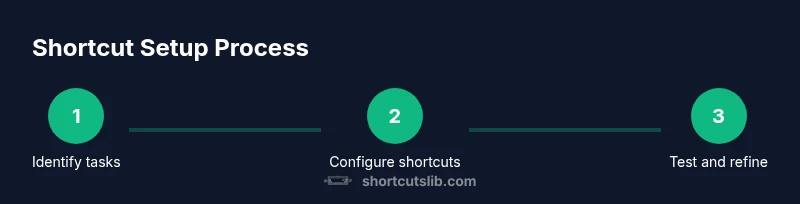
Identify core tasks
Begin by listing actions you perform most often across apps. Group related tasks into a few high-priority categories (e.g., editing, navigation, window management). This becomes the foundation for your shortcut plan. Consider how much time each task saves when automated, and target a small, high-impact set first.
Tip: Aim for 5–8 initial shortcuts focused on frequent, repetitive actions. - 2
Choose and install a keyboard shortcut application
Research options that match your OS, support global shortcuts, and offer safety features like conflict detection. Install the chosen tool and complete the initial setup, granting necessary permissions. If available, enable syncing to keep configurations consistent across devices.
Tip: Prefer solutions with good documentation and a local backup option. - 3
Create global shortcuts first
Define a core set of global shortcuts that work across most apps. Use mnemonic patterns and modifier keys to minimize accidental presses. Verify that these shortcuts trigger reliably from any app and don’t interfere with typing.
Tip: Use Ctrl/Cmd + Alt combos for stability across platforms. - 4
Map app-specific shortcuts
Add shortcuts tailored to your most-used apps. Focus on actions that are unique to the app to maximize value. Keep these mappings consistent with your global shortcuts to reduce cognitive load.
Tip: Create a small, labeled cheat sheet for each app. - 5
Test and refine
Test each shortcut in real tasks, noting any conflicts or unintended results. Adjust bindings and timing (for macros) to ensure smooth operation. Run through a few typical workflows to confirm improvements.
Tip: Keep a testing log and revisit it after major app updates. - 6
Document and back up
Document your conventions and save a backup of the configuration. Share the file or profile with teammates if collaboration is part of your workflow. Schedule periodic reviews to prune and refresh mappings as needs evolve.
Tip: Use a naming scheme that encodes action and app.
Questions & Answers
What is a keyboard shortcut application?
A keyboard shortcut application lets you create global and app-specific shortcuts to perform actions quickly, streamlining repetitive tasks across your OS and applications.
A shortcut app lets you assign fast keys to actions across your system.
Do I need admin rights to install?
Most shortcut apps require administrator access to install and to modify system-level shortcuts. Follow the installer prompts and ensure you trust the software.
Usually yes; install with admin rights.
Can shortcuts conflict across apps?
Yes. Conflicts can occur when the same keystroke triggers different actions in separate apps. Use conflict detection, rebind overlapping shortcuts, and keep a centralized registry.
Conflicts happen; resolve by using unique key combos.
How do I share shortcut configurations?
Export configuration profiles when supported (often JSON or YAML). Importing on another device or by teammates keeps everyone aligned.
Export and import configurations to share.
Is a keyboard shortcut application worth it for beginners?
If you perform repetitive tasks, a shortcut app can provide tangible gains. Start small and expand as you feel more comfortable.
It can be worth it if you do repetitive tasks.
What about security and privacy?
Choose reputable apps, review permission requests, and avoid tools that require excessive access. Regularly update software to reduce risk.
Pick trusted tools and keep them updated.
Watch Video
Main Points
- Define a focused, high-impact shortcut set
- Choose a well-supported shortcut app with backup and sync
- Use consistent mnemonic patterns and modifiers
- Test thoroughly and document changes
- Maintain and review shortcuts to evolve with your workflow