Open Apps Faster with Keyboard Shortcuts
Learn practical keyboard opening shortcuts to launch apps and actions quickly. This guide from Shortcuts Lib offers step-by-step setup, real-world examples, and safety tips for a smoother workflow.


You will learn to open apps and actions with keyboard shortcuts using a minimal, cross-platform starter set. This quick guide gives you a fast, quotable rule: map one key combo per program and test for conflicts before expanding.
Why opening shortcuts matter for speed and focus
If you regularly switch between programs and documents, the act of typing application names and navigating menus slows you down. Opening shortcuts let you reach your destination with a few keystrokes, trimming cognitive load and keeping your hands on the keyboard. According to Shortcuts Lib, power users who adopt dedicated opening shortcuts reduce task friction and free mental bandwidth for more complex work. By treating launching as a muscle-memory action, you can turn routine openings into almost reflexive habits.
Think of your shortcut set as a map of your daily rituals: browser, code editor, note app, and file explorer. The goal is not to memorize every possible combination at once, but to start with a small, reliable core and grow it over weeks. A practical starter kit might include one global shortcut to launch your primary browser, one to open your editor, and one to bring up your file manager. The more you practice, the less you’ll rely on muscle memory and the less you’ll interrupt your current task to search for an app.
Core methods for launching apps quickly
Launching apps without leaving the keyboard comes down to three core methods: OS-level launchers, application launchers, and custom mappings. OS-level options like a universal search or run dialog let you summon programs with a couple keystrokes. Native launchers in macOS, Windows, and Linux provide quick paths to familiar tools. In addition, lightweight launcher concepts—such as a dedicated hotkey that brings up a small launcher board—help you type fewer letters and hit enter faster. Finally, you can create custom mappings (for example, a single keystroke that launches your preferred editor) using profiles, scripts, or automation features. Start with two or three stable mappings and expand over time as you gain confidence.
OS-level shortcuts vs launcher apps
OS-level shortcuts shine for speed and consistency across tasks. They typically require minimal setup and work system-wide, so you can use the same shortcut in many contexts. Launcher apps or scripts offer deeper customization: you can index favorite programs, set up fuzzy search, or chain actions (open app, then a specific document). The trade-off is a bit more setup time and potential conflicts with existing shortcuts. A practical path is to anchor a small set of universal launcher shortcuts and then add app-specific mappings as you become comfortable.
Designing a personal shortcut system
A personal shortcut system grows with practice. Start with a compact core—two to four global shortcuts for your most-used apps. Use mnemonic patterns for recall (letter-based hints like B for Browser, E for Editor). Choose distinct, non-conflicting key combos and document them in a central place. Reserve one hotkey for emergencies (e.g., quickly opening a notes app to jot down ideas). Over time, layer in context-specific mappings (work projects, code workspaces) to streamline your day without overwhelming your memory.
Tip: pick a single modifier key (like Ctrl/Cmd) plus a second unique key for each app to minimize conflicts across platforms.
Practical examples for common workflows
Consider a starter set that covers the essentials: open your browser, your code editor, and your file explorer. For example, map a global shortcut to launch the browser and another to start your editor with a new project. You can also branch into workflow shortcuts, such as opening a terminal window in the project folder or bringing up your notes app for quick jotting. As you test, capture edge cases (e.g., when a dialog is already focused) and refine the mapping to remain reliable under different screen layouts or window positions.
In real terms, a typical workflow might be: press your browser shortcut to load a blank new tab, press the editor shortcut to open a new file, then press the file explorer shortcut to navigate to a specific folder. Consistency matters more than flashiness here.
Testing and refining shortcuts
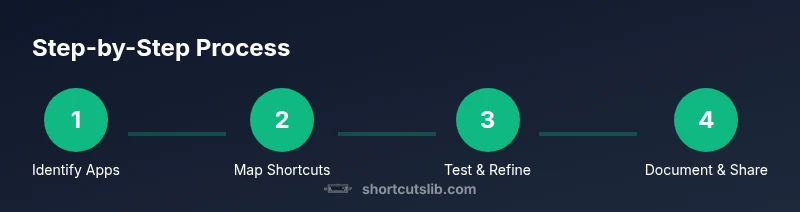
Testing is essential to ensure reliability. Start by verifying each shortcut in a clean session where no other apps are stealing focus. Check for conflicts with existing keyboard shortcuts and OS accessibility features. If a shortcut sometimes triggers the wrong app, adjust the key combo or add a fallback mapping. Keep a testing log for a week and identify any patterns of failure, such as when certain dialogs are on screen or when multiple windows are open. Periodic reviews prevent drift from your original goals.
Accessibility and safety considerations
Keyboard shortcuts can improve accessibility by reducing the number of gestures required to complete tasks. However, aggressive mappings may interfere with screen readers or assistive software. Avoid complex multi-step combos that require heavy hand movement, and consider enabling a mode that temporarily disables shortcuts when you’re performing system-critical tasks. If you use shared devices, implement a per-user shortcut profile to prevent confusion or accidental changes.
Pro tip: document your shortcuts clearly and keep an uncomplicated core set that everyone on the device can use safely.
Documentation and sharing your shortcuts
A clean cheat sheet helps you remember mappings and enables teammates to adopt your setup. Use a simple table in a notes app or a one-page document with the app name, shortcut, purpose, and any caveats. Include a short rationale for each mapping so you and others can expand the system later with confidence. If you collaborate, consider sharing your starter set and updating it as workflows evolve. A well-documented system is easier to maintain than a collection of fragile, ad-hoc mappings.
Next steps and practice routine
Plan a steady practice routine to consolidate your shortcuts. Allocate 15–20 minutes daily for mapping one new app or refining an existing mapping. Review your cheat sheet weekly and prune duplicate or conflicting keys. When you’re comfortable with the core, expand to workflow-wide shortcuts (e.g., a single key combo to open your project workspace and related tools). The key is consistency and incremental growth rather than rapid, overwhelming changes.
Tools & Materials
- Computer with OS installed(Windows, macOS, or Linux — any modern desktop OS)
- Keyboard with standard layout(Full keyboard or laptop keyboard; ensure function keys are accessible)
- Notes/documentation tool(For recording mappings and rationale)
- Editor or launcher utility(A tool to map and test shortcuts; can be built-in or third-party)
Steps
Estimated time: 60-90 minutes
- 1
Identify target apps
List three to five programs you open most often. Prioritize apps you use in streaming workflows or at the start of a project.
Tip: Choose apps with clear, distinct purposes to minimize confusion. - 2
Choose a mapping approach
Decide between OS-level shortcuts, a launcher plugin, or a small script. Align with your OS capabilities and comfort level.
Tip: Keep the initial setup minimal to ensure reliability. - 3
Create a global launcher
Set up a single keystroke that opens a lightweight launcher interface. From there, selecting an app should require only one more keystroke.
Tip: Test the launcher in a clean session before expanding. - 4
Assign unique key combos
Map each app to a distinct, memorable two-key or three-key sequence. Avoid overlaps with existing OS shortcuts.
Tip: Use mnemonic anchors (B for Browser, E for Editor). - 5
Test for conflicts
Run a conflict-check by trying shortcuts in different contexts (focused window, dialog open, full screen).
Tip: If a conflict occurs, swap to an unused key or modify the modifier key. - 6
Document the mappings
Create a one-page reference with app names and their shortcuts. Store it in a shared, version-controlled location if possible.
Tip: Include notes about exceptions and when to use alternatives. - 7
Practice with real tasks
Schedule daily practice focusing on three tasks (browse, code, write). Repeat until the actions become second nature.
Tip: Track progress and celebrate small wins to stay motivated. - 8
Review and expand safely
Once core mappings are solid, add context-specific shortcuts for projects, with periodic reviews to avoid bloat.
Tip: Avoid adding too many shortcuts at once to keep reliability high.
Questions & Answers
What is the best approach to opening apps with keyboard shortcuts?
Start with a small core set of global shortcuts and expand only after you’re confident they don’t conflict with essential OS or application shortcuts. Use mnemonic keys to help memory and document everything for future reference.
Begin with a small core set of global shortcuts and expand thoughtfully. Document as you go to keep things reliable.
Can I use the same shortcut across Windows and macOS?
It's best to avoid the same shortcut across different OSs due to different modifier keys and behaviors. Create platform-specific mappings and aim for consistent naming conventions when possible.
Typically use platform-specific mappings, but keep naming consistent to ease memory.
Are there built-in OS features to customize shortcuts?
Yes. Most operating systems provide keyboard customization or accessibility features. Use these built-ins first before turning to third-party launchers, to reduce risk and improve stability.
Yes—start with OS features, then add launcher tools if you need more power.
How do I avoid conflicts with existing shortcuts?
Check for overlaps during setup, use unique modifier keys, and reserve a separate key for global actions. Regularly audit shortcuts after OS updates.
Check overlaps and test often; adjust as needed.
Should I document every shortcut?
Yes. Maintain a centralized doc detailing mapping, purpose, and any caveats. Update it when you add or change shortcuts.
Keep a central, updated cheat sheet for quick reference.
What about security and reliability?
Use trusted tools, avoid elevating shortcuts to sensitive tasks without confirmation, and test in safe contexts to prevent accidental data loss.
Keep shortcuts safe and test thoroughly to avoid accidental actions.
Watch Video
Main Points
- Map one shortcut per app to start.
- Keep a minimal core set and expand slowly.
- Test for conflicts and document mappings.
- Practice regularly to build muscle memory.
- Prioritize reliability over novelty.