Master Keyboard Backlight Shortcuts on Laptops
Learn practical keyboard backlight shortcuts for laptops. This guide covers Fn-key tricks, OS-level controls, cross-platform differences, and tips to balance visibility with battery life.


By using your laptop’s built-in keyboard backlight shortcuts, you can quickly adjust brightness to suit lighting conditions without interrupting your flow. Most models place brightness controls on the function keys (often Fn combined with F5 or F6); some laptops use dedicated keys on the upper row. This guide explains where to find these shortcuts, how to use them across Windows, macOS, and Linux, and how to customize behavior.
Keyboard backlight basics
Keyboard backlight on a laptop is more than cosmetic; it’s a functional feature that improves visibility, speed, and accuracy in dim environments. If you type in coffee shops, late-night offices, or during night coding sessions, a well-timed glow can reduce eye strain and keep your hands oriented on the keys. The feature is commonly described as a keyboard backlight, keyboard illumination, or simply backlight. In practice, most laptops implement this with a brightness range from low to high, with additional color options on some gaming models. Understanding the controls starts with the humble function keys: a dedicated brightness button is typically integrated into the top row of the keyboard. On many models, you activate it by pressing Fn simultaneously with one of the F-keys. If your model uses a dedicated brightness key, you’ll see a tiny badge on the keycap or a secondary icon printed near the F-key cluster. If you don’t see obvious icons, check your user manual or the vendor’s support site for your model. Some machines place the brightness control in the application grid, accessible via a dedicated utility or the system tray. On macOS, the keyboard backlight often responds to system-level brightness preferences, while on Windows, you may rely on Fn combos or a manufacturer-provided control panel. Linux users might find brightness toggles within power management settings or desktop environments. The aim is to reach a brightness level that stays comfortable for long sessions without causing glare. According to Shortcuts Lib, the methodology behind keyboard light shortcuts emphasizes speed, predictability, and minimal cognitive load. In other words, make your lighting controls something you can reach by muscle memory rather than hunting through menus. For writers, programmers, and students, a reliable backlight is part of an efficient workflow rather than a luxury. Even when the room is bright, a subtle glow can serve as a visual anchor to keep your posture upright and your wrists relaxed. The Shortcuts Lib team believes a thoughtful backlight setup is foundational to productive work.
Locating the light controls across laptops
Most vendors implement keyboard brightness as part of the function key row. Look for icons that resemble a sun or a glowing rectangle on keys in the F-keys or on the main numeric row. If your model uses a physical brightness key, you’ll see a tiny badge on the keycap or a secondary icon printed near the F-key cluster. If you don’t see obvious icons, check your user manual or the vendor’s support site for your model. Some machines place the brightness control in the application grid, accessible via a dedicated utility or the system tray. On macOS, the keyboard backlight often responds to system-level brightness preferences, while on Windows, you may rely on Fn combos or a manufacturer-provided control panel. Linux users might find brightness toggles within power management settings or desktop environments. In all cases, test both directions (increase and decrease) to confirm responsiveness. If the backlight feels sluggish, ensure the keyboard is powered and that any power-saving modes are not restricting illumination. The goal is to reach a brightness level that stays comfortable for long sessions without causing glare.
OS-level backlight settings and shortcuts
Operating systems sometimes expose backlight toggles beyond the physical keys. Windows users can often adjust keyboard brightness through Settings > System > Display, or via a manufacturer utility. On macOS devices with compatible hardware, you may adjust lighting intensity from System Settings > Keyboard, under Keyboard brightness. Linux environments vary by desktop, with GNOME, KDE, and others offering brightness sliders in the power or keyboard sections. Beyond sliders, consider keyboard shortcuts that map to brightness adjustments. Some desktops allow creating custom shortcuts that execute commands to modify brightness. If your laptop lacks OS-level controls, your best option is to rely on the Fn-based keys or to install a vendor-provided utility that exposes brightness as a stand-alone control. When configuring shortcuts, pick stable combinations you won’t accidentally trigger during typing. If you’re dual-booting, verify that both OSes expose feature parity or set per-OS defaults.
Using Fn keys effectively: tips and caveats
The Fn key row is designed to speed up common tasks, including keyboard backlight. In many laptops, you press Fn plus the brightness icon to adjust, and Fn-lock is a feature you can enable to treat those keys as standard function keys. If you toggle Fn-lock, you’ll avoid holding Fn for every shortcut, which can speed up your workflow but may disable certain media keys in the process. Some models offer automatic backlight toggling when you type or move the mouse after a short moment, so you might prefer to leave it off during intense coding sessions. For gaming laptops, the backlight may behave differently in battery saver mode; calibrate the brightness after you switch power plans. Always test both directions—increment and decrement—and record a preferred baseline brightness for different lighting conditions.
Contextual examples: programming, writing, and gaming
When coding, a medium-bright keyboard helps you see braces and punctuation without glare. Writers may opt for a shallow glow at 20-40% brightness to reduce eye strain during long sessions. In gaming, a brighter backlight improves key visibility during fast actions, but it can drain the battery more quickly. In conference rooms, a warm backlight with a gentle glow can be less distracting to others while still keeping your hands visible. If your laptop supports color-changing backlighting, select a hue that minimizes color fatigue. Collect user feedback on what brightness level feels most comfortable and adjust accordingly. If you routinely work in dim cafés or late-night labs, keep a small LED clip-on light handy as a fallback.
Troubleshooting common issues
If the backlight does not respond: Confirm power and battery status; some laptops automatically dim backlight in battery saver mode. Check BIOS/UEFI settings for “keyboard backlight” or “illumination” options and ensure they are enabled. Update your BIOS/UEFI and keyboard drivers from the vendor’s site. Confirm you are using the correct Fn-key combination; on some models, the key has multiple modes or requires a specific order. If the brightness remains stuck, try restarting and re-checking the keyboard hardware. Some laptops require a firmware update to restore brightness functionality. In Linux environments, ensure your kernel supports your hardware and that any necessary module is loaded.
Customizing behaviors with quick actions
You can tailor backlight behavior using OS features or vendor utilities to fit your workflow. On Windows, create a custom shortcut that launches a brightness control app or a small script. On macOS, use a Shortcuts or Automator action to adjust keyboard brightness with a single click. Linux users can bind brightness commands to global shortcuts for fast access. For consistent cross‑platform results, consider mapping brightness adjustments to a single, memorable chord or key combo that you always reuse. If you want to automate backlight changes by time of day, set up a simple automation that lowers brightness at night and raises it at dawn.
Accessibility and power considerations
A keyboard backlight can aid visibility for users with low vision, but it consumes energy and may cause glare. Use the lowest brightness that preserves readability; enable battery-saver modes only if they won’t compromise essential cues. For public or shared spaces, opt for a dim background that reduces distraction while preserving legibility. When possible, keep your system updated, as vendors frequently refine backlight behavior with software patches. The Shortcuts Lib team recommends testing a few baseline settings for different environments and documenting your preferred profiles for quick reference.
Tools & Materials
- Laptop with backlit keyboard(Backlight functionality available on most modern laptops.)
- Model-specific keyboard shortcut guide(Helpful for rare layouts or Fn-key quirks.)
- OS brightness settings access(Windows/macOS/Linux paths vary by version.)
- Optional external lighting accessory(Clip-on light can serve as a fallback.)
Steps
Estimated time: 25-40 minutes
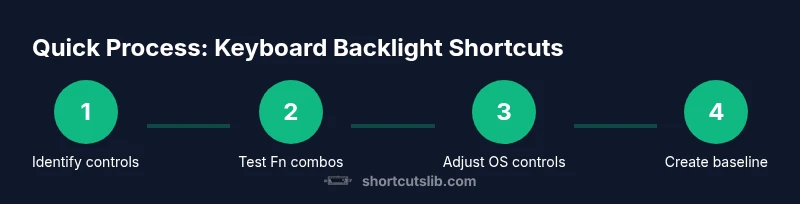
- 1
Identify your backlight controls
Scan the top row for brightness icons on the function keys. If present, note which key pairs illuminate the backlight. If you don’t see icons, consult the user manual or vendor support page for your model to confirm the correct keys.
Tip: Take a photo of your keyboard’s function key icons for quick reference. - 2
Test Fn-key combinations
Hold the Fn key and press the brightness-up and brightness-down keys to verify responsiveness. Try both directions to establish a baseline brightness.
Tip: If Fn-lock exists, decide whether to enable it for faster access. - 3
Check OS-level controls
Open your system brightness controls (Settings > Display on Windows, System Settings > Keyboard on macOS). If a backlight slider is present, adjust it and compare with Fn-key results.
Tip: Document which method gives more consistent results on your device. - 4
Configure a preferred baseline
Set a comfortable brightness baseline for typical lighting. Save this profile in a note or automation for quick recall.
Tip: Name the profile by scenario (e.g., 'Coding at Night'). - 5
Explore automation options
If supported, create shortcuts or automations that adjust brightness by time or activity. Test to ensure it won’t interfere with typing or other shortcuts.
Tip: Limit automation to non-conflicting hotkeys. - 6
Diagnose issues
If brightness is stuck, check power mode, BIOS settings, and driver updates. Consider a firmware or driver update if the problem persists.
Tip: Perform a clean reboot after updates to apply changes. - 7
Test across scenarios
Verify brightness under different lighting (bright room, dark room, outdoors) and ensure readability without glare.
Tip: Keep a small test page handy to compare legibility. - 8
Document your setup
Capture a quick reference of your preferred brightness levels and hotkeys for future use.
Tip: Share your profile with teammates to standardize environments.
Questions & Answers
My laptop keyboard backlight won't adjust; what should I do?
First, verify power and Fn-key usage. Check BIOS/UEFI settings to ensure keyboard illumination is enabled, then update keyboard drivers or firmware. If the issue persists, contact the device manufacturer for model-specific guidance.
Try Fn-key brightness, check BIOS, and update drivers. If it still doesn’t respond, contact the manufacturer.
Can I customize keyboard backlight by app or schedule?
Yes. Many OSes support shortcuts or automations to adjust brightness. You can map brightness controls to a global shortcut or use automation tools to change brightness at specific times.
You can map brightness changes to shortcuts or automate them by time of day.
Does keyboard backlight affect battery life?
Backlight brightness uses power; higher brightness drains the battery faster. Use the lowest comfortable setting and consider automatic dimming in battery saver mode when appropriate.
Yes, brighter backlight uses more power; dim when you can.
Are keyboard backlights available on all laptops?
Most modern laptops include a keyboard backlight, but some budget or rugged models may skip it. Check the product specs or vendor support page for confirmation.
Most laptops have backlight, but check the specs for your model.
Will updates affect keyboard backlight behavior?
Firmware or driver updates can change backlight behavior. Keep firmware and drivers up to date, and test after updates to confirm expected performance.
Updates can change how backlight works, so test after updates.
Watch Video
Main Points
- Identify Fn-key brightness controls on your model
- Balance OS and hardware controls for reliability
- Create a baseline brightness profile for different environments
- Leverage automation thoughtfully to save time
- Document your preferred setup for quick reference