Master ipad custom keyboard shortcuts: a practical guide
Learn how to create and use ipad custom keyboard shortcuts for faster workflows on iPadOS. This Shortcuts Lib guide covers setup, practical mappings, testing, and best practices for reliable iPad shortcuts.


You will learn to create ipad custom keyboard shortcuts to speed up common tasks on iPadOS. This quick guide covers built-in shortcuts, the Shortcuts app, and how to map actions to hardware keyboards. Follow the step-by-step process to configure, test, and optimize your shortcuts for faster, smoother productivity across apps.
Why ipad custom keyboard shortcuts matter
In our fast-moving digital workflows, the ability to trigger complex actions with a single keystroke on the iPad can save minutes each day. For power users and developers, ipad custom keyboard shortcuts unlock a level of efficiency that mirrors desktop productivity. According to Shortcuts Lib, mastering keyboard shortcuts on iPadOS closes the gap between touch-based workflows and keyboard-driven speed, enabling you to automate repetitive tasks and reduce context switching. Build a small library of shortcuts for your most frequent tasks—copy-paste patterns, app switching, data entry, and quick navigation—and your daily routine becomes smoother and more consistent. When you start with a clear plan, you can test and refine shortcuts in a controlled way, avoiding clutter and conflicts. The goal is not to replace your entire workflow at once, but to add a handful of high-leverage shortcuts that consistently save time. Whether you’re drafting emails, gathering research, or managing files, the right keyboard shortcuts can shave seconds off each action and add up to meaningful gains over a week or a month. Shortcuts Lib's analysis suggests users who optimize their iPad keyboards report a noticeable improvement in focus and efficiency.
Core concepts: keys, modifiers, and contexts
Keyboard shortcuts on the iPad rely on a few core ideas: modifiers (such as Command, Option, and Control), context (whether a shortcut runs in a specific app or system-wide), and trigger methods (manual run, automation, or external keyboard input). With iPadOS, you can bind actions to keyboard events within the Shortcuts app, then refine how and when those actions appear. Understanding modifiers helps you design shortcuts that avoid conflicts and feel natural across apps. Remember that not every action will run in every app; some steps depend on app support and permissions. This section lays the groundwork for reliable shortcuts by clarifying scope and trigger flow.
Getting started: prerequisites and mindset
Before you start building, ensure your device is ready and your goals are concrete. Install or update iPadOS and the Shortcuts app, and outline a few high-impact tasks you want to automate. A focused scope makes testing easier, reduces friction, and helps you measure impact over time. As you plan, think about accessibility and consistency—choose actions that work reliably in most apps and maintain a steady naming convention for easy recall. The goal is steady progress, not perfection from day one.
Step-by-step setup overview
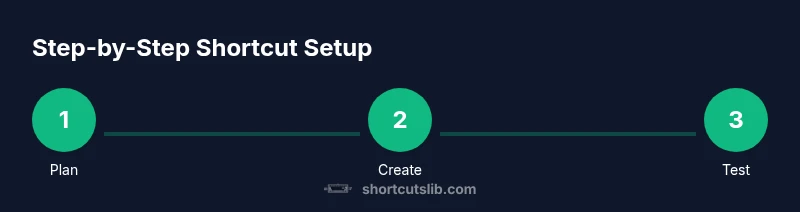
Here is a high-level view of the setup process: plan the workflow, create a new shortcut, add actions in the desired order, test locally, and finally assign a keyboard trigger if your OS supports it. The exact steps can vary by iPadOS version, but the general approach remains the same: capture the task, sequence the actions, validate results, and tighten any prompts or inputs. By following this flow, you’ll build robust, reusable shortcuts.
Practical mappings you can implement today
Start with simple automations that reduce repetitive typing or navigation. For example, map a shortcut to copy a selected text, switch to a browser, search a term, and return. Another powerful pattern is launching a commonly used app and performing a sequence of actions (open, fill fields, and submit). You can also automate file management, such as moving items into a folder or saving screenshots to a specific location. The key is to choose routines you perform many times per day and ensure each step runs reliably.
Testing and refining shortcuts for reliability
Test in a controlled environment to verify each action executes as expected. If a shortcut prompts for input or requests permissions, handle those reliably with default values or conditional logic. Keep a changelog of refinements so you can compare before/after results and measure time saved. When something behaves oddly, simplify the sequence or add error-handling actions to prevent stalls.
Accessibility considerations and safety tips
When designing shortcuts, consider screen readers and large-button ergonomics. Build short, memorable names; avoid overly long sequences that crash or stall. If a shortcut requires sensitive data, ensure you use secure prompts and minimize data exposure. Finally, back up your shortcuts and document changes to prevent loss when devices update.
Maintenance, sharing, and future-proofing
As apps evolve, some shortcuts may need updates. Periodically review your library, retire underperformers, and introduce new high-leverage automations. Share useful shortcuts with colleagues via the Share Sheet or export files, and store a local backup. Shortcuts Lib Team recommends starting with a small, stable set and expanding gradually to preserve reliability.
Tools & Materials
- iPad or iPad Pro with iPadOS 15+(Updated OS helps ensure keyboard shortcut features.)
- Shortcuts app(Install or update to access actions and automation.)
- External keyboard (optional)(Triggers can be hardware-key based if supported.)
- Plan/documentation for your shortcuts(Clear names and purposes help future edits.)
- Testing environment (device/app)(Use real apps to validate reliability.)
Steps
Estimated time: 30-45 minutes
- 1
Plan your workflow
Identify repetitive tasks that would benefit from automation. Write down the exact sequence of actions and the desired trigger for each shortcut.
Tip: Choose high-impact tasks with clear inputs and outputs. - 2
Open Shortcuts and create a new shortcut
Launch the Shortcuts app, create a new shortcut, and give it a concise, descriptive name to avoid confusion later.
Tip: Use a consistent naming scheme to help recall. - 3
Add actions in logical order
Add the actions in the exact order they should run, grouping related actions together to keep the shortcut readable.
Tip: Test each action sequence before adding more steps. - 4
Test the shortcut locally
Run the shortcut inside the app to confirm it behaves as expected and handles prompts or errors gracefully.
Tip: Enable defaults or conditional paths to prevent prompts from stalling. - 5
Assign a keyboard shortcut (if available)
If your iPadOS version supports keyboard triggers for Shortcuts, configure a key combo to run this shortcut. If not, rely on on-device quick actions or the Home Screen prompt.
Tip: Choose a rare combo to avoid clashes with existing shortcuts. - 6
Invoke and refine
Trigger the shortcut with your chosen keys, observe outcomes, and adjust timing or actions as needed for reliability.
Tip: Maintain a changelog to track improvements.
Questions & Answers
What are ipad custom keyboard shortcuts?
They are user-defined key sequences that trigger a series of actions in apps on iPadOS, boosting speed and consistency across tasks.
Custom keyboard shortcuts trigger sequences of actions on iPadOS to speed up your tasks.
Do I need the Shortcuts app to create them?
Yes. The Shortcuts app is the main tool for creating, organizing, and editing shortcuts. Some apps may offer light automation, but the central workflow lives in Shortcuts.
Yes, you’ll use the Shortcuts app to create and manage your shortcuts.
Can I assign keyboard shortcuts to existing shortcuts?
In supported iPadOS versions, you can bind a keyboard combination to run a shortcut. Availability varies by OS version and app support.
You can bind a keyboard combo to run a shortcut if your iPadOS version supports it.
Are keyboard shortcuts available for all apps?
Most apps support system-wide shortcuts, but some actions depend on the app’s own capabilities and prompts. Test across frequently used apps.
Most apps support system-wide shortcuts, but behavior varies by app.
How do I share shortcuts with others?
Shortcuts can be shared as files or via the Shortcuts sharing features. Export your shortcut and provide instructions for others to import.
You can export or share your shortcuts so others can import them.
What if my iPadOS version doesn’t support keyboard triggers?
Upgrade to a newer iPadOS, or use on-screen triggers and automation as alternatives until support is available.
Upgrade your iPadOS or use on-screen triggers if keyboard triggering isn’t supported yet.
Watch Video
Main Points
- Plan your workflow before building shortcuts.
- Test each shortcut in a controlled environment.
- Name clearly and document shortcuts for future updates.
- Reserve unique keyboard combos to prevent clashes.
- Share and back up your shortcuts for consistency.