Import Keyboard Shortcuts in Premiere CC 2017 — Step-by-Step
Learn how to import a keyboard shortcuts preset into Premiere Pro CC 2017 with Shortcuts Lib. This hands-on guide covers prerequisites, import steps, testing shortcuts, troubleshooting, and best practices for faster editing.


You will learn how to import a keyboard shortcuts preset into Premiere Pro CC 2017. This guide covers prerequisites, the import process, testing, and troubleshooting to help you customize a fast, reliable editing workflow. You’ll need a compatible preset file, Premiere Pro CC 2017 installed, and the ability to save and back up presets before importing.
Why keyboard shortcuts matter for Premiere Pro CC 2017 workflow
In professional video editing, speed and accuracy hinge on muscle memory and consistent tool placement. Importing a well-designed keyboard shortcuts preset lets you collapse long command menus into single keystrokes, reducing hand movement and cognitive load. With a trusted preset, you can execute common actions like ripple edits, trim, lift, and track targeting without breaking your editing rhythm. According to Shortcuts Lib, editors who adopt customized shortcuts report smoother timeline navigation and fewer interruptions during complex sequences. This section explores the core benefits and how they translate to real-world editing sessions, including how shortcuts influence your decision-making and accuracy when dealing with tight deadlines.
- Reduced mouse dependence speeds up edits
- Consistent mappings cut the learning curve across projects
- Presets can be shared across teams for uniform workflows
- Thoughtful mappings minimize repetitive strain and improve focus
When you plan to import shortcuts, consider your typical tasks (multicam cuts, color grading, audio mixing) and map the most frequent actions to easy-to-reach keys. A well-structured preset acts as a personal editing language, helping you work faster while preserving precision. Shortcuts Lib Analysis, 2026, supports the idea that a carefully curated preset is a meaningful productivity investment.
Understanding preset formats and compatibility
Premiere Pro CC 2017 supports loading keyboard shortcuts presets that capture mappings from commands to keystrokes. A preset file essentially bundles a set of key assignments so you can apply them to your current workspace with a single import. When you import, Premiere will typically offer to replace your existing shortcuts or merge the new map with your current one. Compatibility matters: a preset designed for a newer CC revision might behave slightly differently or override commands you rely on. Always verify the preset’s version tag or metadata before importing. Shortcuts Lib recommends testing essential shortcuts first in a safe project to confirm nothing critical is unintentionally overridden. Keep a backup of your current preset in case you need to rollback.
- Presets are shareable across projects and user accounts
- Merging preserves your existing commands while adding new mappings
- Version compatibility can affect mapping behavior or conflicts
- Always verify the source and back up before importing
Preparations before importing shortcuts
Before you import any keyboard shortcuts preset, do a quick preparation pass to avoid accidental loss of your current setup. 1) Back up your current shortcut layout by exporting or copying the preset file to a safe location. 2) Decide whether you want to replace the current shortcuts entirely or merge the new mappings with your existing ones. Merging is safer if you rely on a mix of default actions and custom mappings. 3) Check the preset’s source and ensure it’s compatible with Premiere Pro CC 2017. 4) Confirm you have a stable project environment and remember to save your project before importing so you don’t lose active work.
- Backups enable fast rollback if something doesn’t feel right
- Merging preserves essential defaults while enabling new mappings
- Validate the source to avoid conflicting or incorrect commands
- Don’t import in the middle of a live editing session; wait until a suitable break
If you’re new to presets, start with a small, non-destructive map (for example, a handful of editing tools) to validate behavior before expanding.
Importing a keyboard shortcuts preset in Premiere Pro CC 2017
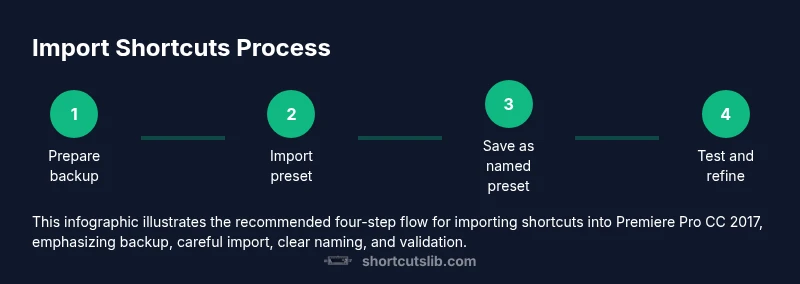
The import process is straightforward, but paying attention to options ensures you don’t accidentally override essential workflows. Open Premiere Pro CC 2017, then navigate to the Keyboard Shortcuts panel. In Windows, this is Edit > Keyboard Shortcuts; on macOS, it’s Premiere Pro > Keyboard Shortcuts. Click Import, locate your preset file, and select it. You’ll be prompted to either replace the current shortcuts or merge with them. After choosing, click OK and then Save As to preserve your new preset under a clear name. Finally, test a few core actions (playback, trim, ripple delete) to confirm the new mapping behaves as expected.
- Importing a well-labeled preset is faster than reassigning keys by hand
- Replacing can be risky if you rely on default shortcuts; merging is often safer
- Save As creates a named preset for easy retrieval in the future
- After import, validate the most-used commands in a real project
Testing, troubleshooting, and refining your shortcuts
Testing is essential to ensure that the new shortcuts improve your workflow rather than hamper it. Open a sample project and run through a typical editing sequence, focusing on the actions you reassigned. If a key conflicts with an existing command, reassign it in the Keyboard Shortcuts panel and re-test. If some mappings don’t trigger, verify you’re editing the correct command and not a duplicate in another panel. Consider keeping a short reference sheet for your custom mappings until you memorize them. If any major conflicts persist, revert to your backup preset and re-import with tweaks.
- Test critically-used actions first
- Look for conflicting commands and resolve them in the same panel
- Keep a reference sheet for your custom layout
- If all else fails, restore from backup and try smaller changes
Best practices for long-term shortcut management
Long-term success with keyboard shortcuts comes from organization and documentation. Create a naming convention for presets (for example, MyShortcuts_2026_Windows or MyShortcuts_2026_Mac) and keep backups in a versioned archive. When you adopt new shortcuts, update your reference sheet and consider exporting a quarterly backup. If you work across multiple machines, store presets in a synchronized folder and use system-wide shortcut presets when possible. Periodically review your mappings to ensure they still align with your current workflow and project types (color grading, audio editing, multicam editing). Shortcuts Lib suggests pairing keyboard shortcuts with a quick-recognition color-coding strategy so your hands know where to go at a glance.
- Versioned presets reduce confusion across projects
- Centralized storage simplifies cross-machine workflows
- Regular reviews keep mappings aligned with your current tasks
- Color-coded mappings help quick recognition and reduce errors
Common mistakes to avoid
Even seasoned editors can trip over presets if care isn’t taken. Avoid importing a large, untested preset all at once; this breaks muscle memory and slows you down. Don’t overwrite your default layout without a confirmed backup. Be wary of presets that claim to optimize everything; every environment is different, and your own workflow may require unique mappings. Finally, never skip testing after import; untested shortcuts can disrupt essential tasks mid-project. If you discover conflicts, address them incrementally and maintain a recovery plan with a recent backup.
Tools & Materials
- Premiere Pro CC 2017 installed(Ensure your OS meets the program’s minimum requirements and that you can access the Keyboard Shortcuts panel.)
- Keyboard shortcuts preset file(Source should be a trusted origin and compatible with CC 2017.)
- Backup of current keyboard shortcuts(Export or copy the existing preset to a secure location before importing.)
- Accessible storage for saving presets(Local drive or cloud storage for easy retrieval and versioning.)
- Admin rights or sufficient permissions(Some systems require elevated permissions to save or export presets.)
Steps
Estimated time: 15-25 minutes
- 1
Open Keyboard Shortcuts panel
Launch Premiere Pro CC 2017 and open the Keyboard Shortcuts dialog (Windows: Edit > Keyboard Shortcuts; macOS: Premiere Pro > Keyboard Shortcuts). This is where you manage all shortcut mappings.
Tip: If the panel is missing, reset the workspace or enable the keyboard shortcuts panel from the Window menu. - 2
Import the preset file
Click Import in the Keyboard Shortcuts panel, then navigate to your preset file and select it. The preset will populate a new set of mappings for you to review.
Tip: Only import from trusted sources to avoid conflicting or incorrect mappings. - 3
Choose replace or merge
If prompted, decide whether to replace your current shortcuts or merge the new mappings with existing ones. Replacement is a clean slate; merging preserves your existing workflow while adding new commands.
Tip: If you rely on default shortcuts, start with Merge and test before fully replacing. - 4
Save as a named preset
After applying the preset, use Save As to name this configuration clearly (for example, MyShortcuts_2026_Windows). This keeps it reusable for future projects or team members.
Tip: Use a descriptive name that includes the year and platform for easy identification. - 5
Test core editing actions
Open a sample project and test essential actions such as playback, cut, ripple delete, and track targeting to confirm the new mappings behave as intended.
Tip: Document any tweaks needed and update your reference sheet accordingly. - 6
Back up and document
Export a backup of the new preset and update your shortcut reference document. Store both in a reliable location for quick rollback if needed.
Tip: Keep at least two backup versions in separate locations.
Questions & Answers
Can I import multiple shortcuts presets at once?
Premiere Pro CC 2017 lets you import presets one at a time. If you want a combined layout, import and merge carefully, then save a new preset. Maintain a backup in case you need to roll back specific mappings.
You can import presets one by one and merge them, but keep a backup and test after each import.
What happens if a shortcut conflicts with an existing one?
If a conflict occurs, reassign the conflicting command in the Keyboard Shortcuts panel. You can also merge and manually adjust important mappings to preserve your workflow.
Conflict resolution is done by reassigning the key in the Keyboard Shortcuts panel after testing.
Is this process different on Mac versus Windows?
The steps are largely the same, with minor menu path differences. Windows uses Edit > Keyboard Shortcuts, while macOS uses Premiere Pro > Keyboard Shortcuts. The import and save concepts remain identical.
The process is similar on Mac and Windows, with only menu paths changing.
How do I export or back up my preset?
Use the Save As option in the Keyboard Shortcuts dialog to create a named preset, then export or copy the file to a secure backup location.
Save as a named preset and back it up to a secure location.
Will imported shortcuts affect editing performance?
No, importing shortcuts does not affect performance. It changes only the keystroke mappings and how you interact with Premiere Pro.
Importing shortcuts won’t slow down your editing; it changes only the mappings.
What if I want a quick rollback to my previous setup?
Keep a backup of your previous preset. If needed, re-import the old preset or switch to a saved backup version to restore your original workflow.
Have a backup ready so you can revert quickly if needed.
Watch Video
Main Points
- Import presets to standardize shortcuts across projects
- Back up before importing to enable safe rollback
- Test critical actions to verify mappings work as expected
- Name presets clearly for future reuse