How to Use the Rupee Symbol in Keyboard Shortcuts
Learn reliable methods to insert the ₹ symbol via keyboard shortcuts on Windows, macOS, and Linux. This Shortcuts Lib guide covers Alt codes, Unicode input, and paste tricks for durable shortcut workflows.


This guide shows you how to assign or trigger the rupee symbol (₹) in keyboard shortcuts across Windows, macOS, and Linux. You’ll learn three robust methods—Alt codes, Unicode input, and clipboard-based shortcuts—and how to adapt them to your apps, documents, and workflows. No external software required; just your keyboard and built-in OS features.
Why this matters for keyboard users
If you frequently type in Indian currency amounts, choosing a reliable method to insert the rupee symbol ₹ quickly becomes a productivity edge. This is especially true when you want a custom keyboard shortcut that triggers ₹ in your preferred apps, documents, and forms. If you’re wondering how to use rupee symbol in keyboard shortcut key, this guide from Shortcuts Lib breaks down practical, OS-agnostic methods and best practices for consistency across platforms. You’ll learn the main approaches, their trade-offs, and how to test them in real tasks. By the end, you’ll have a durable shortcut workflow that survives font changes and app updates. According to Shortcuts Lib, mastering keyboard shortcuts for currency symbols saves time and reduces repetitive strain; the strategies here are designed for busy tech users and keyboard enthusiasts who want reliable, repeatable results.
The rupee symbol: what it is and why it shows up in shortcuts
The rupee symbol ₹ is the currency sign for the Indian rupee and is encoded as U+20B9 in Unicode. In practice, that code point means you can type ₹ with a hardware- or software-assisted input method, rather than relying on a static image or memory. For shortcut builders, this consistency matters: if one app renders ₹ differently or fails to display it at all, your shortcut becomes unreliable. Shortcuts Lib Analysis, 2026 indicates that built-in input methods tend to offer the most reliable cross-app results compared with ad-hoc copy-paste or font hacks. Fonts also matter: ensure your target documents use a font that supports ₹ (e.g., Arial, Segoe UI, Noto Sans).
Practical targets: where you’ll use ₹ in shortcuts
You might want ₹ in form labels, financial templates, price fields, and quick-access macros. The goal is to trigger or insert ₹ with a single keystroke, not to open a long menu or interrupt your workflow. Planning ahead—deciding which OS and apps you’ll support—saves time during the actual setup. This section helps you map out where ₹ will appear and which methods best fit each scenario, so your shortcut key remains consistent across devices.
Windows: Alt codes for ₹ (fast, but hardware-dependent)
On Windows, the most straightforward path for a dedicated ₹ shortcut is using an Alt code. The rupee symbol ₹ commonly uses the numeric keypad: hold the Alt key, type 8377 on the keypad, and release. If your keyboard lacks a numeric keypad, enable the on-screen keyboard or use a two-step approach (copy ₹ once into your clipboard and insert it via a remapped key in your apps). Alt codes are quick when you have keypad access, but they can be fiddly on compact laptops or when Num Lock toggling interferes with your workflow.
macOS and Linux: Unicode input and character viewers
macOS users can enable Unicode Hex Input and type the hex code 20B9 to produce ₹, or use the built-in character viewer to insert it. Linux users typically use the Ctrl+Shift+U method, then type 20B9 and press Enter or Space to render ₹. Both approaches favor a Unicode-based path, which tends to be more portable across apps than font-specific hacks. The benefit is that you can copy the result or bind a shortcut to a Unicode-entry action in some desktop environments.
Copy-paste and remapping as a universal shortcut strategy
If you don’t want to rely on OS-level input tricks, you can centralize ₹ in your clipboard and remap a hotkey to paste ₹ into any app. This method works across Windows, macOS, and Linux, but you’ll want to test in your most-used programs (word processors, spreadsheets, email clients). Remapping can be done at the OS level or within individual apps that support custom shortcuts. This approach is especially useful if some apps don’t expose Unicode input controls.
Step-back considerations: fonts, compatibility, and display
Currency symbols are display-sensitive. Some fonts may render ₹ as a placeholder glyph or not at all if the font lacks the character, so always test in your target documents. To improve reliability, include ₹ in the font repertoire you use for reports and dashboards, or switch to a universal font that includes the symbol. When sharing shortcuts, document the exact font and encoding you expect to use, so teammates don’t encounter missing glyphs.
App-specific tips: Word processors, spreadsheets, and browsers
Many apps offer built-in shortcuts to insert special characters or to paste from the clipboard. In Word, for example, you can map a shortcut to paste ₹ via AutoCorrect or a macro. In spreadsheets, you can set a formula-based insertion or a script to insert ₹. In browsers, you can create a custom extension or use a bookmarklet to paste ₹ into an active field. The key is to choose a method that minimizes context switching and remains accessible across your most-used tools.
Accessibility and inclusivity: testing with assistive tech
Always test your ₹ shortcuts with screen readers and other assistive technologies. If a screen reader can’t announce the ₹ properly, you may need to adjust the font or provide an alternate text label. Accessibility-minded shortcuts reduce friction for users who rely on keyboard navigation and ensure your workflow remains inclusive for a broader audience.
Testing checklist and validation
Before finalizing, test ₹ across your most-used apps, fonts, and devices. Confirm that the shortcut triggers ₹ reliably, appears in all critical fields, and survives app updates or OS upgrades. If you notice inconsistent behavior, revisit your shortcut mapping, font choice, and input method. Shortcuts Lib recommends keeping a quick-reference sheet to avoid regression after updates.
AUTHORITY SOURCES
- Unicode Consortium: https://www.unicode.org/faq/currency_symbols.html
- Microsoft Support: https://support.microsoft.com/en-us/windows
- Apple Support: https://support.apple.com/kb/HT201236
Quick-start checklist
- Decide on your primary OS target (Windows, macOS, or Linux).
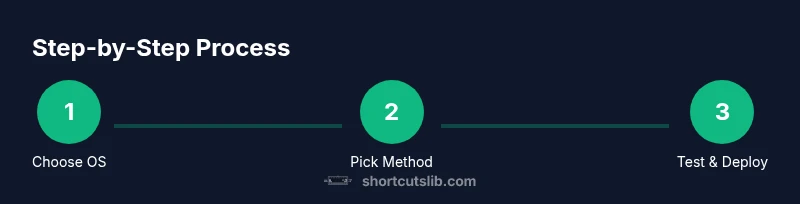
- Choose a primary method (Alt code, Unicode input, or paste-based remapping).
- Ensure ₹ is available in fonts used by your documents.
- Create or adjust shortcuts in your most-used apps.
- Test across devices and document any font or app caveats.
Putting it into practice: final steps
With your method chosen, document the exact keystrokes, font requirements, and any app-specific steps. Share the setup with teammates and store the mapping in a central wiki or cheat sheet. Revisit your shortcuts quarterly to accommodate software updates and font changes.
Tools & Materials
- Keyboard with a numeric keypad(Essential for Windows Alt codes (e.g., 8377). If unavailable, use on-screen keyboard.)
- Unicode input capability(Enable Unicode input on macOS/Linux or ensure your environment supports Unicode hex input.)
- Clipboard access or clipboard manager(Useful for paste-based shortcuts and quick testing.)
- Test document or editor(Use a document that supports Unicode and the ₹ glyph (Word, Sheets, etc.).)
- Font with ₹ support(Examples: Arial, Segoe UI, Noto Sans; verify in your target app.)
Steps
Estimated time: Total time: 25-35 minutes
- 1
Decide OS and primary apps
Identify the operating system (Windows, macOS, Linux) and the apps where you’ll use the shortcut most often. This choice determines which method will be simplest and most reliable for you.
Tip: Document the top 3 apps to focus on first to avoid scattering effort. - 2
Choose a primary input method
Select Alt codes for Windows if you have a keypad, Unicode input for cross-platform use, or a paste-based remap as a universal fallback.
Tip: If you share keyboards among devices, Unicode input offers the best portability. - 3
Prepare ₹ in your clipboard
Have ₹ ready in the clipboard (copy from a reliable source) so you can test the paste-based shortcut quickly without repeatedly typing the symbol.
Tip: Keep a dedicated clipboard snippet for ₹ to speed up testing. - 4
Create OS- or app-level shortcuts
In Windows Settings or macOS Keyboard preferences, create a new shortcut that pastes or inserts ₹ in your target apps. If your app supports macros, assign ₹ to a macro.
Tip: Label shortcuts clearly (e.g., '₹ Macro: Finance Root') to avoid confusion later. - 5
Test across your primary apps
Try the shortcut in word processors, spreadsheets, email, and browsers. Confirm ₹ renders correctly and that the shortcut doesn’t conflict with existing hotkeys.
Tip: If a conflict exists, re-map to a less-used key combination. - 6
Document font and encoding requirements
Record the font that reliably shows ₹ and note any apps where the symbol may fail to render. Update your cheat sheet accordingly.
Tip: Include a fallback option (paste ₹) when a font lacks glyph support.
Questions & Answers
Can I use the rupee symbol in custom keyboard shortcuts across apps?
Yes. If the app supports Unicode or paste-insertion, you can bind a shortcut to insert ₹. Start with Unicode input for cross-app reliability and test across your most-used tools.
Yes. You can use ₹ in shortcuts by binding a key to Unicode input or paste, then testing in your favorite apps.
Is Alt code input available on all Windows keyboards?
Alt codes rely on a numeric keypad. If your keyboard lacks one, use the on-screen keyboard or switch to Unicode input for consistent results.
Alt codes work if you have a numeric keypad; otherwise, try Unicode input or paste-based methods.
What if ₹ appears as a broken glyph?
Switch to a font that supports the symbol in your target app, or configure your app to use a universal font when displaying currency values.
If ₹ looks broken, switch to a font that supports it or adjust the app's font settings.
Can I share these shortcuts with teammates?
Yes. After you finalize the shortcut mappings, export or document the steps so teammates can replicate the setup on their machines.
You can share the setup by exporting the shortcuts or writing clear replication steps.
Are there security risks when remapping shortcuts?
Using built-in OS features to remap shortcuts is generally safe. Avoid third-party tools that request elevated permissions unless you vet them carefully.
Remapping shortcuts with built-in features is usually safe, but avoid untrusted tools.
Watch Video
Main Points
- Define the primary OS and apps first.
- Choose a reliable input method (Unicode or Alt codes) for consistency.
- Verify font support to avoid missing glyphs.
- Test and document your shortcut settings for teammates.