How to Use a Polish Keyboard: A Practical Guide for Typists
Learn to use a Polish keyboard layout across Windows, macOS, and Linux. This educational Shortcuts Lib guide covers typing Polish diacritics, switching layouts, and efficient shortcuts to keep your typing fluent.


You’ll learn how to type Polish characters accurately using a standard keyboard, switch between layouts, and leverage shortcuts on Windows, macOS, and Linux. This quick-start overview from Shortcuts Lib shows how to enable the Polish layout, input common letters like ą, ć, and ł, and keep your workflow smooth in documents, emails, and browsers. By the end you’ll type Polish with confidence and speed.
What is a Polish keyboard layout?
A Polish keyboard layout represents how Polish letters with diacritics are mapped to keys on a standard keyboard. There are a few common variants, with the two most popular being the Polish (Poland) layout and the Polish (Programmers) layout. Each layout changes where letters such as ą, ć, ę, ł, ń, ó, ś, ź, ż appear on the keyboard and how they’re produced. In practice, users usually switch layouts to access these characters without resorting to copying and pasting. For typists learning how to use a Polish keyboard, understanding these options helps you pick the method that best fits your workflow. Shortcuts Lib emphasizes that choosing the right approach is a cornerstone of efficient typing, especially if you need Polish characters in emails, reports, or code comments. If you’re new to this, start by identifying which diacritics show up most often in your language tasks and test both layout options to see which feels more natural. The goal is to minimize hand movement while maximizing the accuracy of your output, so your daily tasks—writing, editing, and web browsing—stay fast and fluent.
Why Polish diacritics matter and how they’re produced
Polish uses several diacritics that affect pronunciation and meaning, and accurate typing ensures your text is readable and correct. The most common diacritics are: ą, ć, ę, ł, ń, ó, ś, ź, ż. These characters can be produced in multiple ways depending on your OS and keyboard layout: you may use dedicated keys in the Polish Poland layout, rely on dead keys in other layouts, or press AltGr combinations in programmer-oriented layouts. The practical takeaway is this: pick a method you can reliably reproduce, then practice. Shortcuts Lib’s guidance is to keep a consistent approach across applications so you don’t have to relearn input for every program.
Choosing the right Polish input method for your needs
If you type Polish frequently, you’ll want a layout that minimizes keystrokes and hand movement. The Polish (Poland) layout puts Polish letters on dedicated keys, which is quick for frequent users. The Polish (Programmers) layout uses standard ASCII keys with modifier keys (like AltGr) to access diacritics, making it convenient for programmers who type code alongside Polish text. Consider your primary tasks: document editing, coding, or chat messages, and pick the method that reduces friction in those contexts. The Shortcuts Lib approach is to test both layouts for a week—printing a quick reference map can speed up the learning curve.
Setting up a Polish keyboard on Windows, macOS, and Linux
Across major operating systems, enabling multiple keyboard layouts is straightforward, but the steps differ. On Windows, you add a language pack and then select the Polish layout from the language bar. macOS users add a keyboard input source under System Preferences > Keyboard > Input Sources. Linux distributions vary, but most desktops offer a keyboard layout utility or language support module to install Polish variants. After installation, you can switch layouts with a configured shortcut—practice this until you can toggle without looking.
Typing Polish characters efficiently: dead keys, AltGr, and Unicode
There are three core methods to get Polish diacritics without copying and pasting:
- Dead keys: press a base key followed by a diacritic mark to compose letters like ą or ć.
- AltGr combinations: hold the Right Alt (AltGr) while pressing a letter to produce a diacritic version of that letter.
- Unicode or character map: insert a character directly using a numeric code or a built-in utility. Choose the method you find most reliable and stick with it to maintain typing speed. Shortcuts Lib recommends practicing a few repeated sequences so they become second nature rather than a deliberate lookup.
Practical workflows: typing Polish in everyday apps
In word processors, emails, or spreadsheets, the Polish keyboard shines when you can insert diacritics with one or two keystrokes. In email clients, use your chosen Polish input method to type names and phrases accurately. In Google Docs or Word, enable the Polish layout and practice switching between normal text and Polish characters mid-sentence with minimal disruption. For coding, the Polish Programmer layout often aligns better with standard ASCII keys, making it easier to mix Polish text with code comments.
Troubleshooting and best practices for using a Polish keyboard
If Polish characters aren’t appearing correctly, ensure your OS language settings include a Polish layout and that the active input source is the one you intend to use. If you notice odd mappings after a system update, re-check the language order and keyboard short-cut assignments. A simple checklist—confirm active layout, test key sequences for common letters, and keep a small cheat sheet—can resolve most issues quickly. Shortcuts Lib emphasizes documenting your own mappings so you aren’t surprised by changes after updates.
Tools & Materials
- Computer or laptop with keyboard(Any OS supports multiple keyboard layouts)
- Operating system language/input settings(Access via system settings or control panel)
- Polish keyboard layout(s) installed(Polish (Poland) or Polish (Programmers) layouts)
- Unicode input method or character map (optional)(Useful if you occasionally need unusual characters)
- Quick reference cheat sheet(Printable map or screenshot of Polish letters and shortcuts)
Steps
Estimated time: 15-25 minutes
- 1
Choose your input method
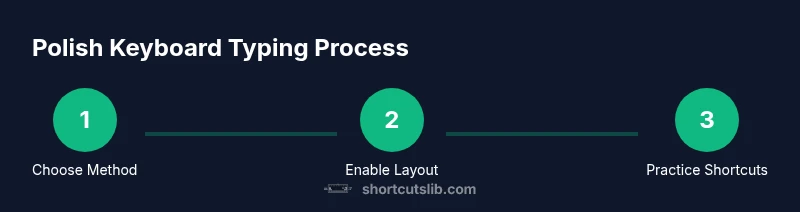
Decide between Polish (Poland) for dedicated keys and Polish (Programmers) for ASCII-aligned typing with modifiers. Consider your dominant tasks and typing style; pick the method that minimizes keystrokes and keeps your hands in a comfortable zone.
Tip: Test both layouts for a few minutes daily and note which one feels more fluid. - 2
Enable the Polish layout on your OS
Open your OS settings and add the Polish layout to your input sources. Position it in the top-level list so you can switch quickly using a shortcut or the language bar.
Tip: Set a single shortcut (e.g., Ctrl+Space or Super+Space) and practice using it until switching becomes seamless. - 3
Learn your layout’s diacritics
Familiarize yourself with where the Polish diacritics live in your chosen layout. Practice typing common vowels and consonants with diacritics in short phrases to build muscle memory.
Tip: Create a tiny practice list of 10 phrases you use often that contain the most frequent diacritics. - 4
Use dead keys or AltGr when appropriate
If you’re on a dead-key layout, press the base letter first, then the diacritic. If you’re in an AltGr-based layout, hold AltGr while pressing the target letter. Both methods produce Polish characters efficiently with practice.
Tip: Avoid mixing methods mid-task; choose one method for consistency during a session. - 5
Test in real workflows
Open your email client, a document, and a code editor. Type Polish text in each environment to confirm that diacritics map consistently and that shortcuts work as expected.
Tip: Keep a tiny map of the most-used diacritics handy until your speed stabilizes. - 6
Create a quick cheat sheet
Capture the most common letters and keystrokes in a small reference sheet. You can place this on-screen or print a copy for quick consultation.
Tip: Review the sheet weekly to reinforce your memory and reduce lookup time.
Questions & Answers
How do I type Polish characters on Windows?
On Windows, add the Polish keyboard layout via Settings > Time & Language > Language, then switch to it using the language bar or a configured shortcut. Practice typing common letters like ą, ć, and ł to integrate them into your daily workflow.
On Windows, add the Polish layout in language settings and switch with your shortcut. Practice typing common Polish letters to make them second nature.
What is the Polish Programmer keyboard layout?
The Polish Programmer layout uses standard ASCII keys with modifiers to produce Polish diacritics. It’s popular among developers who mix Polish text with code because it keeps most keys in familiar positions while providing quick access to diacritics via modifier keys.
The Polish Programmer layout uses modifiers like AltGr to access diacritics, keeping most keys in familiar ASCII positions for coding and Polish text.
How can I switch keyboard layouts quickly?
Set a universal shortcut in your OS preferences (for example, Ctrl+Space or Command+Space) to toggle between layouts. Practice the toggle until it becomes a habit and you can switch without looking.
Set a fast toggle shortcut in your settings and practice until you can switch layouts without looking.
Do I need to install a Polish layout to type Polish?
If you regularly type Polish, installing a Polish layout is recommended. It provides dedicated keys or efficient modifier routes for diacritics, reducing typing effort and boosting speed.
Installing a Polish layout is recommended for frequent Polish typing to improve speed and accuracy.
Can I type Polish characters in Google Docs easily?
Yes. Enable the Polish layout on your computer, then switch to it when editing in Google Docs. The browser does not limit Polish input; it follows your OS keyboard settings.
Google Docs supports Polish input as long as your OS layout is set to Polish.
Is Unicode input useful for Polish characters?
Unicode input is a reliable fallback when a character isn’t readily accessible via your layout. Learn the code points for the most frequent letters and use them when necessary.
Unicode input is a solid fallback when you can’t access a diacritic via your layout.
Watch Video
Main Points
- Choose a Polish input method that matches your workflow
- Enable the layout on all devices you use regularly
- Practice diacritics with a focused, repeatable method
- Switch layouts quickly with a keyboard shortcut
- Keep a quick reference sheet for common letters