How to Use Computer Keyboard Shortcuts for Speed and Efficiency
Learn how to use computer keyboard shortcuts to speed up tasks on Windows and macOS. This educational guide covers core shortcuts, customization, workflows, and practice tips to build muscle memory and save time every day.


Mastering computer keyboard shortcuts saves time across daily tasks on Windows, macOS, and popular apps. This guide covers core mappings, OS-specific differences, and practical workflows, plus how to customize shortcuts and practice routines to build lasting speed and accuracy.
What are keyboard shortcuts and why they matter
Keyboard shortcuts are a group of keystrokes that perform tasks faster than navigating menus. They reduce mouse usage, improve focus, and help you work more efficiently across documents, browsers, and development environments. According to Shortcuts Lib, investing in a solid set of defaults early yields compounding productivity gains over weeks and months. By understanding the logic behind shortcuts — modifiers like Ctrl/Cmd, Alt, and Shift — you can reason about new mappings quickly and adapt them to your workflow. This section introduces the concept and sets expectations for what you’ll learn.
Why shortcuts matter:
- Faster navigation: jump between apps, tabs, and fields without reaching for the mouse.
- Consistency: a uniform model across apps reduces cognitive load.
- Accessibility: reduce repetitive strain by selecting and editing with fewer clicks.
Core shortcuts you should know (Windows and Mac)
Most shortcuts fall into a handful of patterns: copy, paste, undo, redo, select all, and window management. On Windows, common combos include Ctrl+C, Ctrl+V, Ctrl+Z, Ctrl+S, and Ctrl+P. On macOS, these map to Cmd+C, Cmd+V, Cmd+Z, Cmd+S, and Cmd+P. Some actions overlap across platforms, while others differ due to OS conventions. In practice, start with a core set you’ll use daily and progressively learn equivalents in your primary apps. Shortcuts also differ by context (text editing vs. file management), so pragmatic practice matters.
- Copy: Ctrl+C
- Paste: Ctrl+V
- Save: Ctrl+S
- Undo: Ctrl+Z
- Redo: Ctrl+Y or Cmd+Shift+Z
- Find: Ctrl+F
- Select All: Ctrl+A
- Quick Switch: Alt+Tab (Windows) or Cmd+Tab (Mac)
How to customize shortcuts on Windows and Mac
Custom shortcuts tailor your environment to your routines. On Windows, most apps expose shortcut customization in Settings or Preferences; Windows Settings for global mappings is limited but you can remap keys via third-party tools. On macOS, System Preferences (or System Settings) > Keyboard lets you add app-specific shortcuts. When choosing new mappings, prefer combinations that are easy to type in context and avoid conflicts with system shortcuts. Document your mappings so you can reuse them across sessions.
Using shortcuts in popular apps
Different apps expose shortcuts with unique variations. In word processors, common actions include bold, italic, and find/replace; in browsers, tab navigation and omnibox commands shine. A practical approach is to build a personal cheat sheet grouped by app: browser, editor, file manager, and communication tools. Shortcuts often have mnemonic cues (for example, a common pattern in many apps is Ctrl/Cmd+K for search) that you can leverage to accelerate recall. Practice with real tasks—copying text, formatting, navigating tabs, and saving work—to embed the patterns.
Creating a productive workflow with shortcuts
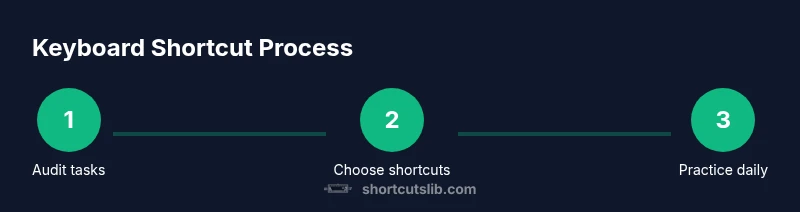
An effective workflow weaves shortcuts into day-to-day tasks rather than treating them as an isolated drill. Start with a daily 15-minute routine: run through core actions (copy, paste, save, find, navigate tabs) in your primary apps. Add 2–3 personalized shortcuts that address a frequent bottleneck. Periodically review your map, prune rarely used mappings, and introduce new ones as you expand to new apps or projects. Consistency is the key to long-term gains.
Common pitfalls and accessibility considerations
Avoid remapping shortcuts in ways that are hard to reach or clash with OS defaults. Consistency across apps reduces cognitive load and improves retention. If you frequently switch between devices, consider cloud-based settings or documentation to keep mappings aligned. For accessibility, choose key combos that minimize finger strain and avoid requiring simultaneous controller-like presses. If you have a motor impairment, build a slower, repeatable routine and use sticky keys or on-screen alternatives when necessary.
Practice routines to build quick recall
Dedicated practice builds muscle memory faster than casual use. A simple plan: practice 3 days a week for 20 minutes, focusing on 8–12 core shortcuts and 2 customized mappings. Track your progress with a log: note time saved and tasks completed. Gradually increase complexity by applying shortcuts in more apps and in multi-step workflows. The goal is automaticity, not memorization, so repetition matters more than speed in early stages.
Troubleshooting: shortcuts not working
If a shortcut fails, check for conflicts with OS or app-specific mappings. Ensure the correct modifier key is used (Ctrl vs Cmd vs Alt), and verify the active application supports the shortcut. Some shortcuts may be disabled during full-screen presentation modes or in secure environments. Restart the app or system if needed, and re-test after changes.
Quick-start checklist to begin today
- Memorize 6 core shortcuts across your OS
- Create 2 personalized shortcuts for your top tasks
- Print or save a cheatsheet for quick reference
- Practice for 15–20 minutes daily over the next week
- Review and add one new shortcut every week
Tools & Materials
- Computer (Windows or macOS)(Any modern version supports shortcuts)
- Keyboard with standard layout(Full-size keyboard recommended)
- Shortcut reference sheet(Printable or digital; include Windows and Mac mappings)
- Text editor or productivity app(Use to practice editing shortcuts)
- Access to Settings/Preferences(For customizing shortcuts (Windows: Settings > Keyboard; Mac: System Settings > Keyboard))
Steps
Estimated time: Estimated total time: 25-40 minutes
- 1
Identify high-impact tasks
List repetitive tasks that occur daily. Prioritize actions that save the most time when automated with a shortcut. This sets the scope for your learning plan.
Tip: Start with 3 tasks that you perform most often. - 2
Audit your current shortcuts
Review the shortcuts you already know. Note gaps, conflicts, and any tasks lacking a dedicated shortcut. This audit informs your learning order.
Tip: Create a quick cheat sheet of present mappings. - 3
Select your first shortcut set
Choose 8–12 core shortcuts spanning editing, navigation, and window management. Focus on consistency and ease of use across apps.
Tip: Prioritize modifier-heavy combos that feel natural to type. - 4
Practice with a guided routine
Run a 15-minute drill daily, executing each shortcut in real tasks. Use a timer and track your completion rate.
Tip: Use one app at a time to minimize context switching. - 5
Create personalized mappings
Add custom shortcuts for your most frequent actions. Keep mappings logical and document them clearly.
Tip: Name shortcuts intuitively so you remember them later. - 6
Test across apps and refine
Apply shortcuts in word processors, browsers, and file managers. Fix conflicts and adapt mappings as needed.
Tip: Keep a short log of issues and fixes.
Questions & Answers
What is a keyboard shortcut?
A keyboard shortcut is a key combination that performs a task faster than navigating menus. They save time and reduce mouse use.
A keyboard shortcut is a quick key combo that performs a task faster than menus. It saves time and reduces mouse work.
Are keyboard shortcuts the same on Windows and Mac?
Many shortcuts are similar (copy, paste, save) but some mappings differ due to OS conventions. Learn the core patterns and then map equivalents in your primary apps.
Many shortcuts are similar, but some differ by OS. Learn the core patterns and map equivalents on Windows and Mac.
How do I customize shortcuts on Windows?
Windows shortcuts can be customized within apps or via system settings. Use app preferences to map actions and avoid conflicts with global shortcuts.
You can customize shortcuts in app preferences or Windows settings. Avoid conflicts with global shortcuts.
Can I create shortcuts for any app?
Most apps support some level of custom shortcuts, especially editors and browsers. Check the app's Help or Preferences for keyboard controls and remapping options.
Most apps let you customize shortcuts in their settings. Check Help or Preferences for details.
What if shortcuts conflict with existing ones?
If conflicts occur, change the custom mapping to a non-conflicting combo or disable the conflicting global shortcut. Keep a reference list to avoid repeats.
If there’s a conflict, switch to a different combo or disable the global one. Keep a reference list.
How long does it take to learn keyboard shortcuts?
Learning speed varies by person and task load. A focused daily 15–20 minute practice routine typically yields noticeable gains within a few weeks.
It varies, but with daily practice you should see gains in a few weeks.
Watch Video
Main Points
- Master core Windows and Mac shortcuts first
- Customize mappings to fit your workflow
- Practice daily to build muscle memory
- Test across apps and refine mappings
- Document shortcuts for long-term consistency