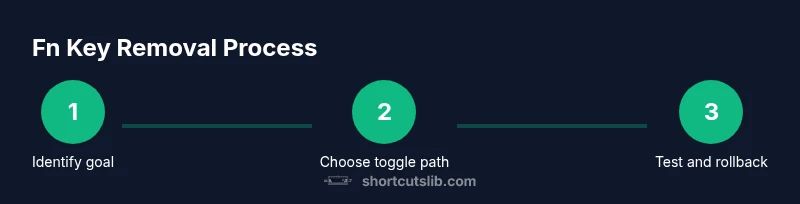
How to Remove Fn from Keyboard Shortcuts
Learn how to disable the Fn behavior on keyboards to make F1–F12 keys act as standard function keys across Windows, macOS, and Linux. Includes BIOS/UEFI steps, OS settings, remapping, safety tips, and troubleshooting.


This guide shows you how to remove Fn from keyboard shortcuts so that F1–F12 keys function as standard keys. You’ll learn platform-specific steps (Windows, macOS, Linux), BIOS/UEFI toggles, and practical remapping options. Follow the safe, reversible steps and test thoroughly to ensure your shortcuts behave predictably.
Understanding Fn and its impact on shortcuts
The Fn key acts as a hardware modifier that changes how the F1–F12 keys behave. On many laptops, Fn toggles between system controls (volume, brightness, media playback) and traditional function-key actions. Because Fn behavior varies by device, vendor, and operating system, there is no single universal toggle. According to Shortcuts Lib, users who want consistent shortcut behavior typically pursue a toggle path: either move Fn to the backseat so F-keys are standard, or keep Fn handy for quick media controls. The goal is clarity: decide whether you want F-keys to perform their traditional actions by default, or reserve Fn for hardware features.
Key takeaways for this section:
- Fn behavior varies widely by OEM and firmware.
- Setting a consistent Fn policy reduces shortcut confusion.
- Changes should be reversible and well-documented for future adjustments.
Platform differences across Windows, macOS, and Linux
Platform behavior matters. Windows laptops may expose Fn options in the BIOS/UEFI or via vendor-specific utilities, macOS provides an OS-level toggle, and Linux varies by desktop environment and kernel modules. The outcome you want—either Fn-first or F-key-first—dictates where you implement the change. Shortcuts Lib notes that most users succeed by aligning their preference with the platform’s native controls rather than juggling multiple remapping tools across devices.
Practical takeaway:
- If you switch devices often, favor BIOS/UEFI toggles on machines that expose the option, and rely on OS-level settings where available.
When to change Fn behavior: goals and risks
Deciding to remove Fn from keyboard shortcuts should be driven by a workflow need. If you frequently use apps that rely on F1–F12 shortcuts, making these keys act as standard function keys can save time. The main risk is unexpected changes across apps and the potential voiding of warranties if you tinker with BIOS/firmware. Before you begin, weigh the benefit of predictable F-key behavior against the possible side effects (e.g., media keys or brightness controls behaving differently).
Shortcuts Lib recommends planning a rollback path in case the new behavior disrupts crucial shortcuts.
Access BIOS/UEFI on Windows laptops
First, back up current mappings, then reboot and enter the BIOS/UEFI setup. Look for a tab or section labeled Function Key Behavior, Action Keys Mode, or similar. Change the setting to Function Key First (or Disabled Fn for standard F-keys, depending on wording). Save changes and exit, then let Windows restart.
What to watch for:
- The exact menu label varies by vendor (Dell, HP, Lenovo, Asus, Acer, etc.).
- Some laptops require you to press a hotkey during boot to enter setup.
- BIOS changes can affect hardware behavior beyond shortcuts; proceed with caution.
macOS: Use Function Keys as Standard Function Keys
On Macs, the path is System Settings (or System Preferences) > Keyboard. Check the option Use F1, F2, etc. keys as standard function keys. If you enable this, you’ll press Fn for the media controls instead. No reboot required—just apply the toggle and test in common apps (browsers, editors, and media players).
Note:
- Some Mac laptops have a hardware switch for Fn on the side as a quick toggle; use that if available.
Linux: Remapping and environment-specific settings
Linux users have several routes. In GNOME, you can modify keyboard shortcuts via Settings > Keyboard. KDE users can map actions in System Settings. If a BIOS option is unavailable, you can use user-space remapping tools like xmodmap or setxkbmap to redefine F1–F12 behavior at the session level.
Important:
- Remapping in Linux is highly distro- and desktop-environment dependent; consult your distro’s docs for exact commands.
Software-based alternatives and remapping tips
When the hardware path isn’t available, consider software remapping that applies across the system. This approach preserves Fn for media keys while mapping F1–F12 to function calls you frequently use. Use the OS-provided keyboard settings or trusted third-party remappers with careful configuration to avoid conflicts with system shortcuts. Always export current mappings before making changes so you can revert quickly.
Pro tip:
- Test mappings in multiple apps to ensure consistency, and keep a quick reference list of your active remaps.
Troubleshooting: what to do if changes don’t take effect
If Fn behavior doesn’t apply after a BIOS or OS change, double-check the exact option label and ensure you saved changes correctly. Some laptops require a full power cycle for changes to register. If behavior remains inconsistent, reset to defaults and reapply the preferred toggle. Also verify that your keyboard layout matches the region you’re using, as layout differences can affect shortcut mappings.
Common culprits:
- Conflicting software remapping tools
- Keyboard drivers not updated
- Pending reboots after a BIOS change
Safety, backups, and final checks
Before making any changes, back up current mappings and, if possible, create a system restore point or image. Document the exact steps you followed so you can revert quickly if needed. After applying changes, test a representative set of F1–F12 shortcuts across frequently used apps. If something breaks, revert the toggle to the previous state and try an OS-based remap instead. Avoid making multiple competing changes at once.
Final caution:
- BIOS edits carry risk if performed haphazardly; follow vendor guides and only modify options you understand.
Tools & Materials
- Admin access on target computer(Needed to modify BIOS/UEFI and system settings)
- Device model and OS/version details(Helps locate the correct options and labels)
- Backup plan(Create a system restore point or export current keyboard mappings)
- Stable power source(BIOS changes require uninterrupted power)
- Documentation of changes(Notes for rollback if needed)
Steps
Estimated time: 15-40 minutes
- 1
Identify your goal
Clarify whether you want F1–F12 to act as standard function keys by default or reserve Fn for hardware controls. This direction will determine whether you use BIOS/UEFI toggles or OS-level remapping.
Tip: Write down the desired default behavior before starting to avoid mixed results. - 2
Back up current mappings and settings
Export current keyboard mappings and create a system restore point. This gives you a safe rollback path if something goes wrong.
Tip: Take screenshots of existing mappings and save a copy in a known location. - 3
Access BIOS/UEFI and locate Fn option
Reboot the device and enter BIOS/UEFI. Find the Function Key Behavior or Action Keys mode setting.
Tip: If you’re unsure which key to press, consult the vendor’s support page for your model. - 4
Change Fn behavior to Function Key First
Set the option so that F1–F12 are the primary function keys. This makes them work without Fn by default.
Tip: Carefully read the on-screen help text for the exact option name. - 5
Save changes and reboot
Save the new BIOS/UEFI settings and restart the system. The new behavior should apply immediately after boot.
Tip: If the device doesn’t restart cleanly, revert to defaults and retry. - 6
Test basic F-key shortcuts in the OS
Open common apps (browser, editor, media players) and verify F1–F12 work as intended with and without Fn.
Tip: Test at least 3 different apps to ensure consistency. - 7
If no BIOS option exists, use OS remapping
Apply key remapping at the OS level to assign preferred F-key actions. This is a safe fallback when BIOS toggles are unavailable.
Tip: Limit remaps to essential keys to avoid conflicts. - 8
Document changes and set a rollback plan
Record exactly what was changed and how to revert. This helps future maintenance and multiple-device setups.
Tip: Keep a short, actionable rollback checklist.
Questions & Answers
What does the Fn key do and why would I want to change it?
The Fn key toggles between hardware controls and standard function keys. Changing it helps create consistent F-key shortcuts and reduces accidental activations of media controls.
The Fn key decides whether the function keys perform hardware controls or standard functions. Changing it helps you get reliable F-key shortcuts.
Can I revert Fn changes easily if something goes wrong?
Yes. Revert through the same BIOS/UEFI option or OS remapping settings and restore the previous mappings from your backup.
Yes, you can revert using the original BIOS/OS settings and restore the previous mappings from your backup.
Will changing Fn affect all keyboards on the device?
Typically the change affects the system keyboard, but some laptops apply the setting to external keyboards as well. Remapping can be per-device in some cases.
Usually it affects the built-in keyboard, but external keyboards might behave differently depending on drivers and BIOS support.
What if there is no Fn option in BIOS?
Use OS-based remapping or vendor software to achieve similar results, keeping a clear rollback path.
If the BIOS lacks the option, remap within the operating system or vendor software to get the same effect.
Is it safe to edit BIOS to change Fn behavior?
BIOS edits are generally safe when following vendor instructions; incorrect changes can affect startup or hardware behavior, so proceed cautiously.
BIOS changes are usually safe if you follow official guides. Make sure you understand each option before changing it.
Are there alternatives to changing Fn that still improve shortcuts?
Yes. Use OS shortcut customization, app-specific mappings, or on-device remappers to tailor shortcuts without BIOS edits.
You can customize shortcuts in the OS or apps, or use remapping tools—often safer and easier to revert.
Watch Video
Main Points
- Identify your target Fn behavior before changing settings
- BIOS/UEFI options are model-dependent; confirm labels
- Test F1–F12 across apps after changes
- Backup and document changes for safe rollback