How to Keyboard Shortcuts Keys: Mastery Guide for Faster Computing
Learn practical keyboard shortcuts keys across Windows and macOS. This instructional guide from Shortcuts Lib covers essential shortcuts, platform nuances, and a repeatable practice routine to boost speed, accuracy, and productivity.


In this guide you’ll learn how to master keyboard shortcuts keys for faster, more efficient work across Windows and macOS. You’ll discover essential shortcuts, practical combinations, and accessibility tips, plus a simple practice routine to build muscle memory. Use Shortcuts Lib’s proven steps to reduce mouse reliance and speed up daily tasks.
What are keyboard shortcuts and why they matter
Keyboard shortcuts are combinations of keys that trigger actions without clicking menus. They speed up work, reduce mouse travel, and help you stay in flow during long sessions. According to Shortcuts Lib, the real value lies in consistency: dedicating a few high-leverage shortcuts to muscle memory yields compounding gains across tasks. Before you memorize, map your daily activities to concrete shortcuts so you learn actions you actually perform.
In practice, keyboard shortcuts tackle four core needs: speed, accuracy, focus, and accessibility. Speed comes from reduced hand movement; accuracy comes from fewer cursor slips during repetitive edits; focus is maintained by minimizing context switching; accessibility improves when shortcuts replace complex sequences with single keystrokes. The following sections will guide you to identify practical shortcuts, practice deliberately, and tailor them to your favorite apps and platforms.
Core shortcuts you should learn first
Start with the basics that work across most apps: copy (Ctrl/Cmd+C), paste (Ctrl/Cmd+V), cut (Ctrl/Cmd+X), and undo (Ctrl/Cmd+Z). Select all (Ctrl/Cmd+A) and find (Ctrl/Cmd+F) help you move faster through documents. For navigation, switch between tabs (Ctrl/Cmd+Tab), switch windows (Alt+Tab on Windows, Cmd+Backtick on macOS), and scroll through pages with Page Up/Page Down. On many editors, the common editing shortcuts are enough to handle a vast majority of daily tasks. Note the OS differences: Windows uses Ctrl for most actions; macOS uses Cmd as the primary modifier, with Option as a secondary modifier. Practice these in a single application to establish fluency before combining them in real work.
Platform differences: Windows vs macOS vs Linux
Windows, macOS, and Linux share many shortcuts, but modifier keys and some defaults differ. Windows treats Ctrl as the primary modifier for edits, while macOS defaults to Cmd. OS-level shortcuts (like Alt+Tab vs Cmd+Tab) speed app switching, but specific programs may adjust their own mappings. Linux distros vary in keyboard layouts and shortcut sets, so you might encounter distro-specific keys. A practical approach is to learn the universal actions (copy, paste, undo) with your primary OS, then map common workflows in your go-to apps. When collaborating across teams, keep a shared cheat sheet to reduce confusion. Remember: consistency beats cleverness; if you can apply the same combo across tools, you’ll build fluency faster.
Customizing shortcuts and creating branded workflows
Custom shortcuts let you align actions with your real tasks. Begin by identifying frequent edits and navigation patterns, then map them to intuitive key combos in your apps. In many editors or IDEs, you can override defaults or create macros that perform multiple steps with a single press. Document changes in your shortcuts library so colleagues can reuse your configurations. Guardrails matter: avoid reassigning system-level shortcuts that could disrupt important functions. Create a small, documented set (2-4 custom maps) per app to build a stable foundation before expanding. Finally, test every change in live tasks and refine as needed to prevent cognitive overload.
Practice routines to build memory and fluency
Turn learning into a habit with short, focused drills. Schedule daily practice blocks of 10-20 minutes, emphasizing a different subset of shortcuts each day. Use real tasks rather than toy exercises—editing a paragraph, switching tabs during research, or navigating files. Start with a core set and gradually introduce new combos, then regress if you struggle. Track progress by noting time saved on common tasks and any mistakes to fix. The goal is incremental, repeatable gains rather than overnight mastery. If you miss a shortcut, pause briefly, recall the action, and try again.
Accessibility and inclusive considerations
Shortcuts can improve accessibility for many users, including those with motor or visual challenges. Enable sticky keys, slow-keys, or key-repeat control in your OS to make shortcuts easier to use. Choose high-contrast keyboard mappings for visibility, and provide alternate text labels in apps that support accessibility features. When teaching others, use clear, easy-to-read shortcuts and avoid overly complex sequences. A focus on consistency and predictable patterns helps all users build confidence quickly. If you rely on assistive technology, verify that your shortcut repertoire remains compatible with your tools and workflows.
Common pitfalls and anti-patterns
Avoid learning shortcuts in isolation; instead, connect each shortcut to a real task to avoid memory gaps. Don’t overload your daily routine with dozens of new mappings at once; start with essential actions and expand gradually. Conflicting shortcuts across apps lead to confusion—prefer shared patterns like Ctrl/Cmd + X, C, V or Esc for cancel. Finally, don’t disable or rebind critical OS shortcuts without a plan; it can cause friction and reduce efficiency.
Practical workflows by task
Text editing and writing: Use Ctrl/Cmd+C, Ctrl/Cmd+V, Ctrl/Cmd+X, Ctrl/Cmd+A for rapid editing. Bold and italic commands are commonly mapped in editors to Ctrl/Cmd+B and Ctrl/Cmd+I for quick formatting. In browsers, master opening new tabs (Ctrl/Cmd+T), closing tabs (Ctrl/Cmd+W), and reloading (Ctrl/Cmd+R) to speed up research. Coding workflows benefit from editor shortcuts like jumping to definitions, auto-completion, and quick navigation—map these to your language and IDE. Data entry and spreadsheets rely on copy-paste chains, fill-down tricks, and find-replace shortcuts to accelerate data manipulation. Build templates and macro sequences to streamline repetitive tasks, then revisit and refine them as your duties evolve. The key is to anchor each task to a small, reliable set of shortcuts so you can perform it without thinking.
Authority sources and further reading
To ground the practice in credible guidance, consider cognitive-load research and usability guidelines. For deeper reading, explore NIH-related materials on attention and memory, and Science Daily articles that discuss learning strategies. Educational resources from federal education sites also provide practical tips for accessible design and inclusive instruction. These sources help explain why deliberate, spaced practice and consistent patterns improve recall and fluency with keyboard shortcuts. While the exact shortcut mappings vary by platform and app, the underlying principles—clarity, consistency, and deliberate practice—apply across tools and teams.
Tools & Materials
- Full-size keyboard (any layout)(Prefer, if possible, a keyboard with clearly labeled modifiers (Ctrl/Cmd, Alt/Option))
- Computer with Windows or macOS(Ensure you can install or access the target apps)
- Text editor or browser to practice(Open a document or text field to practice editing shortcuts)
- Printable or digital cheat sheet(Keep a running list of shortcuts you’re learning)
- Quiet practice space(Helpful but optional)
Steps
Estimated time: 60-75 minutes
- 1
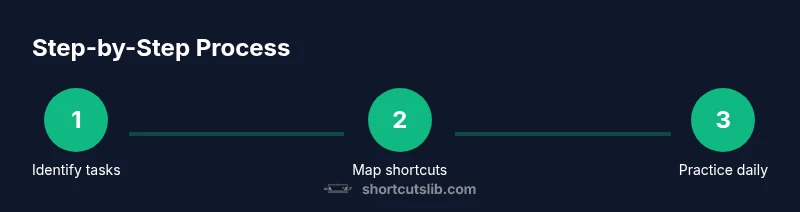
Identify target tasks
Review your daily workflows and list actions you repeat often. Rank tasks by frequency and impact to prioritize shortcut learning. This profiling ensures your practice targets real-world use.
Tip: Keep a running log for at least a week to surface obvious targets. - 2
Master modifier keys and basic combos
Familiarize yourself with Ctrl/Cmd, Alt/Option, and Shift, plus common combos like select, copy, and paste. Apply them in a single app to build initial fluency.
Tip: Note platform differences: Windows uses Ctrl, macOS uses Cmd for most actions. - 3
Learn core text-edit shortcuts
Focus on shortcuts for selecting text, cutting, copying, pasting, and undoing. Apply them in real editing tasks to embed muscle memory quickly.
Tip: Always test Undo after a mistake to retrace your steps. - 4
Navigate efficiently with window and tab shortcuts
Learn how to switch tabs, close tabs, open new windows, and move between apps. These actions reduce hand movement and keep you in a flow state.
Tip: Use keyboard shortcuts to navigate across apps to minimize mouse use. - 5
Customize shortcuts in key apps
In your text editor, IDE, or browser, map or adjust shortcuts to fit your most common tasks. Document changes so you can reuse them later.
Tip: Start with 1–2 custom shortcuts per app to avoid overload. - 6
Build a daily practice routine
Set a fixed daily window (e.g., 15–20 minutes) to drill the targeted shortcuts. Use progressive difficulty by increasing task complexity.
Tip: Use timed sessions (e.g., 10-min drills) to maintain focus. - 7
Test in real tasks and refine
Apply learned shortcuts to real work. If a shortcut feels awkward, adjust or replace it with a more natural alternative.
Tip: Record moments of friction and adjust your practice plan accordingly. - 8
Create a living shortcuts library
Maintain a document of learned shortcuts with examples and quick usage notes. Review weekly to reinforce retention.
Tip: Share your favorites with teammates for accountability.
Questions & Answers
What is a keyboard shortcut and why use it?
A keyboard shortcut is a key combination that performs a common action quickly. Using shortcuts speeds up work, reduces mouse movement, and helps you stay focused on the task. Start with essential combos and gradually add more as you gain fluency.
Keyboard shortcuts are quick key combos that perform actions, speeding up work and keeping you in flow.
Which shortcuts should beginners learn first?
Begin with text-edit shortcuts (copy, cut, paste, undo), then add navigation (switch tabs, open new window) and basic file operations. Building in layers keeps learning manageable.
Start with text-edit and navigation shortcuts.
Are Windows and macOS shortcuts the same?
Most actions differ in modifier keys (Ctrl vs Cmd). Some shortcuts are shared, but always verify in the app's help menu or settings.
Modifier keys differ by OS; check the app help for specifics.
How do I customize shortcuts in apps?
Many apps allow remapping via Preferences or Settings. Start with a small set, and test in real tasks before adopting broadly.
Remap via app preferences, start small, test with real tasks.
How can I practice shortcuts effectively?
Schedule short daily drills and gradually increase complexity. Pair drills with real tasks to reinforce memory.
Set a daily 10–15 minute drill and practice with real tasks.
What if I forget a shortcut?
Use a cheat sheet and review it daily. Repetition builds long-term recall, reducing frustration.
Keep a cheat sheet and review it regularly.
Watch Video
Main Points
- Identify frequent tasks and target those shortcuts first
- Prioritize core text-edit and navigation shortcuts
- Practice daily in short bursts for retention
- Customize shortcuts in your most-used apps
- Maintain a living shortcuts library for reference