How to invert colors on Chromebook using a keyboard shortcut
A comprehensive guide to quickly invert Chromebook colors using a keyboard shortcut and Settings, with practical steps, troubleshooting, and tips for accessibility on Chrome OS.


This guide shows how to invert Chromebook colors quickly. Step 1: Try the built-in keyboard shortcut Ctrl + Search + I to toggle inverted colors on and off. Step 2: If that shortcut doesn’t work, enable it via Settings > Accessibility > Display > Invert colors. Step 3: Adjust to your preferred contrast, then test across apps to ensure readability.
Why invert colors matters
According to Shortcuts Lib, inverting colors on a Chromebook isn’t merely a gimmick—it’s a practical accessibility feature that can reduce eye strain, improve readability in bright environments, and assist users with certain visual differences. Chrome OS users spend long hours in front of screens, and a bright white interface can become fatiguing. Inversion flips light and dark values to provide high-contrast text and interface elements, often making reading easier for some people. This section explains when inversion is most helpful, what you might lose in color fidelity, and how to evaluate whether this feature should be part of your daily workflow. By the end of this section you’ll understand the trade-offs and have a clear path to try inversion on your own Chromebook.
Quick access: the built-in shortcut and what to expect
The invert-colors feature on Chrome OS is designed for fast access. On most Chromebooks, a dedicated keyboard shortcut toggles the effect on and off, so you can switch between normal and inverted displays without diving into menus. Expect a stark shift in UI contrast when you press the shortcut, which can be jarring at first but is highly effective for some users. If you’re not seeing the change, verify that you’re on a recent Chrome OS build and that the feature is enabled in Settings. Admin policies on corporate devices can also override or disable accessibility shortcuts, so check with your administrator if you’re on a managed machine.
Keyboard shortcuts and alternative methods
Beyond the primary shortcut, you can always enable inversion through the Settings menu, which offers a persistent toggle. Some devices or OS versions may bind a different key combination or require you to enable the feature first. If you rely on extensions or third-party utilities for color adjustments, they can conflict with the built-in inversion, so consider testing without any overlays enabled. This section also covers how to quickly revert to normal colors and how to combine inversion with other accessibility settings for maximum comfort.
Enabling invert colors via Settings
You can turn on invert colors without using a keyboard shortcut by navigating to Settings > Accessibility > Display. Look for the Invert colors option and switch it on. Some devices label it as “Invert colors” or as part of a broader Display or Accessibility group. If you don’t see the option, your Chrome OS version might not support it, or a device policy may hide the feature. On supported devices, this toggle provides a reliable alternative to the shortcut and ensures the feature remains on across sessions.
Step-by-step quick usage (short version)
For users who want a fast on-demand method without memorizing a shortcut, use the Settings path first, then test the keyboard toggle. Start with Settings, confirm the Invert colors option is present and enabled, and practice toggling with Ctrl + Search + I so you can switch between modes gracefully during reading or writing tasks. Having both options gives you flexibility depending on the app you’re using.
Testing across apps and websites
Inversion affects system UI, most web content, and many apps, but not every application follows color inversion perfectly. Dense images, video previews, and certain design tools may appear odd or misleading when colors are inverted. Verify text clarity across common apps like Chrome, Google Docs, Gmail, and your favorite reading apps. If you notice color-critical content becoming unreadable, consider turning inversion off in those contexts and returning to normal colors for those tasks.
Troubleshooting common issues
If you don’t see invert colors, first confirm you’re on a Chrome OS version that supports the feature. Check that the shortcut isn’t overridden by another app or custom keyboard mapping. If the screen shows unexpected artifacts, disable any color-enhancement extensions and reboot your device. For managed devices, consult your IT administrator to ensure the policy allows color inversion and related shortcuts.
Customization and best practices
Pair inversion with a complementary dark theme or adjustable font sizes to optimize readability. Use inversion for specific tasks (reading long blocks of text or working in bright environments) and switch back to normal colors when color accuracy is important (for image work or documentation that requires exact colors). Keep your OS up to date to access the latest accessibility improvements and shortcut improvements from Chrome OS.
Tools & Materials
- Chromebook with Chrome OS(Ensure the device is updated to the latest Chrome OS version)
- Settings access(You may need administrator permissions on managed devices)
- Internet connection (optional)(Useful for checking for OS updates or policy changes)
- External display (optional)(Helpful for testing contrast on larger screens)
Steps
Estimated time: 15-20 minutes
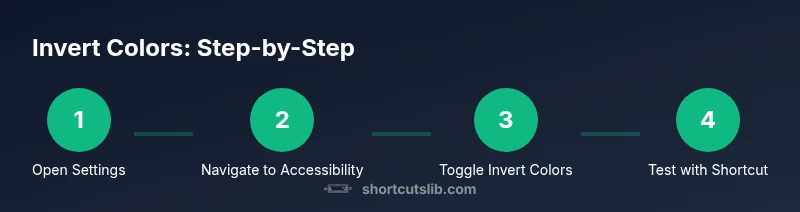
- 1
Open Settings
Click the launcher and open the Settings app, or press Search to bring up the quick settings and select Settings.
Tip: If you can’t find Settings, use the search key to type 'Settings' and launch it quickly. - 2
Navigate to Accessibility
In Settings, locate the Accessibility section in the left-hand menu and select Display or Visual options.
Tip: Use the arrow keys to move between sections, then press Enter to open a category. - 3
Turn on Invert colors
Toggle the Invert colors option to enable the feature. Confirm the display changes immediately.
Tip: If you don’t see the option, your OS version may not support inversion or it may be policy-restricted. - 4
Test the keyboard shortcut
With inversion enabled, press Ctrl + Search + I to toggle it on and off.
Tip: If the shortcut doesn’t work, verify that it hasn’t been remapped by another app or assignment. - 5
Adjust for comfort
Fine-tune brightness and font size, and consider pairing with a dark theme for improved readability.
Tip: Keep a quick-access note of your preferred combination for different lighting conditions. - 6
Create a quick-access method
Pin the Color Inversion toggle to the shelf or create a custom shortcut if your device supports it.
Tip: Custom shortcuts can reduce friction for frequent toggling during long tasks.
Questions & Answers
What is invert colors and when should I use it?
Invert colors flips the light and dark values on the display, creating a high-contrast look that can improve readability in bright environments or for users with certain visual needs.
Invert colors flips display contrast to help readability in bright conditions.
What is the standard Chromebook shortcut to invert colors?
The standard shortcut is designed to toggle inversion on and off quickly; the exact keys can vary by device, but a common combination is Ctrl + Search + I.
Use the built-in shortcut (often Ctrl + Search + I) to toggle inversion.
Does inversion affect screenshots or exported images?
Screenshots may capture the inverted image, but some apps may render differently when colors are inverted. Always review exports after inverting.
Screenshots may reflect the inverted colors; check results before sharing.
Can I customize or disable the shortcut?
Some devices allow remapping shortcuts via system settings or accessibility options; on managed devices, policy may restrict changes.
You might be able to remap the shortcut on some devices, otherwise it’s fixed by admin policies.
Will inversion work in all apps and websites?
Most apps and websites respond to inversion, but some content (like certain images or color-critical tools) may not display correctly.
Most apps support inversion, but some content may look off.
How do I revert to normal colors quickly?
Press the same shortcut again or toggle Invert colors off in Settings to return to normal colors.
Press the shortcut again or turn off inversion in Settings to return to normal.
Watch Video
Main Points
- Invert colors can reduce eye strain on bright displays
- Ctrl + Search + I toggles inversion on many Chromebooks
- If the shortcut fails, enable via Settings > Accessibility > Display
- Test across apps to ensure readability
- Keep your OS updated for best compatibility