How to Create Keyboard Shortcuts: A Practical Guide
Learn how to design, implement, test, and share keyboard shortcuts that boost productivity across OSes and apps. A comprehensive, practical guide from Shortcuts Lib.


With this guide you’ll learn how to create keyboard shortcuts that save time and reduce repetitive strain. We outline a practical, platform-agnostic approach, from naming conventions to implementation and testing. According to Shortcuts Lib, a consistent shortcut strategy accelerates daily tasks across apps, browsers, and OS environments. This quick answer shows the core steps and what to expect.
Why mastering keyboard shortcuts accelerates your workflow
Keyboard shortcuts are more than conveniences—they’re a productivity framework. By learning how to create keyboard shortcuts, you reduce hand movement, minimize context switching, and lower cognitive load during complex tasks. According to Shortcuts Lib, a deliberate shortcut strategy can streamline routine work across applications and platforms. The aim is to design shortcuts that are easy to remember, consistently named, and resilient to app or OS changes. This section highlights why shortcuts matter and how to align them with real tasks you perform daily. When you craft shortcuts, you’re building a language for your workflow—one that maps concrete actions to memorable inputs. Start with tasks you perform most often and expand gradually as you gain confidence. The long-term payoff is faster task completion, fewer errors, and more mental bandwidth for creative work.
From a practical standpoint, the fastest way to start is to focus on three to five high-impact tasks. Document the expected outcome for each shortcut, such as “paste with preserved formatting” or “open last-used tab.” As you grow more comfortable, you’ll establish a consistent pattern that translates across applications. Shortcuts Lib analyses in 2026 emphasize that consistent practice—not randomness—yields the strongest gains. You’ll also want to balance speed with accuracy, ensuring that shortcuts do not interfere with keyboard habits you rely on already. A thoughtful rollout reduces resistance and increases adoption across your daily routines.
Principles for creating effective shortcuts
Effective keyboard shortcuts share a few core principles that keep them usable over time. First, aim for mnemonic keys and consistent modifier usage (for example, Cmd/Ctrl + Shift + a letter) so shortcuts remain memorable without needing to pause to recall them. Second, avoid reusing the same key combos for different actions in the same app, which creates cognitive friction and accidental triggers. Third, prefer actions that you perform frequently; these provide the largest time savings with the smallest number of mappings. Fourth, distinguish between global shortcuts (work across apps) and app-specific shortcuts; where possible, reserve global mappings for essential actions (like search) and keep app-specific mappings contextual. Finally, document each shortcut in a shared glossary with its purpose, scope, and any caveats.
To implement these principles, begin with a simple, auditable naming convention: use a verb + object pattern (e.g., “Copy selection,” “Open new tab”). This consistency makes it easier to infer the function of a shortcut when you glance at it in a list. If you manage multiple devices, maintain a central repository or a cloud document that synchronizes across OSes and apps so your shortcuts stay aligned as you work. In practice, small, well-chosen sets of shortcuts compound into meaningful productivity gains over time. Shortcuts Lib notes that veteran shortcut users tend to expand their mappings gradually, always prioritizing clarity over sheer speed.
Finally, consider accessibility and inclusivity. Ensure your mappings are not placed on hard-to-reach keys for users with limited mobility, and provide a fallback or explainable prompts if shortcuts fail. A thoughtful approach that accounts for diverse users will help your shortcuts become reliable tools rather than brittle conveniences.
Platform-agnostic design patterns
Designing shortcuts that feel natural across Windows,
How to map tasks to shortcuts
The core of creating shortcuts lies in mapping concrete tasks to inputs that feel natural. Start with high-frequency tasks you perform every day, such as copying, pasting, saving, and searching. For each task, choose a mnemonic, easy-to-reach key combination, and define what the shortcut does (for example, “Save current document” or “Find on page”). Maintain a consistent naming convention for the action body to reduce cognitive overhead when you review the mapping later. If a task has nuanced steps, consider breaking it into a separate shortcut to keep actions atomic and predictable.
When choosing key combinations, check for existing bindings in the target OS and in the apps you use most. For example, the standard copy and paste shortcuts are typically reserved and should remain untouched; instead, assign less-utilized combos to new tasks. You can also use a chooser approach: map a core set first (Copy, Paste, Save, Open New Tab), then layer in advanced shortcuts as you confirm their usefulness. Create a simple protocol for evaluating new shortcuts: does the mapping save time, reduce clicks, and feel intuitive after a few uses? If yes, lock it in; if not, iterate. Over time, your personal or team shortcut library will grow into a robust productivity toolkit that scales with your workflows.
Implementing shortcuts in popular apps and OS
To implement shortcuts, start with the OS-level features first, then apply app-specific mappings where beneficial. On Windows, most shortcuts live under the system clipboard and window management categories; on
Testing, documenting, and sharing your shortcuts
Testing is essential for reliable shortcuts. Validate each mapping against realistic tasks and across at least two apps to ensure behavior is consistent. Create a brief test plan that lists the task, expected outcome, and steps to reproduce any issue. Document every shortcut in a central glossary, including the action name, key combination, scope (OS/app), and any caveats. Public-facing documentation (for teammates or collaborators) should include usage examples, a short troubleshooting section, and a version history.
Sharing shortcuts can be as simple as exporting a configuration file or compiling a short reference sheet. If your organization uses a central repository, contribute your mappings and keep a running log of feedback to help others avoid conflicts. Review and prune shortcuts that aren’t used or cause confusion every few months to avoid dead mappings. By combining careful testing with clear documentation, you’ll create a robust library that scales with your needs.
Accessibility, ergonomics, and safety tips
Ergonomics matter when creating shortcuts. Favor combos that don’t rely on awkward finger stretches, and avoid forcing users to hold multiple keys simultaneously for extended periods. Consider voice or visual confirmations for critical actions to aid accessibility. If a shortcut feels risky or easy to mistype, rethink the combination or provide a quick alt path. Keep the total number of global shortcuts modest to reduce the risk of conflicts within the OS or across apps. Finally, provide an opt-out or fallback for users who cannot use certain combinations due to hardware or accessibility needs. A well-balanced shortcut strategy respects both efficiency and user comfort, ensuring that your productivity gains are sustainable over time.
AUTHORITY SOURCES
To support best practices and provide additional context, consult authoritative sources. These sources offer guidelines on usability, accessibility, and human-computer interaction that inform how you design and test shortcuts:
- https://www.nist.gov/
- https://www.acm.org/
- https://www.mit.edu/
Exploring these sources can help you align your shortcut strategy with established standards and research on effective user interfaces. They provide a foundation for building a scalable, user-friendly shortcut system that stands up to long-term use.
Tools & Materials
- Programmable keyboard or macro pad(Allows binding multiple shortcuts or macros; ensure physical keys can be remapped)
- Computer with current OS(Windows, macOS, or Linux; up-to-date version recommended)
- Shortcut-mapping software(Use OS built-in tools or vendor software; consider licensing and compatibility)
- Documentation tool(Notes app or Markdown file to document mappings and glossary)
Steps
Estimated time: 60-90 minutes
- 1
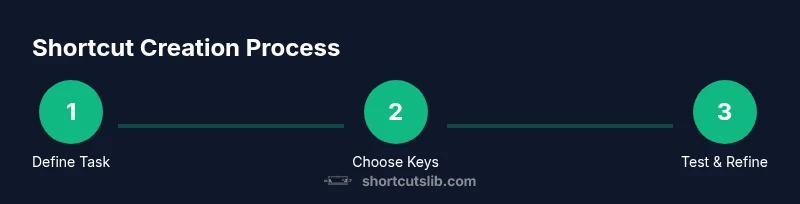
Define the task you want to shortcut
Identify a repetitive task that saves time when automated. State the goal, expected outcome, and the minimal steps to complete it. Write a clear task brief to guide the shortcut’s design.
Tip: Document the expected result before you map keys; this keeps the shortcut focused. - 2
Choose a key combination
Select a non-conflicting modifier combination that’s easy to reach (e.g., Cmd/Ctrl + Shift + letter). Check existing shortcuts in OS and apps to avoid clashes.
Tip: Prefer combos that don’t require awkward finger positions or long sequences. - 3
Check accessibility and memory
Ensure the shortcut is comfortable for frequent use and memorable. Favor mnemonic associations that relate to the action.
Tip: If in doubt, test with a small group before wide rollout. - 4
Implement the shortcut in OS or app
Use the OS keyboard settings or app’s built-in shortcuts editor to bind the chosen combination to the action. Create a fallback if supported.
Tip: Document any platform-specific caveats during setup. - 5
Test the shortcut in real tasks
Run through representative workflows to verify the shortcut triggers correctly every time. Note any misfires or conflicts.
Tip: Record test results and adjust the mapping if needed. - 6
Document the shortcut in a glossary
Add the shortcut name, key combo, scope, and usage examples to a central glossary. Include a brief rationale for future reference.
Tip: Use mnemonics that reflect the action to aid recall. - 7
Share with teammates and gather feedback
Publish the mapping in a shared document or repo. Collect feedback and adjust mappings that cause confusion or conflicts.
Tip: Version history helps track changes and improve adoption. - 8
Review and refine over time
Reassess shortcuts periodically to remove unused mappings and optimize for new tasks or apps.
Tip: Set quarterly reviews to keep the library relevant.
Questions & Answers
Should I map new shortcuts from scratch or reuse built-in ones?
You can reuse built-in shortcuts for core tasks, but for unique workflows, adding new mappings saves time. Start by mapping high-frequency tasks and expand gradually.
Reuse core shortcuts when possible, but create new mappings for tasks you do frequently.
Are there platform differences I should consider when mapping shortcuts?
Yes. Windows, macOS, and Linux use different modifier keys and default bindings. Align core mappings to a shared pattern and document platform-specific notes.
Yes—different platforms use different keys, so keep core patterns consistent and note platform specifics.
What about conflicts between shortcuts in apps or OS?
Conflicts happen when two shortcuts trigger different actions. Regularly check for clashes, prioritize the most frequent task, and adjust as needed.
Conflicts can happen; prioritize frequent tasks and adjust conflicting mappings.
How do I test shortcuts effectively?
Create realistic task scenarios, run each shortcut multiple times, and document outcomes. Use a simple checklist to confirm predictable results.
Test each shortcut with real tasks and record the results.
Can I share shortcuts with others?
Yes. Export mappings or publish a short glossary so teammates can replicate your setup. Collect feedback to refine the library.
Absolutely—export and share mappings so others can adopt them.
Is there a recommended limit to the number of shortcuts?
There’s no universal limit; start small and grow. A lean, purposeful set is easier to maintain and less likely to confuse.
No fixed limit—start small and expand as needed.
Main Points
- Plan before mapping shortcuts to avoid scope creep
- Prioritize high-leverage tasks first
- Use mnemonic, consistent key patterns across platforms
- Test thoroughly and document all mappings
- Share and review regularly to keep the library useful