Check if a Keyboard Shortcut Exists for a Macro
Learn how to check if a keyboard shortcut exists for a macro across apps and editors. This in-depth guide covers where bindings live, how to test them, resolve conflicts, and best practices to document macros for repeatable workflows.


Goal: learn how to check if a keyboard shortcut exists for a macro across common apps and editors. This quick guide covers where shortcuts are stored, how to test binding behavior, and how to resolve conflicts without guesswork. By following these steps, you’ll confirm your macro shortcut and document it clearly for reliable reuse.
What it means to check for a macro shortcut
In the context of keyboard automation, a macro shortcut is a keystroke or key combination that triggers a predefined sequence of actions. The core question—how to check if a keyboard shortcut exists for a macro—often boils down to locating where shortcuts are stored, validating the binding, and ensuring there are no conflicts with system or application-level bindings. According to Shortcuts Lib, a consistent approach across tools reduces confusion and speeds up automation work. Start by clarifying which application or macro framework you are using, since shortcut storage varies between code editors, productivity apps, and operating systems. The reader should keep in mind that shortcuts can be defined at multiple layers: OS-level, application-level, and within the macro editor itself. By mastering this layered view, you’ll know where to look first and how to verify the binding.
Where shortcuts are typically stored
Shortcuts can reside in several places depending on the platform and the toolset. On Windows, you may find bindings in application settings or in registry entries for advanced users. macOS users might see shortcuts listed in System Preferences under Keyboard or in individual apps’ Preferences panels. Many editors and IDEs provide dedicated Keybindings or Shortcuts pages, where you can see the current bindings and search for the macro you created. Some macro frameworks also expose a scriptable API that lets you query active bindings. The goal is to locate the authoritative source for your specific environment, then verify whether the macro’s shortcut is indeed bound there. Shortcuts Lib emphasizes starting with the most stable source (the app’s own keybindings) and using the tool’s search function to avoid missed bindings.
How to verify a binding is active
Verification means more than seeing a binding listed in a settings pane. You should actively trigger the shortcut to confirm it executes your macro and that no alternative command is bound to the same keystroke. In most apps, you can enable a command preview or console to observe the binding’s behavior. If the macro runs unexpectedly, you may be facing a conflict with another shortcut sharing the same keystroke. A reliable test involves (a) ensuring the macro is loaded, (b) triggering the shortcut in a neutral context (where you can clearly observe the macro output), and (c) checking any post-execution indicators such as a dialog, inserted text, or a recorded action stream. This step often reveals bindings that look present but are not active due to scope or state (e.g., disabled macro, layer, or mode).
Common places to find macro bindings in popular tools
Across popular platforms, shortcuts for macros are commonly found in: (1) App Preferences or Settings > Shortcuts/Keybindings, (2) Macros or Automation panels within the tool, (3) Scripting interfaces that expose bindings (e.g., macros in Word, Excel, or IDEs like VS Code), and (4) OS-level shortcuts that could override app bindings. If your macro is tied to an add-on or extension, check that extension’s settings for any conflicts or override rules. In code editors, search for terms like 'binding', 'key', or the specific macro name. In productivity apps, use their search feature to locate the macro by name and inspect the assigned keystroke. Remember to test in the target context to confirm the binding is effective where you expect it to be.
How to test bindings across environments
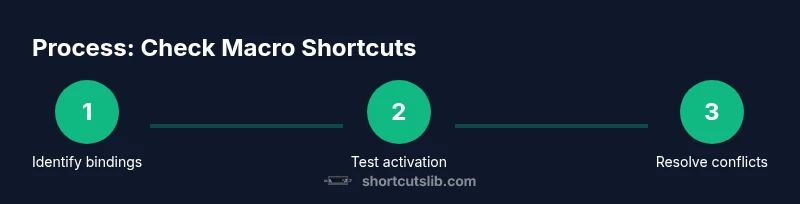
Testing strategies vary by environment but share core principles. First, ensure the macro is loaded and active. Then perform a controlled test by pressing the shortcut in a plain document or canvas where you can clearly observe the macro’s effect. If nothing happens, check for: (a) the shortcut being disabled, (b) a conflicting binding, (c) an override by a global OS shortcut, or (d) a scope limitation (e.g., only in a specific project). Tools often provide a log or console that records keystroke events; use it to verify the keystroke reaches the intended handler. If multiple apps could respond to the keystroke, isolate the test to one app to avoid cross-app interference. By adopting a disciplined testing approach, you’ll precisely identify whether a shortcut exists and functions as expected.
Resolving conflicts and avoiding false positives
Conflict resolution begins with detection. If two macros or commands share a shortcut, you must decide which one takes precedence based on context or user preference. Consider temporarily changing one binding to confirm the outcome of each option. If a system-wide shortcut steals the keystroke, you may need to adjust OS settings or create app-specific shortcuts. Documented conflicts should be resolved with a clear priority rule and a visible note in your macro repository. Finally, re-test after making changes to ensure the binding remains active and performs reliably across sessions and restarts. Shortcuts Lib consistently recommends a centralized changelog for macro bindings to prevent drift over time.
Tools & Materials
- Computer with target OS and apps installed(Ensure you have access to the exact environment where the macro runs)
- Target application with macro support(Needed to locate and test keybindings)
- Keyboard with programmable keys (optional)(Helpful for testing alternative bindings)
- Text editor or notes app(To document findings and bindings)
- Screen recording or screenshots tool(Useful for evidence during testing)
- Access to settings panels (OS/app)(Required to view and edit keybindings)
Steps
Estimated time: 25-40 minutes
- 1
Open the macro editor or settings
Launch the application or macro tool where the macro is defined. Navigate to the macro editor or keybindings panel so you can inspect the current bindings. Confirm the macro is loaded and visible in the editor before continuing.
Tip: If the macro isn’t visible, search by name and verify you’re in the correct project or workspace. - 2
Locate the candidate shortcut
Search for the keyboard combination you suspect is bound to the macro. Note the exact keys, modifiers (Ctrl/Alt/Shift), and any context such as modes or scopes.
Tip: Record the exact keystroke sequence as you find it, to avoid misreading modifiers. - 3
Test the binding in a neutral context
With the macro loaded, perform a controlled test by triggering the shortcut in a plain document or project area. Observe whether the macro executes and whether the output matches your expectation.
Tip: Use a reproducible test document to confirm results across runs. - 4
Check for conflicts in the same app
If the macro doesn’t trigger, inspect other commands that might use the same keystroke. Disable or rebind potential conflicting shortcuts and retest.
Tip: Disable one binding at a time to isolate the conflict source. - 5
Check OS-level shortcuts
Ensure the OS isn’t intercepting the keystroke before the app receives it. Review OS keyboard settings and global shortcuts and test with them temporarily disabled if possible.
Tip: Testing with OS shortcuts disabled is a quick way to confirm app-level binding behavior. - 6
Validate scope and persistence
Verify that the binding persists across sessions, projects, and restarts. Some environments require reloading the macro after startup or switching contexts.
Tip: Create a small test project to confirm persistence without affecting your main work. - 7
Document the binding clearly
Record the shortcut, its scope, the macro name, and any known conflicts or caveats. Store this in a centralized document or version-controlled file.
Tip: Include a date and environment tag so others can reproduce the test conditions. - 8
Repeat with alternative bindings (optional)
If practical, map the macro to a secondary key combination to compare behavior and preference, then choose the most reliable option.
Tip: Keep the original binding as a fallback until you’re confident in the new one.
Questions & Answers
What should I do if I can't find a macro shortcut in any settings panel?
If the shortcut is not visible in regular settings, check for bindings defined in API scripts, extensions, or project-specific configurations. Some macros are bound at runtime or loaded from external files. Review the macro’s source code or extension documentation to locate runtime bindings and then test in the exact environment where it’s used.
If you can't locate the shortcut in settings, inspect scripts or extensions that define the macro and test bindings within the target environment.
Can OS-level shortcuts override app-specific macro bindings?
Yes. OS-level shortcuts can intercept keystrokes before they reach the application. If this happens, you’ll need to adjust OS preferences or disable the conflicting global shortcut to allow the app-level macro to trigger reliably.
Be aware that system shortcuts can steal the keystroke; modify OS settings to test macOS or Windows behavior.
How do I create a new shortcut for a macro in an editor like VS Code or Excel?
Open the editor’s keybindings or macros panel, choose the macro, and assign a new keystroke. Save changes and re-load the editor to ensure the binding is active. Test by triggering the macro in a representative document.
To create a new shortcut, assign a key combo in the editor’s keybindings, save, and then test within the app.
What if two macros share the same shortcut, causing unpredictable behavior?
Identify all commands bound to the shortcut, decide which should take precedence based on context, and change one binding. Re-test to confirm the intended macro runs consistently.
If two macros clash on a shortcut, resolve by changing one of the bindings and re-testing.
Is it necessary to check keyboard shortcuts for macros regularly?
Yes. Regular checks help ensure bindings stay valid after software updates, extensions, or configuration changes. Maintain a living document of bindings so audits are quick and reliable.
Regular checks help prevent drift after updates; keep a current binding log.
Do these steps differ between Windows and macOS?
The general approach is the same: locate bindings, test, and resolve conflicts. The exact menus and paths differ by OS, so consult platform-specific guides when needed.
The approach is the same, but the steps can vary by Windows or macOS menus.
Watch Video
Main Points
- Locate where each macro shortcut is stored
- Test bindings in isolation before relying on them
- Resolve conflicts with a clear priority and documentation
- Document bindings for future maintenance