How to Check Hotkeys: A Practical Guide
Learn how to verify keyboard shortcuts across Windows and macOS, identify conflicts, and safely customize hotkeys with step-by-step checks and practical tests.


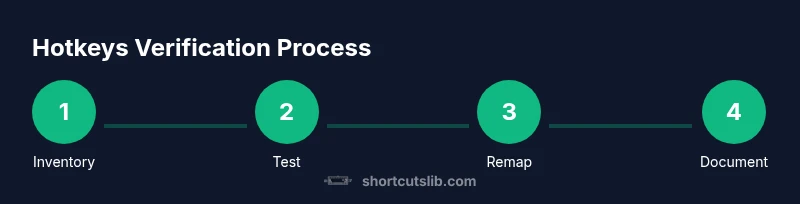
By the end of this guide, you will be able to verify that your keyboard shortcuts work reliably across apps, identify conflicts, and test or customize hotkeys on Windows and macOS. Start by compiling a list of target shortcuts, choosing a testing environment, and using simple tests to confirm each key combo functions as intended. According to Shortcuts Lib, consistent hotkeys accelerate expert workflows.
What is a hotkey and why check them?
Hotkeys, or keyboard shortcuts, are key combinations designed to trigger actions quickly without navigating menus. Across operating systems and applications, hotkeys can differ in scope: some are system-wide, others are app-only. Checking them means verifying that each shortcut actually performs the intended action, remains consistent across apps, and does not conflict with other shortcuts or system behavior. A well-tuned set of hotkeys saves time, reduces repetitive clicks, and lowers cognitive load during complex tasks. For professionals who rely on speed, Regularly validating hotkeys helps prevent workflow bottlenecks and ensures a predictable editing, navigating, and formatting experience. As Shortcuts Lib emphasizes, the reliability of shortcuts directly influences execution pace and accuracy in daily work.
Baseline inventory: identifying your shortcuts
Begin by listing the hotkeys you use most often across your typical software stack. Include OS-level shortcuts (like copy, paste, undo) and any app-specific ones (such as text formatting in a word processor or developer shortcuts in an IDE). Create a simple table with columns for Shortkey, Trigger, App/Context, Expected Result, and Status. This inventory acts as the foundation for your checks and helps you spot gaps where a shortcut is missing or duplicated. Don’t forget to note any modifier keys (Ctrl/Cmd, Alt/Option, Shift) and the exact keystroke order. Shortcuts Lib recommends starting with a compact, core set and expanding as you gain confidence.
Testing environment and prerequisites
Choose a stable environment for testing: the same OS version you use for work, plus one additional app where you frequently rely on shortcuts. Use both a text editor and a web browser to cover common modalities—editing, navigation, and browser commands. Ensure your keyboard layout is correct (US QWERTY is a common baseline, but adjust for your locale). Disable non-essential accessibility features that might alter key events (sticky keys, filter keys) during testing to avoid skewed results. Prepare a shared testing document so teammates can reproduce steps and verify outcomes consistently.
Verifying individual hotkeys: a method you can repeat
For each hotkey, perform a repeatable test: press the exact key combination in a controlled environment and observe the outcome. Compare the observed result with the expected action in the List. If an expected action doesn’t occur, try the same combo in a different app to determine if the issue is app-specific or universal. Record the result (pass/fail) in your inventory and adjust one variable at a time to isolate causes, such as a conflicting shortcut, a modified OS setting, or a mis-typed keystroke sequence.
System-wide vs app-specific shortcuts: what to know
System-wide shortcuts operate across the entire OS, while app-specific shortcuts work only within a particular program. Conflicts arise when a system shortcut and an app shortcut share the same keystroke, or when an OS update changes the default behavior. To reduce risk, prioritize testing system-wide shortcuts first, then verify each app-specific shortcut in the context where you’ll use it most. If conflicts appear, consider redefining an app shortcut or using an external tool to remap keys only within that app’s workflow.
Troubleshooting common hotkey issues
When a hotkey fails, check for common culprits: global OS settings, third-party software that intercepts keys, or browser extensions hijacking shortcuts. Ensure the keyboard hardware is responsive and that no keys stick. If a modifier key seems ignored, test with and without the modifier to confirm its status. Some keys may be reserved by the OS for accessibility or input methods; in those cases, you’ll need to reconfigure rather than replace them. Use a clean test document and a single working app to isolate variables faster.
Remapping and customizing hotkeys safely
If a needed shortcut is unavailable or conflicts with another action, remapping can restore your preferred workflow. Use OS-level remapping for universal changes (Windows PowerToys, macOS Keyboard Shortcuts) or app-specific settings for targeted changes. Always document remappings in your inventory and test thoroughly after changes. Avoid radical reconfigurations in a live production environment; implement changes in a controlled test build or profile and monitor for unintended side effects.
Documentation and sharing results with your team
Maintain a concise, versioned document listing each hotkey, its current behavior, and any changes you’ve made. Include screenshots or short screencasts for tricky cases, and share the document with teammates to ensure consistency. A living document encourages feedback and helps teams converge on a standard set of shortcuts, boosting overall productivity and reducing the cognitive load associated with switching between tools.
Practical testing templates and checklists
Use a reusable checklist for each hotkey tested:
- Shortkey and context
- Expected result
- Actual result
- Pass/Fail
- Date and tester
- Notes on conflicts or workarounds This structured approach enables quick audits and makes it easy to onboard new teammates to your shortcut standards. By keeping templates consistent, you’ll build a reliable baseline that scales with your tooling.
Next steps: maintenance and future-proofing
Hotkeys should be treated as living assets. Schedule periodic reviews, especially after OS or app updates, to ensure your shortcuts remain accurate. As your toolkit evolves, expand the inventory to cover new apps or workflows. A proactive approach prevents drift between intended and actual shortcuts, preserving the speed and precision you rely on. Shortcuts Lib suggests building a cadence around quarterly checks and ad-hoc reviews after major software changes.
blockDataNote":null},
Tools & Materials
- Computer or laptop (Windows/macOS)(Ensure the OS is up to date and you have admin access if remapping requires elevated privileges.)
- Two test applications (e.g., a text editor and a browser)(Choose apps that you use for core tasks to see realistic shortcut behavior.)
- A comfortable keyboard and mouse(Prefer a full-size keyboard to accurately test modifiers (Ctrl/Cmd, Alt, Shift).)
- Access to OS keyboard settings(Windows: Settings > Time & language > Typing or Shortcuts; macOS: System Preferences > Keyboard.)
- A compiled shortcut inventory (digital or printed)(List target hotkeys with expected actions for consistency.)
- Screen capture or recording tool (optional)(Useful to document odd behavior or failures.)
- Notes app or document repository(To track changes and share with teammates.)
Steps
Estimated time: 4-6 hours total for initial audit and setup, then 1-2 hours per quarterly review
- 1
Identify target hotkeys
List the most important shortcuts you rely on daily, covering OS-wide and app-specific commands. Include modifiers and the exact key sequence. This creates a focused baseline for testing.
Tip: Capture both common actions (copy/paste) and niche commands you use in your workflow. - 2
Set up a stable testing environment
Prepare a controlled workspace with a consistent OS version and a minimal set of running apps to avoid background processes interfering with shortcuts.
Tip: Disable accessibility features that can alter keyboard input during tests. - 3
Test system-wide shortcuts first
Verify core OS shortcuts consistently across multiple apps to confirm baseline reliability. Record pass/fail status for each.
Tip: Test in both text input and navigation contexts where the shortcut is used. - 4
Test app-specific shortcuts
Check shortcuts within your primary apps to confirm they map to the intended actions in those environments.
Tip: Note any shortcuts that conflict with OS-level commands. - 5
Check for conflicts and overlaps
Identify shortcuts that clash between OS and apps or across different tools; document the conflicts.
Tip: Prioritize resolving conflicts that affect daily workflows. - 6
Document results clearly
Maintain a shared log with the shortkey, context, expected action, actual result, and date.
Tip: Use a consistent format so teammates can reproduce checks. - 7
Remap when necessary
If a shortcut is unavailable, remap cautiously using OS or app settings and re-test thoroughly.
Tip: Always test remapped shortcuts in the typical workflow. - 8
Review and socialize changes
Share your findings with the team; keep the inventory updated and aligned with team standards.
Tip: Involve teammates to validate changes and avoid isolated tweaks. - 9
Plan ongoing maintenance
Set a cadence for regular reviews, especially after software updates.
Tip: Treat hotkeys as living assets that evolve with tools. - 10
Create a repeatable checklist
Develop a reusable template to audit hotkeys for new tools or projects.
Tip: A consistent template speeds up onboarding and audits.
Questions & Answers
What is the best way to start checking hotkeys on a new computer?
Begin with a small core set of essential shortcuts (copy, paste, undo, redo). Verify their behavior in one or two apps, then broaden. Maintain a simple inventory to track results and any conflicts.
Start with the basics—verify core shortcuts on one or two apps, then expand and log results.
How can I tell if a hotkey conflict is OS-related or app-specific?
Test the same shortcut in a system dialog (e.g., copy in a text field versus a system prompt). If behavior changes, it’s likely OS-related; if it works differently across apps, it’s app-specific.
Test in a system dialog and in the target app to see where the issue lies.
What should I do if a hotkey stops working after an update?
Re-run your baseline inventory, re-test the shortcut in all affected apps, and check for new conflicts introduced by the update. If needed, adjust the remapping or re‑train the workflow.
After an update, re-test all shortcuts and adjust mappings if needed.
Are global hotkeys different from local (app-specific) hotkeys?
Global hotkeys work across the entire OS, while local hotkeys apply only within a particular application. Conflicts are more common with global shortcuts when apps compete for the same keystrokes.
Global shortcuts work everywhere; app-specific shortcuts stay within one app.
Is it risky to remap hotkeys?
Remapping is generally safe when done in controlled environments and documented. Avoid sweeping changes that affect critical workflows until tested.
Remap carefully and test before using in daily work.
How often should I review hotkeys?
Plan quarterly reviews, plus ad-hoc checks after major OS or app updates to catch evolving shortcut behavior.
Review shortcuts quarterly and after major updates.
Watch Video
Main Points
- Audit core hotkeys first
- Differentiate system-wide vs app-specific shortcuts
- Document results for team alignment
- Remap cautiously and test thoroughly
- Maintain a living shortcut inventory