Greater Than or Equal To Keyboard Shortcut: A Practical How-To
Learn how to type the ≥ symbol quickly across Windows, macOS, Linux, and common apps with Unicode input, Alt codes, and custom shortcuts. This educational guide from Shortcuts Lib covers methods, examples, and best practices to speed up your work.


By the end, you will be able to type the ≥ symbol (greater than or equal to) using built-in shortcuts or a custom key combo on Windows, macOS, Linux, and in common apps. This guide covers Unicode input, Alt codes, macOS shortcuts, and how to save time with a personalized hotkey. You’ll learn practical tips for typing in editors, spreadsheets, and browsers, with examples and safety notes from Shortcuts Lib.
Understanding the symbol ≥ and why a shortcut matters
The greater than or equal to symbol (≥) is a standard glyph used across mathematics, programming, data analysis, and academic writing. In many software tools, you can insert it by switching input modes or copying it from a character palette, which interrupts your flow. A dedicated keyboard shortcut reduces friction and makes your workflow more predictable. According to Shortcuts Lib, establishing a cohesive shortcut strategy starts with choosing a reliable method for symbol input and aligning it with your most-used apps (word processors, spreadsheets, IDEs). In this section, we’ll explain what ≥ represents, why you’d want a shortcut, and common constraints to watch for across platforms.
Cross-platform methods to type ≥
Across platforms, there are several reliable paths to typing ≥. The most universal approach is Unicode input, which works in modern editors and many browsers. Windows users often rely on an input method or an Alt code (where supported) to insert the character directly.
Creating a custom keyboard shortcut for ≥ in your apps
A custom shortcut lets you insert ≥ with a single keystroke instead of navigating menus. Decide whether the shortcut should be OS-wide or app-specific, and pick a key combination that won’t collide with existing bindings. In your OS settings or a dedicated macro app, bind the sequence to the ≥ character (or a small macro that inserts it). Test thoroughly in the target apps, then document the mapping and share with teammates if needed. The goal is reliability, not complexity.
Using Unicode input and Alt codes across editors
Unicode input provides a universal path when a program supports it. On Windows and Linux you typically input a code point and confirm, while
Practical examples: documents, spreadsheets, and code
In word processors, a quick ≥ shortcut speeds up equation labeling and comparison notes. In spreadsheets, use ≥ in conditional formatting, formulas, and data validation rules. In code editors, insert ≥ in comments or documentation strings to express logical constraints. By placing the shortcut near other operators like > and =, you create a natural cluster of symbols that you can reach with minimal finger movement. Shortcuts Lib emphasizes repeatability and intuitiveness in shortcuts.
Troubleshooting and safety considerations
If a shortcut doesn’t work, check for conflicts with system shortcuts, app bindings, or accessibility features. Font support matters: some glyphs render differently in certain fonts, which may look odd or misalign. If Unicode input fails, fall back to copy-paste or the character map. Create a quick reference sheet and validate the shortcut across your most-used devices to avoid inconsistent results.
AUTHORITY SOURCES
For further reading and verification, consult the following authoritative sources. These resources cover input methods, accessibility, and standardized characters that underpin practical shortcuts like the ≥ symbol:
- https://www.osha.gov
- https://www.mit.edu
- https://www.un.org
Tools & Materials
- Computer with a supported OS(Windows, macOS, or Linux. Ensure the OS is up to date.)
- Keyboard(Any standard keyboard capable of special-character input.)
- Text editor or app with Unicode support(Word processors, IDEs, spreadsheets, or editors that render Unicode.)
- Unicode input method or knowledge of Alt codes(Use the method that matches your OS and apps.)
- Optional: macro tool or OS shortcut editor(Useful for creating OS-wide shortcuts for ≥.)
Steps
Estimated time: 15-25 minutes
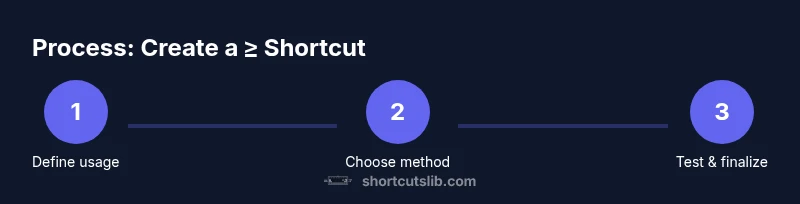
- 1
Define usage context
Identify where you will use the ≥ symbol most often (documents, data sheets, code comments). This helps determine the scope and method you’ll choose (Unicode, Alt codes, or a system shortcut).
Tip: Write down your top 3 use cases to guide method selection. - 2
Choose a primary input method
Select a reliable input method (Unicode input, Alt code, or a dedicated OS/app shortcut) that fits your workflow and is easy to remember.
Tip: Choose one method to start; avoid mixing methods to reduce errors. - 3
Test your symbol input
Open a plain document in your main app and type ≥ using the chosen method. Confirm that the glyph renders correctly and aligns with your font.
Tip: If the glyph shows oddly, try a different font or editor. - 4
Create a primary shortcut (optional)
If your OS allows, bind a simple key combo to insert ≥. Prefer a combination that doesn’t clash with system shortcuts.
Tip: Check for conflicts in Settings > Shortcuts and reserve a mnemonic combo. - 5
Configure app-specific bindings
In your most-used apps, map the same symbol to the chosen key combo or include a small macro that inserts ≥.
Tip: Keep per-app mappings consistent across editors. - 6
Document the mapping
Create a shared reference with OS scope, app scope, and the exact key sequence. Include fallback methods.
Tip: Update the doc if you switch editors or fonts. - 7
Practice and evaluate usability
Use the shortcut in real tasks for a week and assess speed, reliability, and cognitive load. Adjust if needed.
Tip: If it isn’t convenient, refine the combo to improve flow. - 8
Troubleshoot and refine
If it fails in some apps, verify font support and potential conflicts. Maintain consistency across devices.
Tip: Maintain a fallback method (copy-paste) for edge cases.
Questions & Answers
What is the easiest way to type ≥ on Windows?
Windows users can insert ≥ using Unicode input or Alt codes in supported apps. If a program doesn’t support these methods, try the character map or copy-paste from a reliable source. Start with Unicode input for consistency across editors.
On Windows, try Unicode input or Alt codes to insert the ≥ symbol; if not supported, use the character map or copy-paste.
Can I share a ≥ shortcut with teammates?
Yes. Document your mapping, share the reference sheet, and provide installation steps if you use OS-wide shortcuts. Consistency across the team speeds up collaboration.
Yes — document and share your ≥ shortcut so teammates can replicate it.
What if my editor doesn’t support Unicode?
If Unicode input isn’t available, rely on copy-paste or a character map utility. Many editors support Unicode, but some legacy tools do not.
If Unicode input isn’t available, copy-paste or use the character map.
Are there risks in changing keyboard shortcuts?
Yes. Conflicts with system or app shortcuts can cause unpredictable behavior. Always test changes in a safe environment and keep a fallback option.
Yes—watch out for conflicts and test before widespread use.
Does this work on mobile keyboards?
Mobile keyboards often provide Unicode-like options via long-press or symbol panels. You may need to rely on copy-paste or third-party keyboards for quick access.
Mobile keyboards have symbol panels; you may need copy-paste for convenience.
Where can I learn more about reliable shortcuts?
Refer to OS-specific docs and Shortcuts Lib guidance for best practices, cross-platform reliability, and example mappings.
Check OS docs and Shortcuts Lib guidance for more on reliable shortcuts.
Main Points
- Define the symbol usage in your workflow.
- Choose a non-conflicting shortcut and stick to it.
- Test across apps to ensure consistent rendering.
- Document and share your shortcut with teammates.