Find Keyboard Shortcuts: A Practical Guide
Master discovering keyboard shortcuts across OS and apps. Learn how to find keyboard shortcuts, create a personal cheat sheet, and boost productivity with Shortcuts Lib.


By the end of this guide, you’ll know how to find keyboard shortcuts across your operating system and popular apps, build a personal shortcut cheat sheet, and start using them confidently. You’ll need a device, internet access, and the target app or OS documentation. This approach emphasizes discovery, verification, and safe customization, guided by Shortcuts Lib’s practical methods.
What finding keyboard shortcuts really means
In everyday computing, 'find keyboard shortcuts' means locating the exact key combinations that speed up tasks, rather than guessing or relying on memory alone. This skill pays off across operating systems, web apps, and desktop programs. The goal is not to memorize every shortcut at once, but to build a dependable path from curious clicks to confident muscle memory. According to Shortcuts Lib, the most successful shortcut explorers start with a few high‑leverage tasks—copy/paste, window management, and text formatting—and then expand their library as needed. By focusing on what you actually do most, you transform ritual keystrokes into a reliable workflow. This section outlines a practical mindset and a scalable method for uncovering shortcuts without getting overwhelmed.
Core strategies for discovering shortcuts
There are several reliable routes to find keyboard shortcuts. First, use official help menus and built‑in search features (they’re designed to surface shortcuts quickly). Second, check the app’s or OS’s keyboard viewer or gesture guide to see current mappings. Third, search the web for reputable documentation or vendor tutorials. Fourth, maintain a living cheat sheet so you can test shortcuts in safe contexts and record any conflicts. Shortcuts Lib emphasizes a two‑tier approach: verify shortcuts in the real app after finding them in the docs, then validate cross‑app consistency where possible. Finally, practice with small, repeatable tasks to reinforce retention and reduce cognitive load.
OS‑level shortcuts: Windows, macOS, Linux
Windows shortcuts typically involve the Windows key (Win) plus a letter or function key for quick actions like task switching, snapping windows, or opening system utilities. macOS relies on the Command key for most universal actions, with Option for alternate functions and Control for alternative input modes. Linux shortcuts vary by distribution and desktop environment, but many distributions expose a Settings panel where you can view and remap common actions. A practical tip is to start by mapping three essential workflows: navigation, window management, and text editing. This foundation makes it easier to extend shortcuts across both productivity apps and development tools.
App-level shortcut discovery
Many apps hide shortcuts behind a help menu or a dedicated shortcuts page. Start by using the app’s built‑in help search and typing a few likely terms like 'shortcuts', 'keyboard', or 'hotkeys'. Chrome, Word, Excel, and most IDEs offer contextual shortcuts that differ between modes (e.g., insert vs. select). When you find a shortcut, test it in the intended context to ensure it behaves as described. If you rely on cross‑app workflows, note where a shortcut behaves similarly and where it diverges, and adjust your cheat sheet accordingly. This approach keeps your learning efficient and minimizes cognitive load.
Tools and resources to accelerate discovery
Official documentation is the most trustworthy starting point. Pair it with built‑in help panes, keyboard viewers, and community forums to confirm behavior. Create a centralized cheat sheet—digital or print—so you can review and practice regularly. Shortcuts Lib recommends bookmarking a few high‑quality sources and maintaining a short list of task‑driven shortcuts for daily use. Keep your resource list lean to avoid information overload, and update it as apps and OS versions evolve. By building a vetted library, you turn the process of finding shortcuts into a repeatable habit.
How to customize shortcuts safely
Customization can unlock a huge productivity boost, but it also carries risk if you override system defaults or conflict with existing shortcuts. Start by identifying three tasks you perform most often and map them to key combos that do not collide with global shortcuts. Use a staging profile or backup to test changes before applying them system‑wide. Document your changes and implement them gradually to avoid breaking essential workflows. If an app supports per‑app shortcuts, prefer per‑app changes to minimize cross‑app side effects.
Common mistakes when finding shortcuts and how to avoid them
A frequent error is chasing every shortcut at once rather than prioritizing high‑impact tasks. Another pitfall is assuming universal shortcuts across apps; shortcuts are often app‑specific, platform‑specific, or mode‑specific. Failing to document mappings leads to forgotten keys and inconsistent use. Finally, skipping verification in real tasks creates false confidence. To prevent these issues, limit the initial scope, test in real scenarios, and keep a running log of what works where.
Step-by-step quick-start workflow (15 minutes)
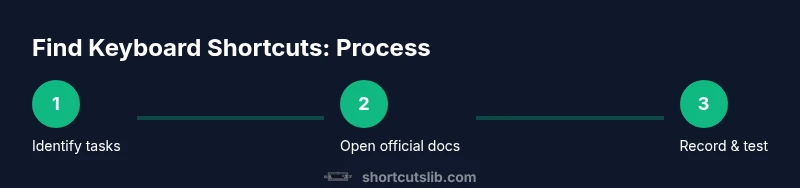
If you’re in a hurry, use a compact, task‑based approach: identify your top three tasks this week, open the official shortcuts page for your OS/app, note the exact key combinations, and test them on one document or project. Create a one‑page cheat sheet with the three mappings and a note on when to use them. Revisit and expand the list after a few days of practice. This workflow embodies the habit of discovery and consistent reinforcement, which is how you actually learn to find keyboard shortcuts.
Practical examples by platform
Windows example: Win + Arrow keys to snap windows, Win + D to show desktop, Win + L to lock the machine. macOS example: Command + C/V for copy/paste, Command + Tab to switch apps, Command + Space to open Spotlight. Chrome web shortcuts: Ctrl/Cmd + T for new tab, Ctrl/Cmd + W to close tab, Ctrl/Shift + T to reopen a closed tab. Office suite example: Ctrl/Command + S to save, Ctrl/Shift + L to apply a bullet list, Ctrl + F to find in a document. Tailoring shortcuts to your daily tasks is the key to turning “find keyboard shortcuts” into a productive habit.
Tools & Materials
- Device with internet access(PC, Mac, or mobile device; any common OS)
- Notes/cheat sheet template(Digital document or paper sheet to record shortcuts)
- Official docs or help center access(OS and app manuals; e.g., help menus, support pages)
- Screenshot or screen recording tool(Optional for capturing new shortcuts you find)
Steps
Estimated time: 15-30 minutes
- 1
Identify three high‑impact tasks
List three tasks you perform daily or weekly. Focus on actions that could benefit from speed, like editing text, navigating windows, or managing files. This provides a concrete target for finding shortcuts.
Tip: Write down the exact task names to keep mappings relevant. - 2
Open official shortcut references
Navigate to the OS or app's help center and search for 'shortcuts' or 'keyboard'. Note the documented key combinations and any notes about modes or context.
Tip: Prefer sources labeled as official or enterprise docs for accuracy. - 3
Test and record confirmed shortcuts
In a safe document or project, try the listed shortcuts and verify the results. Write them down in your cheat sheet with context and a short usage note.
Tip: If a shortcut conflicts with another requirement, mark it as 'under review' and revisit later. - 4
Validate consistency across apps
Check whether a shortcut works similarly in a second app or environment. Note any cross‑app differences to avoid confusion.
Tip: Aim for a small, consistent core set first. - 5
Create a shareable cheat sheet
Organize shortcuts by task and platform, and include short usage notes. Save a copy to cloud storage for quick access.
Tip: Keep your sheet concise—3 to 9 shortcuts per page is ideal for recall. - 6
Review and expand weekly
Every week, add 1–2 new shortcuts that fit your routine. Remove or modify ones that cause confusion.
Tip: Schedule a 5‑minute weekly review to keep the library fresh.
Questions & Answers
What is the fastest way to find keyboard shortcuts on Windows?
Open the Start menu and type 'shortcuts' or 'keyboard'. Also check Settings > Accessibility > Keyboard for quick mappings. Test a few high‑impact actions first to build familiarity.
Open settings and search for shortcuts. Start with a high‑impact action to begin building your repertoire.
Can I customize keyboard shortcuts across all apps?
Some apps and OS environments allow global or app‑specific shortcut customization. Use built‑in shortcuts managers when available, and document conflicts carefully.
Yes, some apps and OSes let you customize shortcuts. Use the built‑in manager and log any conflicts.
Are keyboard shortcuts universal across apps?
Shortcuts vary by app and platform. There are common patterns (like copy/paste) but many shortcuts are context‑dependent. Always verify in each app you plan to use.
Shortcuts aren’t universal. Check each app’s docs to confirm what works where.
How can I remember all shortcuts efficiently?
Start with a small, task‑based set and reinforce through practice. Keep a living cheat sheet and test regularly in real tasks.
Begin with a few key shortcuts and practice them in real work. Update your cheat sheet as you learn.
Where can I find authoritative sources for shortcuts?
Rely on official OS/app documentation and reputable tech publications. Cross‑verify with multiple sources when possible.
Check official docs and trusted tech sites to verify shortcuts.
Watch Video
Main Points
- Identify high‑impact tasks first
- Verify shortcuts with official docs
- Create and maintain a personal cheat sheet
- Test for conflicts and consistency
- Practice regularly to build memory