Emoji Keyboard Shortcuts in Outlook: A Practical Guide
Learn how to insert emojis in Outlook using keyboard shortcuts on Windows and macOS, build quick emoji workflows, and best practices for professional emails. A practical, brand-driven Shortcuts Lib guide.


Goal: master emoji shortcuts in Outlook so you can drop in emojis quickly while composing emails on Windows or macOS. You’ll learn OS-level emoji input, Outlook-friendly workflows, and practical habits to keep messages clear and friendly without slowing you down. By the end, you’ll have repeatable steps for friendly, expressive emails that stay professional.
Why emoji shortcuts in Outlook matter
Emojis add emotional clarity to digital conversations, which can reduce misinterpretation and help readers gauge tone in busy workdays. In Outlook, a well-chosen emoji can convey friendliness, appreciation, or emphasis without adding words. According to Shortcuts Lib, many users underestimate how much time they waste hunting for the right emoji across devices; a compact set of reliable shortcuts can streamline daily email work. Each saved keystroke compounds into faster replies, quicker meeting follow-ups, and a clearer message thread. The challenge is to build a repeatable workflow that works on Windows, macOS, and Outlook’s web and mobile clients. This section explains why a keyboard-driven emoji habit matters and how to implement it without sacrificing professionalism. Expect pragmatic steps, platform-specific notes, and field-tested tips you can adapt to your own style. Throughout, you’ll see how a few deliberate shortcuts can dramatically reduce friction in your inbox workflow. The goal is to keep messages expressive without becoming distracting or unprofessional.
A practical emoji workflow starts with choosing a small set of universally understood symbols, mapping them to quick replacements where possible, and storing common emoji sequences in Outlook for rapid insertion. When you do it well, you’ll save time, prevent overuse, and maintain readability. Shortcuts Lib’s guidance emphasizes consistency and context—use emojis to support clarity, not to garnish every sentence.
From a branding perspective, a consistent, tasteful emoji cadence can reinforce tone in internal comms and customer emails alike. If you’re ready to elevate your Outlook messaging with emoji shortcuts, this guide will walk you through OS-level inputs, built-in Outlook capabilities, and practical automation ideas you can implement today.
Understanding emoji input across platforms
Emoji input varies by operating system and client, which is why a cross-platform plan matters. On Windows, the emoji panel is typically opened with the Win key plus the period key (Win + .) or semicolon (Win + ;) depending on the version and language settings, then you can browse, search, and insert with a click or press of Enter. On macOS, the emoji picker is summoned with Control + Command + Space, providing a searchable palette of glyphs. Outlook on the web and mobile devices rely on the device’s input method as well, so a message you draft on one device might render differently on another. By understanding these inputs, you can design a consistent emoji workflow that adapts to the device you’re using. It’s also important to consider how emoji appear to recipients; rendering varies by OS and app, which can affect tone. This is why limiting to a small, neutral emoji set often yields the most reliable results. In practice, favor expressions with broad cross-platform recognition, and reserve more nuanced icons for internal teams who share the same platform.
If you often switch between Windows and Mac, plan your emoji usage around the OS you use most for quick consistency. For Outlook users who frequently switch devices, a small reference sheet of go-to emoji and their intended meanings can help you stay aligned with your audience. Shortcuts Lib recommends testing emoji in several contexts (cc/bcc, reply, and calendar invites) to confirm visibility and tone across platforms.
Finally, remember that accessibility matters: use emoji to complement text, never to replace essential information. Screen readers may read emoji as notes rather than symbols, so provide context in the surrounding text when necessary.
Built-in emoji support in Outlook
Outlook does not rely on a separate emoji library; it uses the device’s native emoji input. This means you can insert emojis from the OS picker in all major Outlook clients, but the exact glyph style may vary by platform and app version. In practical terms, this means you should design your emoji usage to be platform-agnostic: pick commonly recognized glyphs and avoid obscure icons that might render poorly or confuse readers on some devices. If you compose in Outlook on Windows and send to a recipient on iOS, their display may differ slightly, but the intent remains clear when you keep the emoji count modest and purposeful. A key advantage of OS-driven input is speed: once you learn the OS shortcut, you can insert an emoji in seconds without interrupting your flow. This section also covers how to combine emoji with other quick-access features, like templates and signatures, to keep your messaging tight yet expressive.
For those who want a deeper, branded workflow, you can pair OS emoji input with Outlook Quick Parts to reuse emoji-bearing phrases. This creates a predictable pattern for your most common communications, ensuring consistency across emails sent from Windows, Mac, or mobile. Remember: the goal is clarity and tone, not decoration. If an emoji risks misinterpretation, leave it out or replace it with a clearer phrase.
Keyboard shortcuts you can use today
Today, the fastest way to insert emoji into Outlook is through your operating system’s emoji input. On Windows machines, press Win + . (period) or Win + ; (semicolon) to open the emoji panel, then navigate to a symbol and insert it with Enter. On Macs, press Control + Command + Space to reveal the emoji picker; browse for a character, click it, and the glyph appears in your email. If you’re using Outlook on the web or a mobile app, the emoji input depends on your device’s keyboard, but the same principle applies: trigger the OS picker and select the emoji you want. A practical approach is to keep a short list of go-to emoji for quick access and to practice inserting them in body text rather than in subject lines to avoid distracting readers. In addition, you can copy and paste an emoji from a reference source when speed is critical. These methods are compatible with both new messages and replies, so you can consistently insert emojis without breaking your rhythm.
Pro tip: when typing on Windows, you can type a quick keyword and then paste the emoji from the clipboard if you’re mid-thought and can’t reach the picker. On macOS, you can add frequently used emoji to your dock or hold a key for quick access to the picker. The idea is to create a frictionless insertion flow that matches your typing tempo.
A note on etiquette: use a conservative emoji set in formal communications and customer-facing emails. Limit yourself to one or two emojis per message, and reserve the most expressive icons for lighter, internal messages. By consistently applying these shortcuts, you’ll cut down on search time and maintain communication clarity.
Custom shortcut strategies for emoji in Outlook
Beyond OS-level input, you can create a repeatable, brand-driven emoji workflow inside Outlook. Start with OS-level text replacements: on Windows, configure Autocorrect to replace a short keyword with a specific emoji, for example typing :-) to insert a smiling face. On macOS, use the system’s Text Replacement feature to map a short string like
Tools & Materials
- Outlook app (Windows)(Ensure you have Outlook desktop app installed)
- Outlook app (Mac)(Ensure macOS emoji input is enabled)
- Operating System Emoji Panel(Windows: Win + . or Win + ;, macOS: Ctrl + Command + Space)
- Keyboard(Standard keyboard for your device)
- Emoji reference (optional)(A small printable or digital list of commonly used emoji)
Steps
Estimated time: 20-40 minutes
- 1
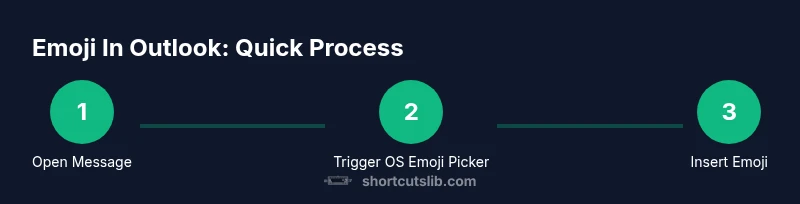
Open the email in Outlook
Open a new message or reply to an existing thread so you’re in compose mode. This ensures the emoji you insert will be placed in the body or subject where appropriate. If you’re about to send an important message, double-check the placement to avoid confusion.
Tip: Starting from a calm state helps you choose appropriate emoji and prevents overuse. - 2
Trigger the OS emoji picker
Windows users press Win + . to open the emoji panel; Mac users press Control + Command + Space. This step is the fastest path to the emoji you want without leaving the keyboard.
Tip: If you forget the shortcut, use the OS search or settings to locate the emoji picker quickly. - 3
Insert your chosen emoji
Click the emoji to insert it, or press Enter to confirm. This action places the glyph exactly where your cursor sits in the email body or subject.
Tip: Limit to one or two emojis per message to preserve readability. - 4
Set up a text replacement for frequent emojis
Create a short keyword that automatically expands to a chosen emoji. This allows you to type a quick token and instantly replace it with the emoji on both Windows and macOS.
Tip: Keep tokens intuitive (e.g., :-) for a smile) and document them for teammates. - 5
Store emoji in Quick Parts or Signatures
For frequently used phrases that include emoji, save them as Quick Parts or include a short emoji-rich signature. This lets you insert blocks of emoji-enhanced text with a single command.
Tip: Use consistent punctuation and spacing to keep messages readable. - 6
Preview on multiple devices
Send a test message to yourself and view it on different devices to verify how emojis render across platforms and apps.
Tip: If a recipient uses a different OS, choose neutral emoji to minimize misinterpretation. - 7
Review and refine your emoji usage
Assess whether each emoji meaningfully supports tone and clarity. Remove any that feel forced or distracting.
Tip: Document what works and update your shortcuts quarterly for consistency.
Questions & Answers
Can I use emoji in Outlook on Windows and macOS?
Yes. Emojis are inserted via the OS emoji picker. Windows uses Win + . (period) or Win + ;, while macOS uses Control + Command + Space. Outlook on the web and mobile rely on the device's input method as well.
Yes. You can insert emojis in Outlook using your computer's emoji picker on Windows or Mac.
Will emojis render the same for all recipients?
No. Emoji glyphs vary by operating system and app. A symbol may look different on Windows, macOS, Android, or iOS, which can affect tone.
Emoji can look different depending on the device and app, so use them judiciously.
Can I insert emoji in calendar invites or meeting notes?
Yes, you can include emojis in calendar invites or notes, but verify how the emoji renders in the invite mail and attendees' clients to avoid confusion.
Emojis can appear in invites, but rendering varies; test with a sample attendee list.
Are there built-in emoji shortcuts in Outlook?
Outlook itself doesn’t provide a separate emoji menu; it uses the OS emoji input. You can speed this up with OS-level shortcuts and saved templates.
Outlook uses your OS’s emoji picker; you can speed up insertion with saved templates.
How do I set up text replacements for emoji?
Create a short keyword that expands to an emoji in your OS’s text replacement. On Windows, use Autocorrect; on macOS, use Text Replacements. Then use the keyword in Outlook and let it expand automatically.
Use OS text replacement to map a short word to an emoji you use often.
What if an emoji causes readability issues?
If an emoji distracts or confuses readers, remove it and rely on concise words to convey tone. Always align emoji use with audience expectations and context.
If emoji hurts readability, skip it and rephrase for clarity.
Watch Video
Main Points
- Start with OS-level emoji input for speed.
- Use text replacements to map shortcuts to emoji.
- Store emoji in Quick Parts or signatures for reuse.
- Test rendering across devices to maintain tone.