Bluebeam Keyboard Shortcuts Not Working: Troubleshooting Guide
Struggling with bluebeam keyboard shortcuts not working? This urgent, step-by-step guide helps you diagnose conflicts, reset shortcuts, and restore efficient Bluebeam Revu workflows.


Why bluebeam keyboard shortcuts not working
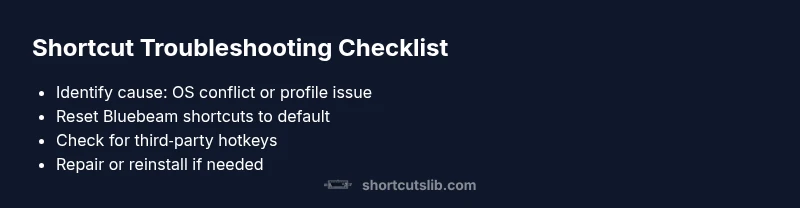
When you rely on keyboard shortcuts to speed up your PDF workflows, a malfunction can grind productivity to a halt. The problem is especially frustrating if you use Bluebeam Revu for markups, measurements, and navigation. In many cases the issue is not with your fingers but with software settings or system interactions. According to Shortcuts Lib, the most common causes are conflicts with OS global shortcuts or a corrupted Bluebeam user profile, which can silently override or disable hotkeys. A quick diagnostic mindset helps: verify your shortcut layout, reset defaults, and rule out external remappings before diving into deeper fixes. If you’re dealing with bluebeam keyboard shortcuts not working, this guide will help: you’ll find practical checks, step-by-step fixes, and preventive tips to keep your shortcuts responsive. By following the strategies below, you’ll reduce downtime and keep your Bluebeam workspace efficient.
Quick Diagnostics and Common Scenarios
Common scenarios where shortcuts fail include conflicts with OS global hotkeys, language/keyboard layout changes, stale Bluebeam preferences, or third-party utilities intercepting keys. Shortcuts Lib analysis shows that most issues arise from configuration mismatches rather than a bug in Revu itself. Start with the simplest checks: confirm you’re using the standard keyboard layout, close other apps that might steal keystrokes, and verify that Bluebeam Revu is the active window when you press shortcuts. If a shortcut still doesn’t respond, note the exact key combination and the command it should trigger to guide deeper troubleshooting.
Quick Checks You Can Do Now
- Verify the shortcut is enabled in Bluebeam Preferences. - Try the shortcut in a new profile or a clean install to rule out profile-specific corruption. - Test a couple of defaults like Ctrl+S and Ctrl+Z; if these fail, the issue is system-wide rather than tool-specific. - Check your system language and keyboard layout; a mismatch can alter shortcut behavior. - Look for conflicting hotkeys in other software (screen capture utilities, clipboard managers, PDF tools) and temporarily disable them.
In-Depth Fix: Reset Shortcuts and Revu Preferences
Resetting Bluebeam shortcuts to default resolves the majority of issues. Navigate to Preferences > Shortcuts and click Reset to Default. Then exit Bluebeam Revu and relaunch to apply changes. If problems persist, reset the entire user profile by renaming the Bluebeam folder in AppData (Windows) or the equivalent on macOS, then reopen Revu and reconfigure your shortcuts gradually. Always back up your settings first.
Conflicts: OS Shortcuts, Third‑Party Tools, and Language Layouts
OS-level shortcuts can override Bluebeam’s keystrokes. Check Windows or macOS keyboard shortcuts and temporarily disable or remap conflicting ones. If you use a third‑party tool (AutoHotkey, clipboard managers, or screen capture software), disable its global shortcuts while testing. If you recently changed the system language or input method, revert to the baseline layout and re-test the affected shortcuts.
Update, Repair, or Reinstall Bluebeam Revu
Ensure you are on the latest Bluebeam Revu patch; install any pending updates and restart. If shortcuts still fail, run a repair or reinstall from the installer. Before reinstalling, back up your profiles and custom tools. After reinstall, reapply your essential shortcuts and verify recovery.
Best Practices to Prevent Shortcut Issues
- Keep Bluebeam and your OS up to date; enable automatic updates where available. - Create a separate test profile for troubleshooting to avoid data loss. - Document your custom shortcuts and maintain a simple, consistent layout across devices. - Periodically review third‑party utilities that might steal shortcuts and whitelist Bluebeam where needed.